



Paying for a fast internet plan does not always mean every service gets the same treatment. If Netflix keeps buffering, drops from 4K to HD, or feels strangely worse than the rest of your connection, your router may not be the problem.
One possible cause is bandwidth throttling. That is when an internet service provider slows certain types of traffic rather than slowing your whole connection. Streaming, gaming, video calls, and file sharing are common examples of data-heavy activity that may be managed differently on busy networks.
That does not mean every bad Netflix night is proof your ISP is interfering. Wi-Fi congestion, an overloaded streaming device, a weak router, neighborhood network traffic, or a temporary Netflix issue can all produce similar symptoms. But there are a few simple checks that can help you work out whether your video traffic is being treated differently from everything else.
This guide explains how ISP throttling can work, how to test for possible Netflix throttling, what a VPN can and cannot fix, and how to choose a VPN if your main goal is smoother streaming.
What ISP throttling means in practice
Bandwidth throttling is the deliberate slowing of some internet traffic by a provider. It may apply to a whole connection after a data cap, but it can also be more targeted. In that second case, the provider may reduce speed for a category of traffic, such as streaming video, gaming, or peer-to-peer transfers.
Providers usually describe these policies in terms such as traffic management, fair usage, congestion management, or network optimization. The details matter. Some policies only apply at peak times. Some apply after a household uses a certain amount of data. Others may prioritize certain services or deprioritize heavy traffic when the network is under strain.
For the viewer, the result is simple: your speed test may look healthy, but Netflix still struggles. A 500Mbps plan should have more than enough capacity for 4K streaming under normal conditions, so repeated buffering on one service is worth investigating.
How ISPs may identify streaming traffic
Internet providers can manage traffic in several ways. One commonly discussed method is deep packet inspection, often shortened to DPI. In broad terms, this can help a network identify patterns, destinations, or metadata associated with different types of traffic.
A provider does not need to know the exact film or episode you are watching to classify the connection as streaming. It may be enough to recognize that traffic is going to or from a video platform, content delivery network, or known service endpoint.
Encryption limits what can be inspected, but it does not make every part of a connection invisible. Depending on the protocol, DNS behavior, server IP address, and other routing details, a provider may still be able to infer the broad type of service being used.
That is why throttling can be hard to prove from home. You are looking for patterns, not a single smoking-gun result.
How to check whether Netflix is being throttled
The simplest test is to compare a general speed test with a streaming-focused test. The goal is not to get a perfect lab-grade result. It is to see whether ordinary traffic and Netflix-related traffic show a large, repeatable difference.
- Restart your modem, router, and streaming device so you are not testing against a stale connection problem.
- Connect by Ethernet if possible. If you must use Wi-Fi, stand close to the router and avoid testing from a weak signal area.
- Run a general speed test from a neutral testing service and record the download speed, upload speed, ping, date, and time.
- Run a Netflix-focused speed test using Fast.com and record the same details.
- Repeat both tests at least three times, ideally during the evening when the problem usually appears.
- Run the same tests again at a quieter time of day, such as early morning, so you can compare peak and off-peak behavior.
Fast.com is useful because it is designed around Netflix delivery. If a standard speed test reports strong download speeds but Fast.com is consistently much lower, especially during the same time window, that can suggest your streaming traffic is being treated differently.
It is not absolute proof. Different tests use different servers, routes, and measurement methods. But a large, repeated gap is enough to justify further checks.
What your test results may mean
| Result pattern | Likely interpretation | Next step |
|---|---|---|
| Both tests are slow | Your whole connection may be congested, misconfigured, or affected by an outage. | Check wired performance, router health, and ISP service status. |
| General speed is fast, Fast.com is much slower | Streaming traffic may be taking a worse route or being deprioritized. | Repeat at different times and test with a reputable VPN. |
| Speeds are fine but Netflix still buffers | The issue may be device, app, Wi-Fi, DNS, or Netflix-specific. | Update the app, test another device, and try Ethernet. |
| Only evening tests are poor | Peak-time congestion may be affecting your area or service tier. | Document results and contact your ISP with times and speeds. |
Other problems that look like throttling
Before blaming your provider, rule out the boring causes. They are common, and they are easier to fix.
- Weak Wi-Fi: A fast plan cannot help much if your TV is far from the router or behind thick walls.
- Old router hardware: Older routers can struggle with modern households full of phones, laptops, consoles, and smart TVs.
- Congested channels: Apartment buildings and dense neighborhoods can create heavy Wi-Fi interference.
- Streaming device limits: Older smart TVs and streaming sticks may buffer because of app performance, storage, or outdated firmware.
- Household usage: Game downloads, cloud backups, security cameras, and video calls can all compete with Netflix.
- Plan limitations: Some budget or mobile broadband plans may include traffic management terms that are easy to miss.
If Netflix improves on Ethernet but not Wi-Fi, the issue is probably inside your home. If Netflix remains poor on a wired connection while other services test well, throttling or routing becomes more plausible.
Where a VPN can help
A VPN creates an encrypted tunnel between your device and a VPN server. Your ISP can still see that you are connected to a VPN, and it can still see how much data is moving, but it generally has less visibility into the specific websites, apps, or streaming services inside that tunnel.
That can help in cases where a provider is slowing traffic because it recognizes it as streaming video. If the provider can no longer classify the traffic in the same way, the connection may avoid that specific throttling rule.
The key word is may. A VPN is not magic, and it will not fix every Netflix problem. If your entire local network is congested, your Wi-Fi is weak, or your ISP is slowing all traffic during peak hours, a VPN may do little or nothing. In some cases, it can make speeds worse because your traffic has to travel through an extra server and encryption process.
Still, when the problem is targeted video throttling, a good VPN can be a practical workaround.
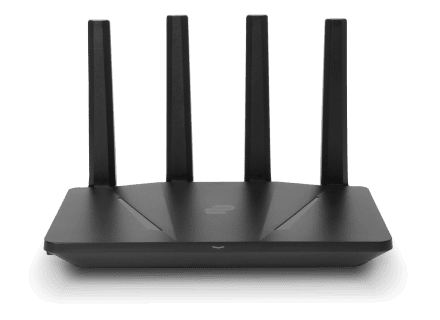
ExpressVPN Aircove Wi-Fi 6 VPN Router
If your Netflix device cannot run a VPN app directly, a VPN-ready router can route the streaming device through a VPN connection from the network level. Aircove is best suited to readers who specifically want ExpressVPN built into the router setup.
As an Amazon Associate I earn from qualifying purchases.
What to look for in a streaming VPN
For this use case, raw privacy claims are not enough. You need a VPN that can keep up with high-bandwidth video without becoming the new bottleneck.
Fast modern protocols
Look for support for WireGuard or a well-tested proprietary protocol built for speed. These protocols are usually better suited to streaming than older options when configured well.
OpenVPN still has its place, especially for compatibility and router setups, but it is often not the fastest choice for 4K streaming. If your VPN app offers automatic protocol selection, test it against WireGuard or the provider’s faster protocol and compare results.
Nearby servers
Distance matters. A VPN server close to your physical location usually gives better speed and lower latency than one on the other side of the world. For testing throttling, start with a nearby server before experimenting with other regions.
Reliable streaming performance
Not every VPN works equally well with streaming platforms. Some are fast in speed tests but unreliable with Netflix or other services. If streaming is the reason you are subscribing, prioritize providers known for consistent streaming access and stable speeds.
Clear refund terms
Because throttling varies by ISP, city, time of day, and plan, you should treat the first week as a real-world trial. A money-back guarantee is useful only if you understand the terms and cancellation window.
VPN tradeoffs buyers should understand
A VPN can be a good tool, but it comes with tradeoffs that matter before you pay.
| Factor | Why it matters for Netflix throttling | Buyer advice |
|---|---|---|
| Speed | 4K streaming needs stable throughput, not just a high peak speed. | Test at the same evening hours when buffering usually happens. |
| Protocol | Modern protocols often reduce the speed penalty of encryption. | Try WireGuard or the provider’s performance-focused option first. |
| Server location | Faraway servers can add latency and reduce speed. | Use a nearby server unless you need a specific region. |
| Device support | Smart TVs do not always support VPN apps directly. | Check whether you need router support, a streaming box app, or Smart DNS. |
| Streaming reliability | Some VPN servers may be blocked or inconsistent with Netflix. | Choose a service with a strong streaming record and responsive support. |
| Auto-renewal | Introductory prices can rise sharply after the first term. | Check renewal pricing before buying, not just the first advertised price. |
Price claims change often, so do not choose a VPN on a single promotional number. Compare the renewal cost, contract length, refund policy, simultaneous device limit, and whether the provider supports the devices you actually use for streaming.

GL.iNet Flint 2 GL-MT6000 VPN Router
For readers who already have a preferred VPN provider, the Flint 2 is a more flexible router-level option with WireGuard and OpenVPN support. It is a better fit for users comfortable configuring VPN settings rather than choosing a single-provider router.
As an Amazon Associate I earn from qualifying purchases.
How to test a VPN against throttling
Once you have a VPN installed, use the same testing method as before. The comparison is only useful if you keep the conditions consistent.
- Run a general speed test and Fast.com with the VPN turned off.
- Turn the VPN on and connect to a nearby server.
- Run both tests again.
- Open Netflix and play the same title that usually causes problems.
- Repeat the test during peak evening hours for several days.
If Fast.com improves noticeably with the VPN on, while Netflix playback also becomes steadier, that supports the idea that your streaming traffic was being handled differently without the VPN.
If the VPN makes the general speed test slower but Netflix smoother, it may still be doing its job. Peak speed is less important than stable delivery. A consistent 60Mbps connection can be better for streaming than a connection that jumps between 300Mbps and 5Mbps.
If everything becomes slower with the VPN enabled, try another nearby server, switch protocol, or test a different provider before assuming VPNs cannot help. But if several reputable VPNs perform badly, the root problem may be your local connection, ISP congestion, or in-home network setup.
When to contact your ISP
If your tests show a repeatable pattern, document it before contacting support. Screenshots help, but a simple log is often clearer.
Record the following:
- Date and time of each test
- Whether the test used Wi-Fi or Ethernet
- General speed test result
- Fast.com result
- Whether a VPN was on or off
- Netflix playback quality or buffering behavior
Ask your provider whether your plan is subject to traffic management, fair usage limits, video optimization, or peak-time congestion policies. Use those specific terms. Front-line support may not describe the issue as throttling, even when a policy affects streaming performance.
If your provider confirms traffic management and it materially affects your use, the best fix may be changing plans or switching providers. A VPN can help in some cases, but it should not be the only way to get reasonable performance from a connection you already pay for.
Bottom line: do not diagnose throttling from one bad stream
Netflix buffering on a fast connection is frustrating, but one slow evening is not enough to prove ISP throttling. Run comparative tests, repeat them at different times, and rule out Wi-Fi and device problems first.
If general speeds remain strong while Netflix-focused tests are repeatedly weak, a VPN is worth testing. Choose one with fast modern protocols, nearby servers, reliable streaming support, and clear refund terms. Then compare performance with the VPN on and off during the hours when the problem actually happens.
A VPN will not fix a weak home network or a congested internet plan. But when the issue is targeted streaming slowdown, it can be a practical way to make your connection behave more like the service you thought you were buying.