


A Wi-Fi 6E or Wi-Fi 7 router can look like an obvious upgrade on paper, especially if you are trying to squeeze the most out of a fast home internet plan. The 6GHz band is the headline feature: it is newer, usually less crowded than 2.4GHz or 5GHz, and can give compatible phones, laptops, tablets, and streaming devices more room to breathe.
But buying the router is only part of the job. Your devices also need to support Wi-Fi 6E or Wi-Fi 7, they need to be close enough to use 6GHz effectively, and your router has to be configured in a way that actually exposes the band. One setting matters more than many people expect: WPA3 security.
For 6GHz Wi-Fi operation, WPA3 is not just a nice security upgrade. On compliant Wi-Fi 6E networks, WPA2 is not used for the 6GHz band. That means a router left in an older WPA2-only mode may still serve your devices on 2.4GHz and 5GHz, but it will not give compatible devices the main benefit you probably paid for when you bought newer hardware.
That is easy to miss because most home routers are designed to keep old devices connected. Compatibility is useful, but it can also hide the fact that your newest gear is not using the fastest available lane.
The 6GHz Band Is the Real Wi-Fi 6E Upgrade
Wi-Fi 6E is best understood as Wi-Fi 6 extended into the 6GHz band. It is not simply a blanket speed boost for every device in the house. A Wi-Fi 5 laptop, an older smart TV, and most budget smart home accessories will not suddenly start using 6GHz because you replaced the router.
That distinction matters for buyers. A Wi-Fi 6E or Wi-Fi 7 router only makes sense if enough of your important devices can use the newer bands and features. If your laptop, phone, or desktop already supports Wi-Fi 6E or Wi-Fi 7, the upgrade can be worthwhile. If most of your network is made up of older 2.4GHz and 5GHz devices, the improvement may be much less dramatic.
The 6GHz band helps because it is separate from the bands most older home equipment uses. In many homes, 2.4GHz is crowded with smart plugs, cameras, speakers, thermostats, and neighboring Wi-Fi networks. The 5GHz band is faster, but it can still be congested in apartments, townhomes, and dense suburbs. The 6GHz band gives compatible devices more clean spectrum to work with.
That does not guarantee gigabit speeds over Wi-Fi. Distance, walls, router placement, device antennas, channel width, interference, firmware quality, and your internet plan all still matter. But when conditions are right, 6GHz can make high wireless throughput much more realistic.
The catch is that 6GHz access comes with stricter security expectations. If your router is not using the required security mode for that band, your compatible devices may fall back to 5GHz without making the reason obvious.
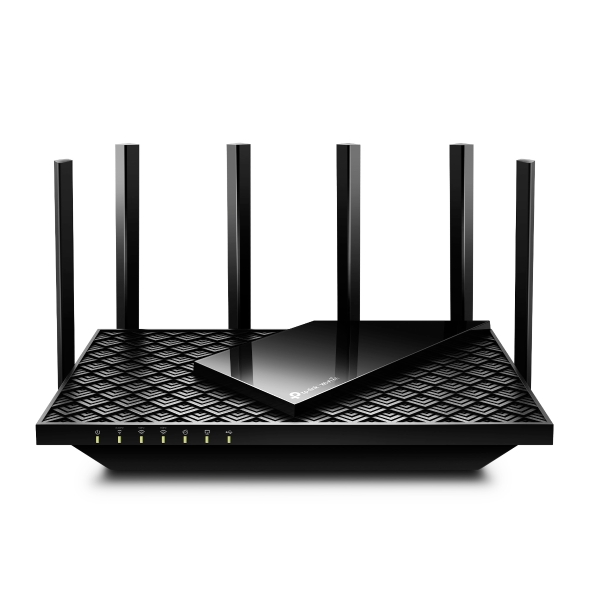
TP-Link Archer AXE75 Wi-Fi 6E Router
The Archer AXE75 is a sensible match for readers who already own Wi-Fi 6E phones, laptops, or desktops and want a router with 6GHz support and WPA3. It is best for homes where a single router can cover the rooms that need the fastest wireless connection.
As an Amazon Associate I earn from qualifying purchases.
Why WPA3 Matters for Wi-Fi 6E and Wi-Fi 7
WPA stands for Wi-Fi Protected Access. It is the security system that helps keep other people from joining or spying on your wireless network. Most home networks have used WPA2 for years, and many routers still default to WPA2 or a mixed compatibility mode because so many older devices understand it.
WPA3 is the newer generation. It improves how devices authenticate with your router and is designed to reduce some of the weaknesses that have built up around older Wi-Fi security. For home users, WPA3-Personal uses SAE, short for Simultaneous Authentication of Equals, instead of WPA2’s older pre-shared key approach.
The practical takeaway is simple: if you want to use the 6GHz band on Wi-Fi 6E, your router’s 6GHz network needs WPA3-Personal, WPA3-Enterprise, or another approved modern security mode such as Enhanced Open for passwordless open networks. WPA2 is not the security mode for 6GHz operation.
That can be confusing because many routers show security settings in a single simplified menu. Depending on the brand, you may see options such as:
- WPA2-Personal
- WPA2/WPA3-Personal
- WPA3-Personal
- WPA3-Personal only
- Enhanced Open
Some routers separate the 2.4GHz, 5GHz, and 6GHz networks into different SSIDs. Others combine them under one network name and steer devices automatically. Both approaches can work, but the combined setup can make troubleshooting harder because you may not immediately know which band a device is using.
A careful router setup should confirm two things: the 6GHz radio is enabled, and the 6GHz network is using an approved WPA3-era security mode. Without both, a Wi-Fi 6E client may never connect to 6GHz.
WPA3 Is Better Security, But It Can Expose Old Device Problems
For most modern phones, laptops, tablets, and newer streaming devices, WPA3 should be uneventful. You enter the same Wi-Fi password, the device connects, and you move on. The problems usually come from older products, low-cost smart home devices, printers, or hardware that has not received firmware updates in years.
Those devices may support WPA2 but not WPA3. Some may behave badly with WPA2/WPA3 transition modes. Others may connect at first and then drop off the network later. This is why the best router setting is not always the most aggressive setting for every household.
If your router offers separate network names for each band, one practical setup is to keep the main modern network on WPA3 where possible and put stubborn legacy devices on a separate 2.4GHz or 5GHz network using WPA2-AES. That gives newer devices access to the better security and 6GHz performance path while keeping older devices from breaking your entire setup.
If your router only offers one combined network, you may need to test WPA3 or WPA2/WPA3 mixed mode and watch for connection problems. Some homes can move to WPA3 without incident. Others will discover that one printer, camera, or smart plug is the reason the network has been stuck on older settings.
| Router security mode | What it usually means | Best fit |
|---|---|---|
| WPA2-Personal | Older, widely compatible security for 2.4GHz and 5GHz | Legacy devices that cannot handle WPA3 |
| WPA2/WPA3 transition mode | Allows some newer devices to use WPA3 while older devices use WPA2 | Mixed homes, though some devices may still have issues |
| WPA3-Personal | Modern home Wi-Fi security required for 6GHz password-protected use | Wi-Fi 6E and Wi-Fi 7 devices on a modern network |
| Enhanced Open | Encrypted open-network option without a shared password | Specific open-network use cases, not typical private home Wi-Fi |
The goal is not to punish old devices. It is to avoid letting one outdated product keep your best devices from using the network features they were built for.
How to Check Whether WPA3 Is Enabled
The exact steps depend on your router brand, but the path is usually similar. You will either use the router’s companion app or log in through a browser using the router’s local IP address. From there, look for wireless, Wi-Fi, security, or advanced wireless settings.
A cautious setup process looks like this:
- Open your router’s app or admin page.
- Find the Wi-Fi security settings for your wireless network.
- Check whether the 6GHz band is enabled.
- Look for WPA3-Personal on the 6GHz network.
- If available, confirm that Protected Management Frames are enabled or required for the 6GHz network.
- Save the setting, reconnect your newer devices, and check which band they are using.
Some routers make this easy and label the 6GHz network clearly. Others hide the setting behind an “advanced” menu or manage it automatically. Mesh systems can be especially simplified, which is convenient until you need to diagnose why a device refuses to use 6GHz.
After changing the setting, do not judge the result from one speed test alone. Run a few tests from the same room as the router or mesh node, then test again from your normal work area. A 6GHz connection can be very fast nearby, but it generally does not travel through walls as well as 2.4GHz. If your office is far from the router, the best band may still be 5GHz, depending on the layout.
It is also worth checking the device itself. Windows, macOS, Android, and some router apps can show the current Wi-Fi band or connection details. If your device says it is connected on 5GHz, your speed test is not measuring the 6GHz benefit, no matter how new the router is.
When WPA2/WPA3 Mixed Mode Makes Sense
Mixed mode exists because real homes are messy. People do not replace every connected device at once. A household might have a Wi-Fi 7 phone, a Wi-Fi 6E laptop, a five-year-old printer, a smart thermostat, and a cheap 2.4GHz camera all trying to live on the same network.
WPA2/WPA3 transition mode can help in that situation. Newer devices may connect using WPA3, while older devices continue using WPA2. It is often the least disruptive first step if you are worried about compatibility.
But mixed mode is not magic. Some routers do not apply the same security mode to every band. Some client devices are fussy. Some smart home products fail during setup if the phone used for setup is on a different band or security mode than the accessory expects. If you change security settings and suddenly a device disappears, the problem may not be the password. It may be the security mode.
For that reason, it is smart to make one change at a time. Enable WPA3 or mixed mode, reconnect your most important devices, and then check anything that needs constant network access: security cameras, thermostats, doorbells, printers, home office equipment, and streaming boxes.
If everything works, keep the stronger setup. If a few older devices fail, decide whether they belong on a separate legacy network or whether they are due for replacement.
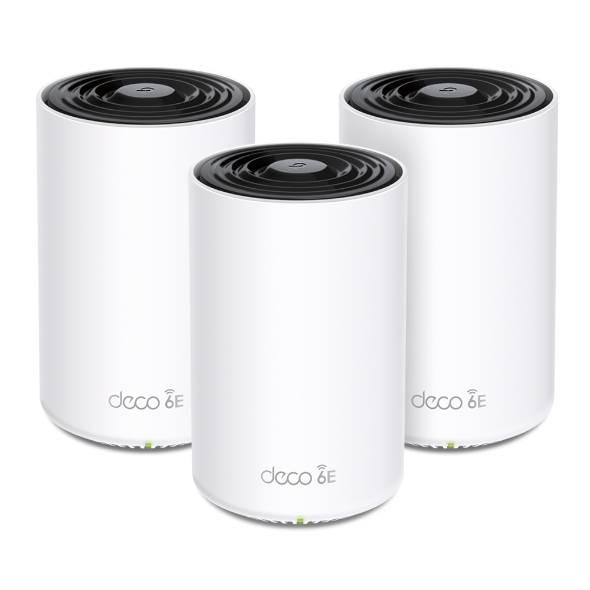
TP-Link Deco XE75 Wi-Fi 6E Mesh System
The Deco XE75 is a better contextual fit for readers who need broader coverage than one router can provide. It still requires compatible client devices for 6GHz, but the mesh format addresses the placement and range issues discussed in the article.
As an Amazon Associate I earn from qualifying purchases.
Do Not Upgrade Your Router Until You Check Your Devices
A Wi-Fi 6E or Wi-Fi 7 router can be a good purchase, but only when the rest of your setup can benefit from it. Before spending money, check your client devices. Your internet plan, router, and devices all have to line up.
Start with the devices you care about most. A work laptop, gaming handheld, desktop motherboard, phone, or tablet with Wi-Fi 6E or Wi-Fi 7 support is a better reason to upgrade than a drawer full of older smart home accessories. If your most demanding devices are limited to Wi-Fi 5 or standard Wi-Fi 6, a newer router may still improve coverage or reliability, but it will not put those devices on 6GHz.
Also check your internet plan and wired backhaul. If you have a gigabit internet plan but your mesh nodes communicate wirelessly through several walls, the router’s advertised peak speed may not matter much. If your modem, router WAN port, or Ethernet backhaul is limited, that can also cap the results you see.
The same buyer logic applies to Wi-Fi 7. Wi-Fi 7 can bring major improvements, including wider channels and newer connection features, but those benefits require Wi-Fi 7 clients. A Wi-Fi 7 router serving mostly older devices is still backward compatible, but it is not a shortcut to full Wi-Fi 7 performance.
Before buying, confirm:
- Your fastest devices support Wi-Fi 6E or Wi-Fi 7.
- Your router or mesh system has a 6GHz radio.
- Your router supports WPA3 for the 6GHz network.
- Your internet plan is fast enough for the upgrade to matter.
- Your home layout lets 6GHz reach the places where you need speed.
That last point is easy to underestimate. The 6GHz band can be excellent in the same room or nearby rooms, but it is not a cure for poor router placement. In a large home, a well-positioned mesh system with wired backhaul may do more for everyday performance than simply buying the router with the biggest number on the box.
WPA3 Is Not the Only Router Security Setting Worth Checking
WPA3 deserves attention because it affects both security and access to 6GHz networking, but it should not be the only router setting you review. A fast network that is poorly maintained is still a risk.
While you are already in the router settings, check for firmware updates. Router makers release updates to fix security flaws, stability problems, and compatibility bugs. Some modern mesh systems update automatically, but many routers still require you to approve or install updates manually.
It is also worth reviewing remote administration. Unless you specifically need to manage your router from outside your home network, remote admin access is usually better left off. The same goes for WPS, the push-button or PIN-based setup feature found on many older routers. It was designed for convenience, but it has a long history of security concerns, and many newer setup methods are safer.
UPnP is another setting to treat carefully. It can make gaming consoles, apps, and devices work without manual port forwarding, but it also lets devices on your network request open ports automatically. Some households rely on it; others should disable it and only open ports deliberately when needed.
Those settings are separate from the WPA3 and 6GHz issue, but they belong in the same maintenance habit. Your router is not a set-and-forget appliance forever. It is the front door for almost every device in the house.
The Practical Bottom Line
If you own a Wi-Fi 6E or Wi-Fi 7 router and your newer devices are not delivering the speeds you expected, check WPA3 before assuming the hardware was a waste of money. The 6GHz band is one of the main reasons to buy into these newer Wi-Fi generations, and WPA3 is part of making that band work on password-protected home networks.
That does not mean every home should switch every device to WPA3-only without testing. Older hardware can still complicate things. A balanced setup may use WPA3 for the modern network and a separate WPA2-AES network for legacy devices that cannot be replaced yet.
The best result is a network that is both faster and cleaner: newer phones and laptops get access to the less crowded 6GHz band, while older equipment is kept from dragging the whole setup backward. If your router has been sitting in WPA2-only mode, that one security setting may be the reason your Wi-Fi 6E upgrade has felt underwhelming.
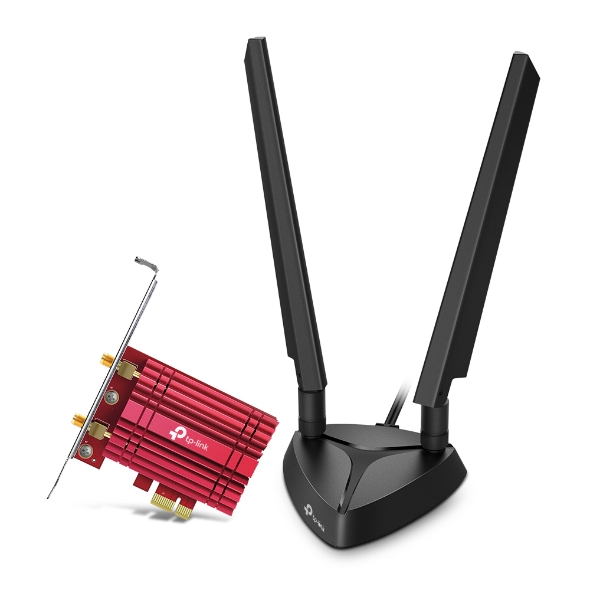
TP-Link Archer TXE75E Wi-Fi 6E PCIe Adapter
If a desktop PC is the device that needs faster Wi-Fi, a Wi-Fi 6E PCIe adapter can be more targeted than replacing other gear. Confirm operating-system and motherboard compatibility before buying.
As an Amazon Associate I earn from qualifying purchases.