

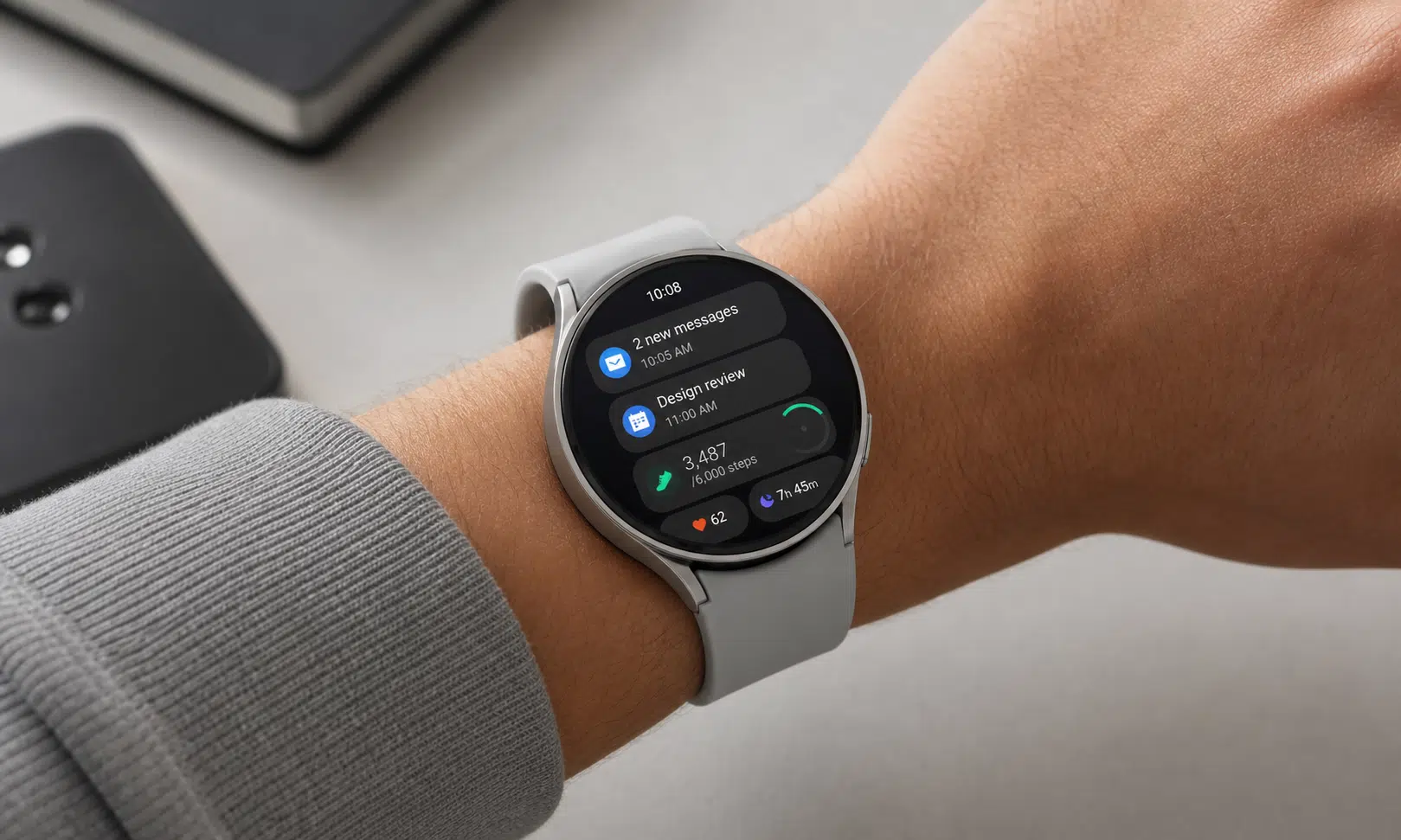

Samsung puts a lot inside the Galaxy Watch software, and that is both the appeal and the problem. The watch can handle notifications, health tracking, accessibility controls, emergency tools, and appearance changes, but some of the more useful settings are easy to miss during setup.
That matters if you are comparing Galaxy Watch models or deciding whether your current one is worth keeping. The hardware is only part of the experience. A Galaxy Watch can feel much more useful once it is tuned around how you actually wear it.
Below are the settings I would check first, especially if you bought a Galaxy Watch for everyday convenience rather than just step counts and glanceable alerts.
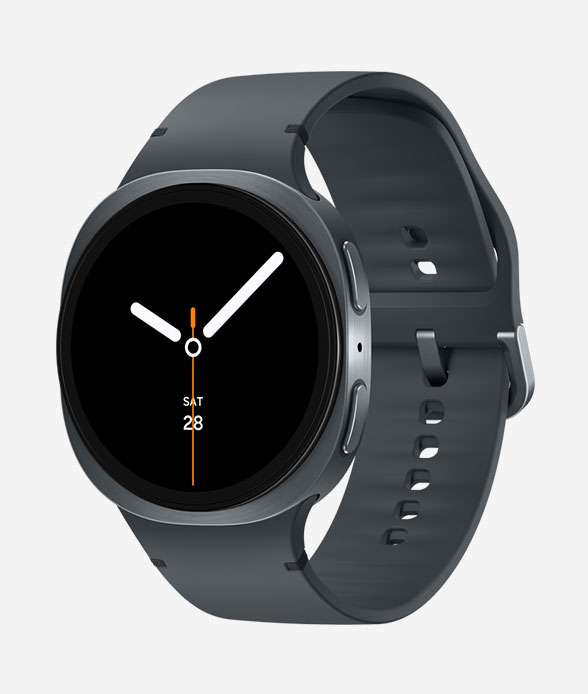
Samsung Galaxy Watch8
Galaxy Watch8 is the natural starting point for readers comparing Samsung smartwatch models for notifications, Samsung Health tracking, safety settings, and daily Wear OS use. Choose the size and connectivity version around how often you want to leave your phone behind.
As an Amazon Associate I earn from qualifying purchases.
Start with smarter notification behavior
A smartwatch should reduce phone interruptions, not double them. One setting to look for is the option that mutes phone notifications while the watch is being worn. In Samsung’s Galaxy Wearable app, this appears in the watch notification settings as a connected-phone mute option.
The practical benefit is simple: when the notification can go to your wrist, your phone does not also need to buzz from the table or your pocket. For people who wear their watch most of the day, that can make the whole phone-and-watch setup feel less noisy.
This is especially useful if you keep your phone on vibrate or sound for times when you are not wearing the watch. Depending on your setup and software version, the behavior is intended to apply when the watch is on your wrist, so it is worth testing with a text or app alert after enabling it.
Look in the Galaxy Wearable app on your phone under Watch settings, then Notifications. Exact labels can vary by watch generation and software version, but the setting is usually grouped with notification delivery and connected-phone behavior.
Use hand controls if touching the screen is inconvenient
Samsung includes accessibility controls that can make the watch easier to operate without relying on taps and swipes. The most relevant option is Universal gestures, found through the watch’s accessibility settings.
Some Galaxy Watch models and software versions also include quick gesture features, but Universal gestures are broader. They are meant for navigating the watch interface with hand movements, which can help when your other hand is busy, the display is hard to reach, or touch input is not comfortable.
Because Samsung changes available gestures and labels across updates, treat this as a feature to explore rather than a single fixed recipe. On many watches, the path is:
- Open Settings on the watch.
- Go to Accessibility.
- Choose Interaction and dexterity.
- Open Universal gestures.
- Review the available gestures and assigned actions before turning it on for daily use.
One important tradeoff: gesture controls can interact with lock settings. If your watch uses a pattern lock or payment-related security, check the watch’s warning screens before enabling Universal gestures. Some combinations may be unavailable or may require a different lock method.
Decide how much heart-rate data you actually want
Heart-rate tracking is one of the clearest examples of a battery-versus-data decision. Galaxy Watches can measure heart rate in different ways, including continuous measurement on supported models, but the best choice depends on why you bought the watch.
If you mostly want general wellness trends, less frequent measurement may be enough. If you care about exercise recovery, resting heart-rate patterns, or more complete daily graphs, continuous measurement is the setting to check.
On many Galaxy Watch models, the heart-rate options are found in the watch’s Health settings or in Samsung Health-related menus. The exact path can vary, but the setting commonly offers a continuous measurement option alongside less frequent measurement.
The buyer-aware tradeoff is straightforward:
- Continuous heart-rate tracking: better for people who want fuller daily health data.
- Less frequent tracking: better for people who prioritize battery life and only need broad trends.
- Workout tracking: still matters separately, since exercise sessions typically collect more active fitness data than idle daily tracking.
Do not turn this on just because it sounds more advanced. Turn it on if the extra health information is something you will actually use.
Set up fall detection before you need it
Fall detection is one of those features that is easy to ignore until it matters. On Galaxy Watch models that support it, hard fall detection is designed to recognize a serious fall and then offer emergency actions if the wearer does not respond.
Samsung generally places this under safety or emergency settings. On many watches, you can look for Settings, then Safety and emergency, then Hard fall detection. The setup flow may ask when detection should be active and which emergency contacts or numbers should be used.
This feature is most relevant for people with mobility limitations, older users, runners, cyclists, hikers, or anyone who regularly spends time alone. It is not a substitute for medical monitoring, and no wearable can detect every emergency, but it is a setting worth configuring carefully instead of leaving for later.
Before relying on it, review three things:
- Emergency contacts: make sure the right people are listed and their numbers are current.
- Calling behavior: check whether the watch can place emergency calls with your phone nearby or through its own cellular connection, if equipped.
- False alarms: understand how to cancel an alert if the watch detects a fall by mistake.
For buyers, this is one of the reasons a Galaxy Watch can be more than a notification screen. If safety features are part of your purchase decision, confirm that the specific model and region support the emergency options you expect.
Samsung Galaxy Watch8 Classic LTE
An LTE-capable Galaxy Watch8 Classic can be useful for readers who care about safety features and want more independence from their phone. Confirm carrier support and emergency calling behavior before relying on cellular features.
As an Amazon Associate I earn from qualifying purchases.
Samsung phone users should check Modes and Routines
If you use a Galaxy Watch with a Samsung phone, the phone’s Modes and Routines app can make the watch feel more context-aware. Modes are Samsung’s way of applying different behavior for situations such as work, driving, sleep, or exercise.
Depending on your phone, watch, and software version, these modes may include appearance changes, including watch face changes. That means your watch can potentially shift from a simple face during quiet hours to a more fitness-focused face when you are exercising.
The setup usually starts on the Samsung phone, not the watch:
- Open Modes and Routines.
- Select an existing mode or create a new one.
- Look for appearance-related options.
- If watch face controls are available, choose the face you want for that mode.
This is not essential for everyone. If you use one watch face all day, skip it. But if you regularly switch between work, workouts, and downtime, automating that change can save small bits of friction every day.
Which settings matter most when choosing a Galaxy Watch?
The best Galaxy Watch is not just the one with the newest chip or the biggest spec sheet. The right choice depends on which features you will leave turned on.
| Feature | Best for | Main tradeoff |
|---|---|---|
| Mute phone notifications while wearing watch | People who want fewer duplicate alerts | Requires notification settings that match how you use your phone |
| Universal gestures | Hands-free or accessibility-focused control | May conflict with some lock or security choices |
| Continuous heart-rate tracking | Users who want richer health trends | Can use more battery than less frequent measurement |
| Hard fall detection | Safety-conscious buyers and solo exercisers | Needs emergency contacts and alert behavior set up properly |
| Modes-based watch faces | Samsung phone users who switch contexts often | Availability depends on device and software support |
For most people, the first two settings to check are notifications and heart-rate measurement. They affect the watch every day. After that, set up fall detection if safety is part of why you bought the watch, then explore gestures and Modes if they fit your routine.
Bottom line
Samsung’s watch software can feel crowded, but the better settings are not just novelty toggles. They change whether the watch feels like a second screen, a health tracker, a safety device, or a more personal extension of your phone.
If you already own a Galaxy Watch, spend ten minutes in Galaxy Wearable, Samsung Health, Accessibility, and Safety and emergency settings before deciding whether the watch is doing enough for you. If you are shopping for one, think less about the default setup and more about which of these features you will actually use once the watch is on your wrist.