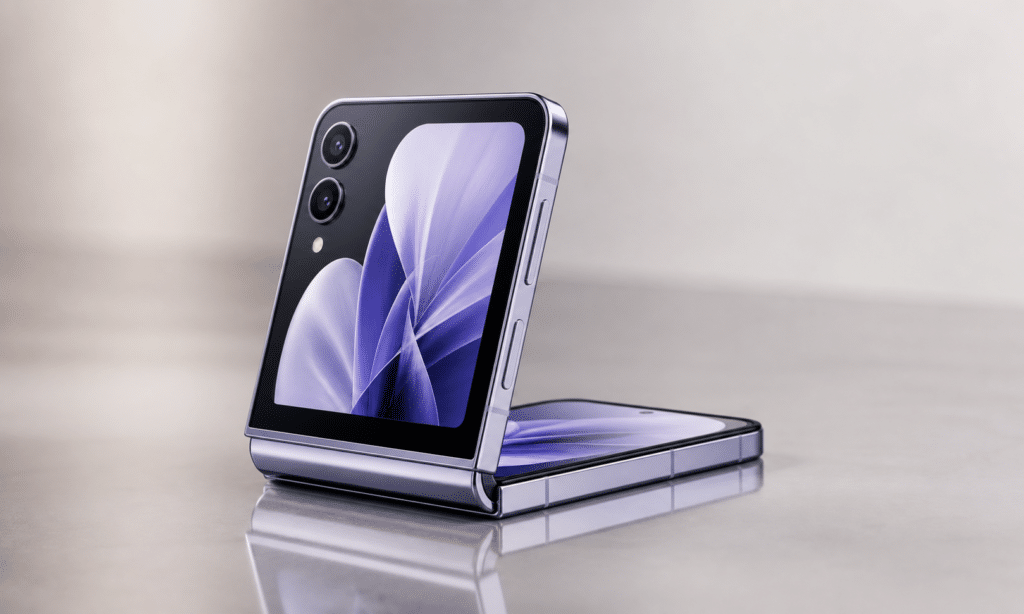
A tiny blinking dot near the top of a Samsung phone screen can look suspicious, especially if it appears during a call. In most cases, though, Samsung identifies that faint flash as part of the phone’s proximity-sensor behavior, not a sign that the display is failing.
The sensor is used to detect when something is close to the front of the phone. During a voice call, that helps the device decide when to darken or lock the display so a cheek or ear does not press on-screen buttons by accident. On some Galaxy models with all-screen designs, the sensor hardware sits behind or near the display area, which can make its activity visible as a small blinking light or flickering point near the top edge.
That explanation matters because the light can resemble the kind of warning blink people associate with other electronics. On a Galaxy phone, however, Samsung’s support guidance treats the faint blink as expected behavior when the proximity sensor is active.
Why the dot is easier to notice on newer Galaxy phones
Older Samsung phones had more obvious bezels above the screen, leaving room for cameras and sensors to sit in the border around the display. On newer Galaxy designs, the front of the phone is dominated by the screen, so some components have moved under or close to the display area.
That design change helps explain why a sensor that once went largely unnoticed may now be visible in certain moments. Samsung has described Galaxy phones with Infinity Display designs as using proximity sensors positioned behind the display or under the top area of the screen. When the sensor emits light to measure nearby objects, a faint blink may be visible.
The flash is not something most users are meant to adjust. It is tied to how the phone handles proximity detection, especially around calls and related screen-lock behavior. If the dot appears while the phone is checking whether an object is near the display, that alone does not point to a broken panel.
Can you turn the proximity sensor off?
Samsung’s guidance does not present the proximity sensor as a normal user-toggle feature on modern Galaxy phones. The reason is straightforward: disabling it would interfere with basic call behavior, including the screen turning off when the phone is held to the ear.
If the blinking dot bothers you during calls, changing how you take the call may reduce when the sensor is active. For example, using speakerphone or Bluetooth audio can change whether the phone needs to treat the display as pressed against your face. In those situations, the screen may remain available because the handset is not being held against the ear in the same way.
That does not mean the sensor is optional in the broader phone design. It is part of the way Samsung phones manage the display during certain interactions, so there is no simple setting that turns the hardware behavior off without affecting the features it supports.
When the proximity sensor may actually be a problem
A faint dot during a call is one thing. Unexpected screen behavior is another. If the display stays black after a call, fails to wake when you move the phone away from your face, or locks at the wrong time, the proximity sensor may be blocked or malfunctioning.
Samsung recommends checking for common causes before assuming the phone needs repair. The top portion of the display should be clean, since debris, hair, or other material near the sensor area can interfere with detection. Screen protectors, films, or cases can also create problems if they cover or disturb the sensor area.
A few basic checks may help narrow down the issue:
- Clean the top of the display with a soft cloth.
- Remove any screen protector or film that may be covering the sensor area.
- Enable the “Double tap to turn on screen” option under Settings, Advanced features, then Motions and gestures if waking the screen during calls has become unreliable.
- Use the Samsung Members app diagnostics, if available, to test proximity recognition.
- Restart the phone and place a test call to see whether the behavior changes.
If the problem continues after those checks, a repair visit may be the next step. The important distinction is that the blinking dot itself is usually not the problem. The warning sign is inconsistent display behavior during or after calls.
For most users who notice the tiny flash by chance, the simplest answer is the right one: the phone is using its proximity sensor, and the dot is a visible side effect of that process.