

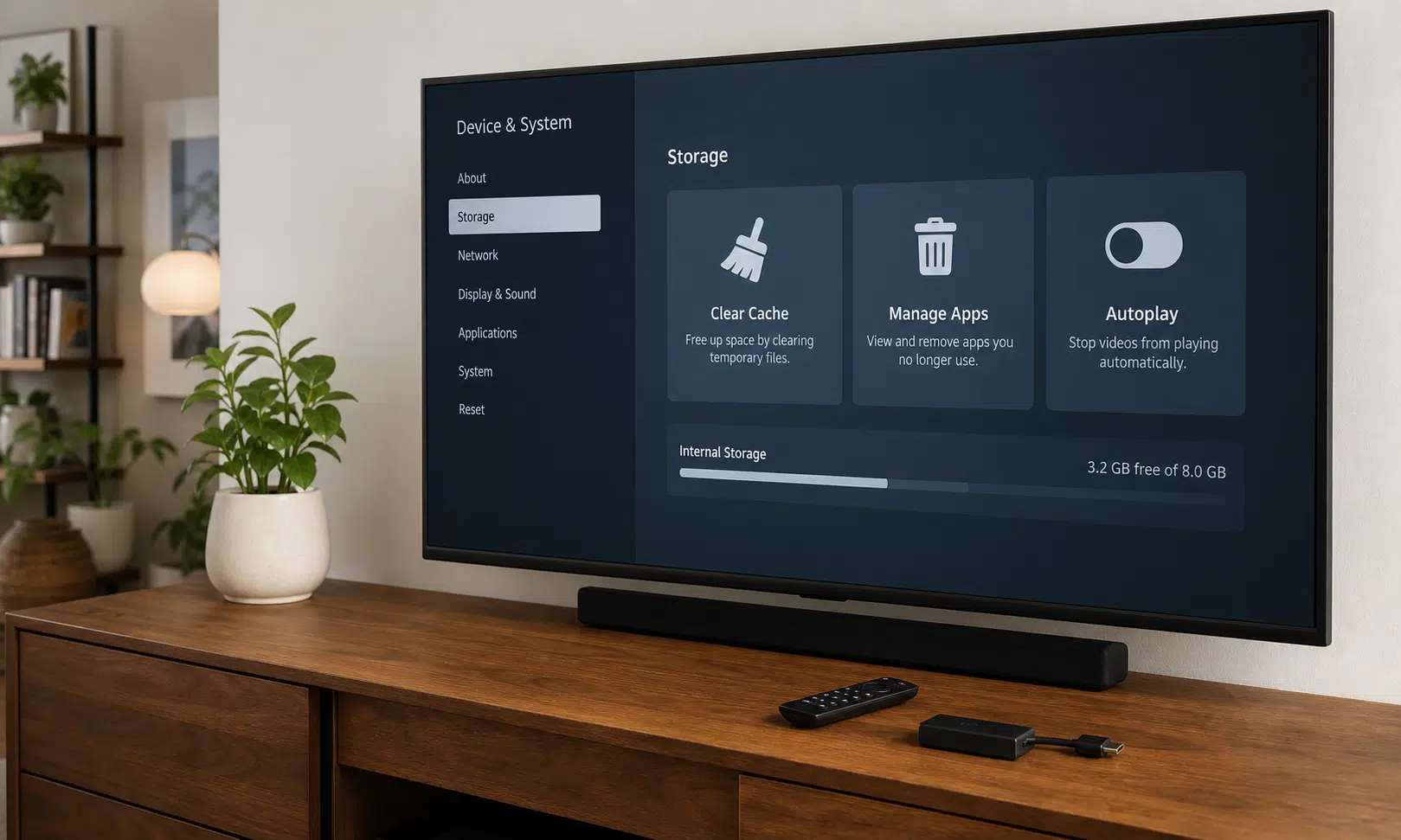

A Fire TV that felt quick when you first set it up can start to feel less responsive after months of regular use. Apps take longer to open, the home screen stutters, and simple navigation can feel heavier than it should.
That does not always mean your router is the problem, and it does not automatically mean you need to buy a new streaming device. In many cases, the slowdown is tied to the ordinary buildup that happens when a small streaming stick or box is asked to keep storing app data, running background processes, loading previews, and managing updates over time.
The fixes are not complicated, but they are manual. The useful approach is to clear out what you are not using, reduce background activity where the Fire TV menu allows it, and turn off the autoplay features that can make the home screen busier than it needs to be.
Why a Fire TV Can Start Feeling Sluggish
Fire TV devices are compact streaming machines, and they do not have endless storage or memory. That matters because streaming apps do more than simply launch a video. They also store temporary files, artwork, thumbnails, local databases, and other app data that can grow over time.
The exact amount of storage used will vary by app and by how you use it, so it is better not to assume one specific service is always the cause. Still, the pattern is familiar: the more apps you install and keep around, the more space those apps can occupy. Once internal storage gets tight, the whole interface may feel less responsive.
Memory pressure can add to the problem. Returning to the Fire TV home screen does not necessarily mean every app has fully closed. Some apps may remain paused or continue holding resources in the background. If several large streaming apps have been opened during a viewing session, the device may not feel as fresh as it did after a restart.
There are also system-level services and preference-based features that can run quietly in the background. Some of them are tied to diagnostics, recommendations, personalization, or advertising settings. The exact behavior can vary by model and software version, but it is reasonable to treat background activity as one of the things worth reducing when a Fire TV starts to drag.
Start by Removing Apps You Do Not Use
The simplest cleanup step is also the one many people avoid: uninstall apps you no longer need. Keeping a rarely used streaming app installed because you might open it someday sounds harmless, but on a device with limited internal storage, that habit can work against you.
Removing unused apps frees storage and reduces the number of apps that can store data, update themselves, or sit around waiting to be opened again. It also makes the installed apps list easier to manage the next time you need to troubleshoot.
To do this, open the Fire TV settings area, go to the installed applications section, and review the apps you actually use. If an app belongs to a service you no longer subscribe to, or if it was installed for a one-time event, it is a good candidate for removal.
This is not a permanent cure for every performance issue. It is basic housekeeping. But on a streaming device that spends most of its life with the same apps installed, housekeeping is often the difference between a device that feels tolerable and one that feels like it is fighting every button press.

Amazon Fire TV Stick 4K Max
If cleanup does not make an older Fire TV usable again, the Fire TV Stick 4K Max is a straightforward replacement within the same Fire TV ecosystem. It is best suited to 4K TVs and households that want more room for apps than many older Fire TV sticks provide.
As an Amazon Associate I earn from qualifying purchases.
Clear Cache Before You Blame the Hardware
The next step is clearing app cache. Streaming apps can save temporary files so they do not have to reload everything from scratch each time. That can be useful, but cached files can also pile up. When a Fire TV starts feeling slow, cache cleanup is one of the first settings worth checking.
On Fire TV, the path is generally through Settings, then Applications, then Manage Installed Applications. From there, open individual apps and choose the cache-clearing option where it is available.
The important distinction is that clearing cache is not the same as clearing app data. Cache is temporary storage. Clearing it should not remove your account, personal settings, or app login in the same way a full data reset might. If you are trying to clean up without creating extra work for yourself, clear cache first and be more cautious with any option that sounds like it resets the app.
For a practical cleanup pass, focus on the apps you use most often and the ones that show the largest storage footprint in the Fire TV app list. Video apps, music apps, and large media services are usually more relevant than a tiny utility you opened once.
Force Stop Apps That Are Still Hanging Around
If the device still feels slow after clearing cache, look at apps that may be sitting in the background. Backing out of an app does not always feel the same as starting from a clean state. If an app is paused, stuck, or holding memory, a force stop can be a useful reset.
In the same Manage Installed Applications area, select a heavy app and use Force Stop. This closes that app more firmly than simply returning to the home screen. It is especially useful after a streaming app freezes, becomes slow to respond, or behaves strangely after several hours of use.
A sensible cleanup routine looks like this:
- Uninstall apps you no longer use.
- Clear cache for the largest or most-used streaming apps.
- Force stop apps that recently froze or stayed sluggish.
- Restart the Fire TV after making several changes.
Restarting matters because it gives the system a clean session after you have changed settings and closed apps. It is not glamorous, but it is one of the most reliable ways to clear the temporary state that builds up during normal use.
Turn Off Home Screen Autoplay
Amazon’s home screen can show video and audio previews while you browse. Those previews may be convenient for discovery, but they can also make the interface feel busier than necessary. If your Fire TV already feels strained, turning off autoplay is an easy change to test.
Go to Settings, then Preferences, then Featured Content. Look for the options that allow video autoplay and audio autoplay, and turn both off.
After that, the home screen should rely less on automatic preview playback while you move through the interface. The result may vary by Fire TV model and software version, but it is a low-risk setting change. If you prefer a quieter home screen, it is worth doing even before performance becomes a problem.
This setting is also useful because it targets something you may not have asked the device to do in the first place. You probably opened the home screen to choose an app, not to have promotional video and audio start playing while you browse.
Review Privacy and Usage Settings
The source material also points to Fire TV privacy settings as another place to reduce unnecessary background activity. The exact labels can differ depending on device and software version, but Fire TV settings commonly include options related to app usage data, device usage data, and interest-based ads.
If you want a leaner setup, open the privacy area in settings and review those toggles. Disabling usage collection or ad personalization features may not transform every device overnight, but it is a reasonable step if you want fewer background features enabled and a less personalized advertising experience.
This is also a buyer-aware point: if you are replacing a streaming device mainly because it feels cluttered or slow, it is worth checking these settings first. A new device may be faster, but it may also arrive with similar recommendation, preview, and personalization features turned on by default.
When Maintenance Is Enough, and When It Is Not
These steps can help a sluggish Fire TV feel more usable, but they should not be oversold as a permanent fix. Cache will build up again. Apps will update. Storage will fill if you keep installing more services. A manual cleanup every few months is a realistic expectation if you want to keep using the same hardware.
For many people, that tradeoff is acceptable. Ten minutes of cleanup is cheaper than buying a new streaming box, and it can be enough if your Fire TV is only mildly slow or mostly bogged down by app clutter.
A replacement starts to make more sense if the device is old, constantly low on storage, slow immediately after a restart, or missing the app and format support you actually need. In that case, the maintenance steps are still useful as a test. If they do not improve things, you have better evidence that the device itself may be the limit.
The practical takeaway is simple: before replacing a slow Fire TV, clean up the apps, clear cache, force stop problem apps, disable home screen autoplay, review privacy settings, and restart the device. If it feels better afterward, you saved money. If it does not, you can shop for an upgrade with a clearer sense of what failed.