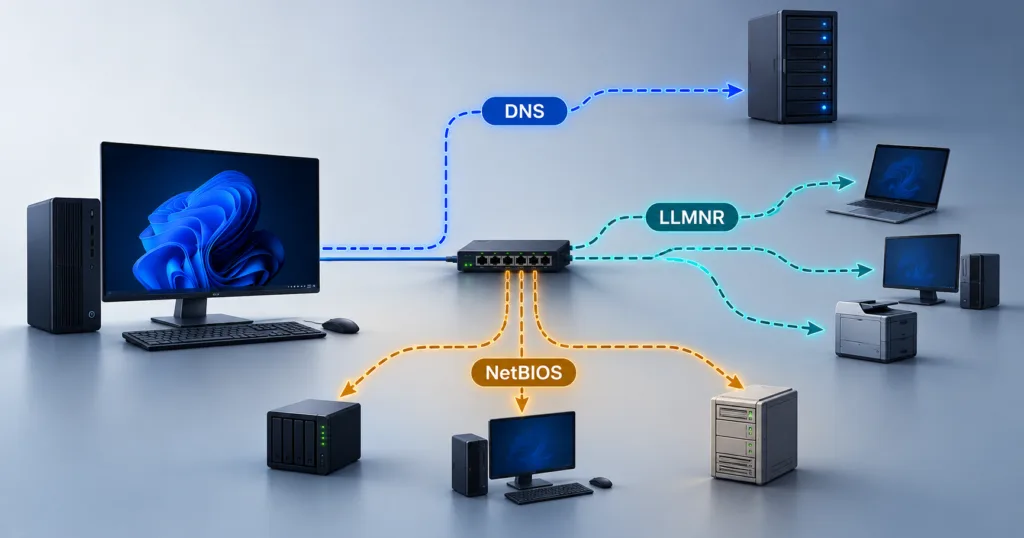
Windows includes built-in commands for inspecting cached DNS records, querying DNS servers and tracing network paths. Separate commands clear the local DNS cache or reset networking components, changing system state rather than simply displaying diagnostic information.
A website failing to load does not establish a DNS fault. Name-resolution problems can involve the Windows client, a DNS server or devices between them. Connectivity problems can also persist after a hostname has resolved to an IP address.
Inspecting the local DNS cache
The command ipconfig /displaydns displays the Windows DNS client resolver cache. This includes recently obtained DNS records and entries preloaded from the local hosts file.
ipconfig /displaydnsWindows can also cache negative responses indicating that a name does not exist. The displayed entries provide information for comparison with a DNS-server query, but a cached record’s presence alone does not show that it is stale or incorrect.
PowerShell offers another view through Get-DnsClientCache, which retrieves the local cache and supports filtering by entry name and record type.
Get-DnsClientCacheQuerying a DNS server with nslookup
The nslookup command queries a DNS server without using the Windows client resolver cache. It uses the default DNS server unless a second argument specifies another server.
nslookup example.com
nslookup example.com 8.8.8.8
Here, example.com is an illustrative domain. The second command directs the query to Google Public DNS at 8.8.8.8. Bypassing the PC’s cache does not guarantee a newly retrieved answer from the domain’s authoritative servers, because the queried resolver can hold its own cached records.
An address response shows what the queried server returned for that request. A timeout means that the server did not respond within the allotted time and retries. That differs from receiving a response reporting that the domain does not exist.
The command also supports queries for particular record types: nslookup -type=mx example.com requests mail exchange records, nslookup -type=ns example.com requests name server records and nslookup -type=txt example.com requests text records.
Different resolver responses provide a comparison without establishing which answer is wrong. The tool also does not reproduce every aspect of Windows client resolution. In a configuration with several DNS servers and an unreachable primary server, nslookup can fail while the Windows DNS client obtains a response from another configured server.
Tracing a network path with tracert
The tracert command uses ICMP probes to identify responding devices along a path. Its output includes hop numbers and round-trip response times in milliseconds.
tracert example.comA hostname target requires name resolution before the path can be traced. The command also accepts an IP address directly. A trace to an address returned by nslookup tests the path without requiring the destination’s hostname to be resolved.
Asterisks indicate that expected probe responses were not received within the timeout. Some routers do not return those responses, so a missing hop or timeout does not, by itself, prove a routing failure. Tracing a DNS server’s address provides path information; it does not query the server’s DNS records or measure DNS resolution speed.
Clearing cached DNS results
The command ipconfig /flushdns flushes and resets the local DNS resolver cache, discarding negative responses and other dynamically added entries.
ipconfig /flushdnsClearing local cached results does not guarantee that a subsequent DNS-server response contains newly retrieved data: the resolver can retain its own cached answers. A hosts-file mapping is another possible source of Windows name-resolution problems. A successful flush alone does not establish the cause of an earlier failure or rule out a continuing DNS problem.
Resetting Winsock and TCP/IP
Winsock provides the interface for communication between applications and network services. The command netsh winsock reset resets its catalog to a clean state, removing custom layered service providers. Winsock namespace-provider entries are unaffected.
netsh winsock resetMicrosoft’s Windows connection-repair instructions include this command in an administrator Command Prompt session. Intel’s network-stack repair procedure ends with a Windows restart after a sequence that includes Winsock and TCP/IP resets.
The existing Winsock catalog listing can be saved to a text file in Command Prompt with:
netsh winsock show catalog > winsock-before.txtThe greater-than character redirects the command’s displayed output to the file.
The separate command netsh int ip reset resets TCP/IP configuration. Microsoft also includes it in its administrator-run connection-repair instructions. It changes networking settings rather than testing a domain’s DNS records.