


A new Ethernet cable is usually the first thing people blame or replace when a wired connection feels wrong. That makes sense: a damaged cable, a bad port, an ISP issue, or a router problem can all hold back a connection.
But once those obvious causes are ruled out, Windows Ethernet settings are worth checking too. Some adapter options are designed for power saving, congestion handling, or CPU efficiency. Those defaults can be useful in the right environment, but they may also make a desktop connection feel less predictable than it should.
The exact options you see depend on your Ethernet adapter and driver. Intel, Realtek, Broadcom, and add-in NICs often use different names for similar features, so treat these as settings to inspect rather than universal switches that every PC will show.
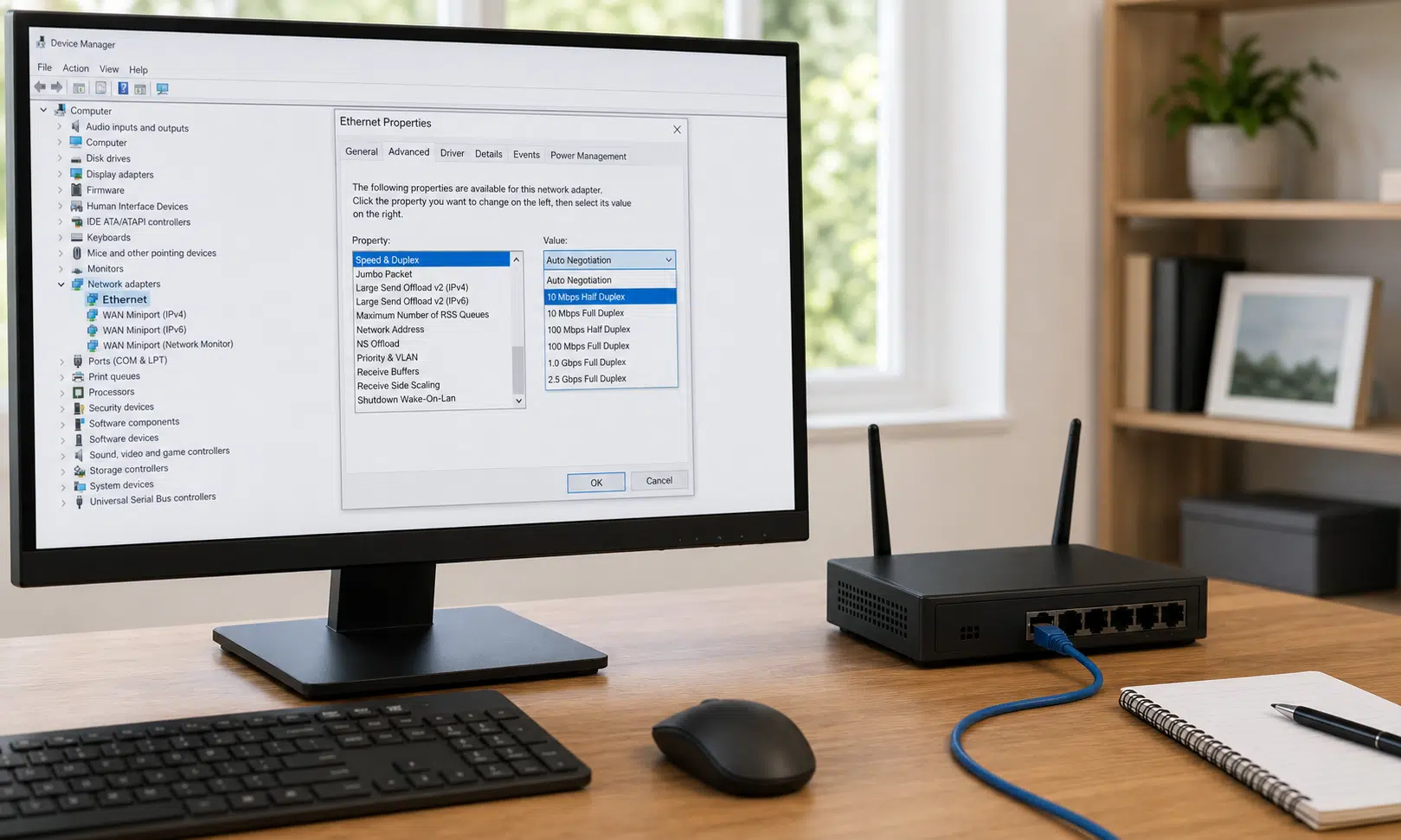
Start With Device Manager
Most of these controls live inside Device Manager. Before changing anything, make sure you have already checked the basics: the cable is rated for the speed you expect, the router or switch port supports that speed, and your internet plan or local network target is not the limiting factor.
To open the adapter settings:
- Right-click the Start button.
- Select Device Manager.
- Expand Network adapters.
- Right-click your Ethernet adapter and choose Properties.
- Open the Advanced tab.
That Advanced tab is where many driver-level Ethernet options appear. If a setting is missing, your adapter may not expose it, or the driver may use a different label.
Energy Efficient Ethernet Can Add Inconsistency
Energy Efficient Ethernet, often shown as EEE, is intended to reduce power use when network traffic is light. It is associated with the 802.3az standard, which allows supported network hardware to enter a lower-power idle state during quiet periods and wake again when traffic increases.
That behavior can be sensible on laptops or in environments where power savings matter. On a plugged-in desktop, the tradeoff may not be worth it if the connection feels uneven. EEE does not necessarily make a speed test look bad, and it may not disconnect the network outright. The issue is more subtle: wake and idle transitions can make traffic feel less consistent on some hardware and driver combinations.
To check it:
- In your Ethernet adapter Properties window, open the Advanced tab.
- Look for Energy Efficient Ethernet, EEE, Green Ethernet, or a similarly named option.
- Change the value to Disabled if you want to test whether it improves consistency.
- Apply the change and retest your connection during the activity that was giving you trouble.
This is a reasonable setting to test on a desktop that stays connected to power. If you are using a laptop and care about battery life, the tradeoff is less clear.
Interrupt Moderation Is About Latency, Not Just Speed
A normal internet speed test can miss some problems. It may show strong download and upload numbers while real-time use still feels delayed. Gaming, voice calls, video meetings, and remote desktop sessions are often more sensitive to latency and jitter than to headline throughput.
Interrupt Moderation is one adapter feature that can affect that feel. In broad terms, it lets the network adapter group packet notifications before handing them to the CPU. That reduces CPU overhead and can help during heavy transfers, but it may also add a small delay before traffic is processed.
On many 1 GbE home desktop setups, lowering or disabling Interrupt Moderation can be worth testing if your main complaint is latency-sensitive work rather than bulk file transfer speed.
To check it:
- Open the Ethernet adapter Properties window in Device Manager.
- Go to the Advanced tab.
- Look for Interrupt Moderation, Interrupt Moderation Rate, or a vendor-specific variation.
- For latency-sensitive use on a typical 1 GbE adapter, test Disabled or Low if those options are available.
- Retest with the actual task that felt delayed, such as a game, remote desktop session, or call.
There is an important caveat: 10 GbE adapters are different. On faster NICs, disabling interrupt moderation can create a heavy CPU interrupt load under sustained traffic. If you are using 10 GbE, leaving Interrupt Moderation enabled, Adaptive, or at the driver default is often the safer starting point. Tune it only if you have a clear reason and can watch CPU load while testing.
Flow Control May Not Help on a Simple Home Network
Flow Control is meant to prevent packet loss during congestion by allowing network equipment to pause traffic briefly when buffers are filling. In managed networks with compatible switches and a clear congestion problem, that can be useful.
On a mixed home network, it may not solve anything you actually have. In some setups, pause frames can make transfers feel uneven, especially during sustained local copies to a NAS or another machine on the LAN. This does not always create a hard speed cap, but it can affect consistency.
To test it:
- Open your Ethernet adapter Properties window.
- Select the Advanced tab.
- Find Flow Control.
- Set it to Disabled.
- Apply the change and test sustained transfers again.
If you are on a managed office network, leave this setting alone unless your network administrator tells you otherwise. Flow Control can be part of a deliberate network configuration, and changing it casually may cause more confusion than it solves.
Power Management Can Affect Resume and Link Behavior
Not every relevant setting is on the Advanced tab. The Power Management tab can also affect how your Ethernet adapter behaves when the PC sleeps, wakes, or tries to conserve power.
One common option is Allow the computer to turn off this device to save power. When enabled, Windows may put the adapter into a lower-power state during sleep or other power transitions. If the driver handles that cleanly, you may never notice. If it does not, you might see slow reconnects, brief dropouts after resume, or a connection that feels sluggish until the adapter settles.
To adjust it:
- Open Device Manager.
- Right-click your Ethernet adapter and select Properties.
- Open the Power Management tab.
- Clear Allow the computer to turn off this device to save power.
- Click OK or Apply.
Some adapters also expose extra power-related options in the Advanced tab. The names vary, but they may include Power Saving Mode, Reduce Speed on Power Down, Gigabit Lite, Green Ethernet, or similar labels. If your desktop is plugged in and you are chasing stable wired performance, those are worth reviewing.
Change One Setting at a Time
The safest way to test these settings is to change one option, apply it, and then repeat the same test that showed the problem. That might be a large file copy to a NAS, a remote desktop session, a game, or a long video call. A single browser-based speed test is not enough if the issue is latency, jitter, or inconsistent local transfers.
A practical order is:
- Disable Energy Efficient Ethernet or the closest equivalent.
- Test Interrupt Moderation carefully, using Low or Disabled for typical 1 GbE latency-sensitive use, but keeping defaults for 10 GbE unless you know what you are tuning.
- Disable Flow Control on simple home networks where congestion control is not needed.
- Review Power Management settings so Windows is not turning off the adapter unexpectedly.
Keep notes as you go. If a change makes no difference, put it back before moving on. That makes it much easier to identify the setting that actually mattered on your system.
The Point Is Predictability
These settings are not magic speed boosters, and they will not make a cable, router, switch, or internet plan exceed its limits. They are better understood as tuning options for situations where wired Ethernet should already be working well, but the connection still feels inconsistent.
For a plugged-in desktop on a simple home network, power-saving and congestion-management defaults may not match how the machine is used. Checking Energy Efficient Ethernet, Interrupt Moderation, Flow Control, and adapter power management gives you a focused place to look after the usual hardware and ISP checks are done.