


A NAS can feel finished once it is online. Files copy across the network, folders show up where they should, and the whole thing quietly disappears into the background.
That is also why bad NAS setups can last for years. The most expensive mistakes are not always the obvious ones. They are the settings and assumptions that seem harmless until a drive fails, a folder gets deleted, ransomware finds an open service, or your supposedly fast storage crawls along at the speed of an old network switch.
This is not about turning every home NAS into a full-time IT project. Most of the important fixes are straightforward. The real work is knowing which parts of the setup deserve attention before something breaks.
RAID Is Not a Backup Plan
The most common NAS mistake is treating RAID as if it solves the backup problem. It does not.
RAID can be useful, but it solves a narrower problem than many people think. Depending on the configuration, RAID can improve availability, performance, or both. A mirrored setup, for example, can keep the NAS running if one drive fails because the same data exists on another drive in the array.
That is redundancy. It is not the same thing as backup.
A RAID array can help with a failed disk, but it does not protect you from every way data can disappear. If you delete a folder by mistake, that deletion can be reflected across the array. If ransomware encrypts files the NAS can access, RAID can preserve encrypted copies just as reliably as clean ones. If the NAS is stolen, damaged by a power event, or misconfigured, the array itself may not help you.
A backup should be a separate copy of the data that can survive a problem with the primary storage. In practical terms, that usually means at least one copy that is not sitting live on the same NAS and immediately writable by the same devices.
The familiar 3-2-1 backup idea is still useful as a planning model: keep three copies of important data, use two different kinds of storage, and keep one copy offsite. Your NAS can be one of those copies, but it should not be the only place your important files live.
For a home or small office NAS, a sensible backup plan might include:
- A scheduled backup from the NAS to an external USB drive.
- A second external drive that is rotated offsite or stored disconnected.
- An encrypted cloud backup for irreplaceable files.
- Snapshots for fast recovery from accidental deletion or unwanted changes.
- Periodic restore tests so you know the backup actually works.
Snapshots deserve a careful mention because they are helpful but often misunderstood. A snapshot can let you roll a shared folder or filesystem back to an earlier state, which is valuable if files are accidentally changed or deleted. However, snapshots are not a complete replacement for backups if they live only on the same NAS. They are part of a recovery strategy, not the whole strategy.
Most mainstream NAS platforms include backup tools. Synology users often work with Hyper Backup. QNAP users may use Hybrid Backup Sync. DIY setups based on TrueNAS, OpenMediaVault, Linux, or a similar platform have several options depending on the filesystem and destination. Duplicati is one open-source backup tool some DIY users consider for encrypted backups to local or cloud destinations, but it should be evaluated against your platform, recovery needs, and tolerance for maintaining the backup stack yourself.
The key question is simple: if the NAS were unavailable tomorrow, where would the second clean copy be?
If you cannot answer that quickly, the NAS is not backed up in any meaningful way.
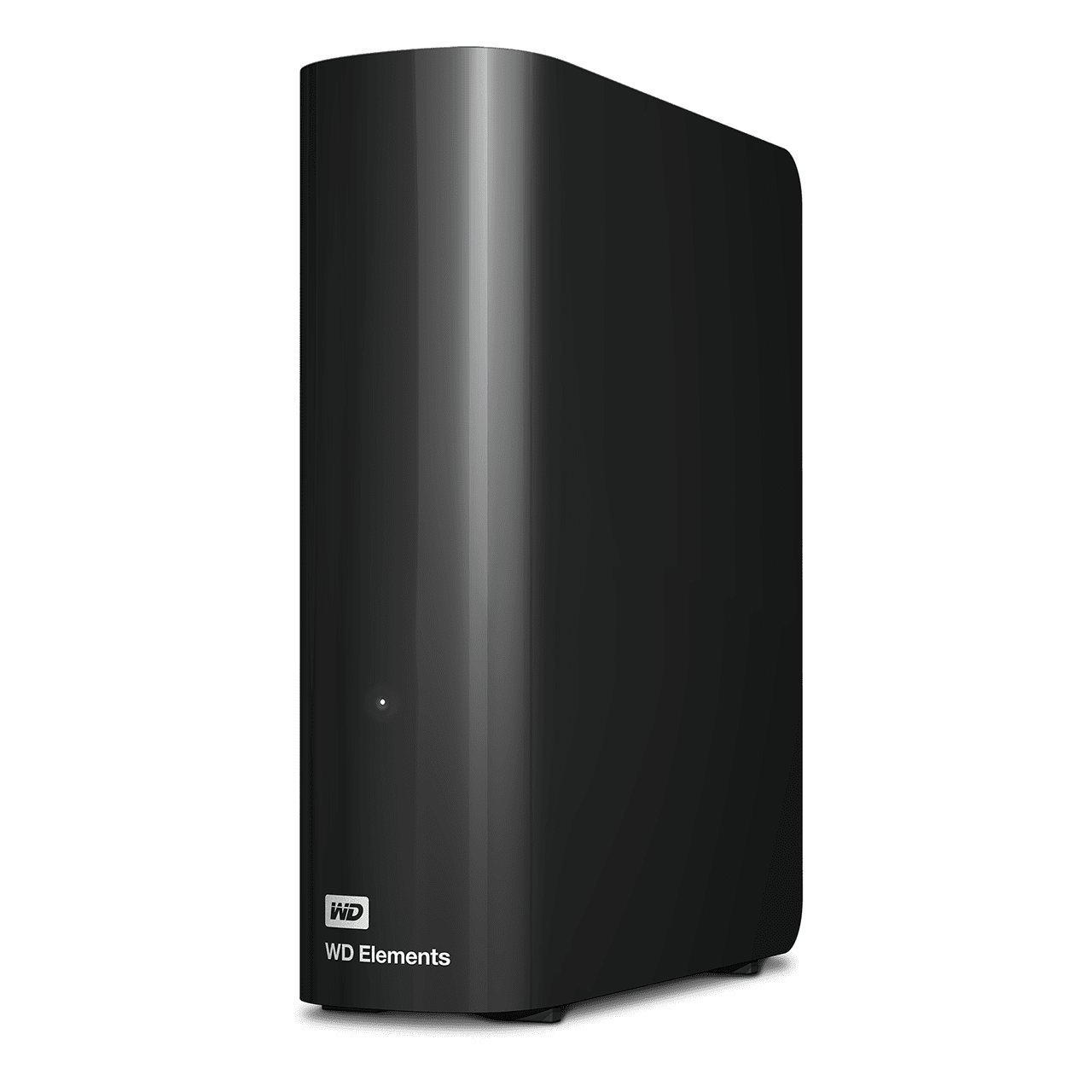
WD Elements Desktop USB External Hard Drive
A USB desktop hard drive gives the NAS a separate backup target for scheduled jobs. Keep it disconnected or rotate it offsite when possible so it is not always writable by the same devices.
As an Amazon Associate I earn from qualifying purchases.
Exposing a NAS Directly to the Internet Is Usually the Wrong Shortcut
Remote access is where many NAS setups become riskier than their owners realize.
The tempting approach is port forwarding. You open a port on the router, point it at the NAS, and suddenly the NAS is reachable from outside the house or office. It feels convenient because it works quickly. It is also a blunt way to put a storage device in front of the public internet.
Once a service is reachable from the internet, it can be found, scanned, and attacked. That does not mean every exposed NAS will be compromised, but it does mean you are relying on the device, its apps, your passwords, your update habits, and the specific exposed service to hold up under constant attention from the outside world.
NAS ransomware has been a real problem for years, especially for poorly secured devices with exposed remote access. Families such as DeadBolt and eCh0raix have targeted NAS users in the past, particularly when devices were reachable online and not properly patched or protected. The exact risk depends on the vendor, firmware, exposed services, and configuration, but the general lesson is stable: do not expose a NAS unless you have a specific reason and understand the tradeoff.
For most people, a VPN-style approach is safer and cleaner. Instead of making the NAS itself publicly reachable, you create a private connection into your network or directly between your devices.
Tailscale is popular because it is simple to set up and works well for many home users. It creates a private mesh network between your approved devices, so your laptop or phone can reach the NAS without opening the NAS management interface to the entire internet. WireGuard is another strong option for people who prefer to run and manage the VPN themselves. Some routers and NAS platforms support it directly, while other setups may use a separate small server or firewall appliance.
The goal is not just encryption. The goal is reducing what the public internet can touch.
If you currently use port forwarding for NAS access, review these items:
- Check your router for any forwarded ports that point to the NAS.
- Disable forwards you do not absolutely need.
- Check whether UPnP is enabled on the router.
- Review whether the NAS has been allowed to create router rules automatically.
- Update the NAS operating system and installed packages.
- Use strong, unique passwords and multi-factor authentication where available.
- Replace direct exposure with Tailscale, WireGuard, or another private access method where practical.
UPnP is worth calling out because it can quietly undo careful work. Many routers ship with UPnP enabled, allowing devices on the network to request port mappings automatically. That can be convenient for games and consumer apps, but it is not something you want blindly opening access to storage services. If you keep UPnP enabled, at least review the active mappings and understand which device created them.
Remote access is useful. Direct exposure is the part to be skeptical about.
Desktop Hard Drives Are a False Economy in a NAS
A NAS is not just a desktop PC with extra folders. The drives sit in a small enclosure, run for long periods, and often operate beside other drives that generate heat and vibration. That environment is different from a typical desktop where a single drive may spend more time idle and has more physical separation from other disks.
That is why NAS-focused drives exist. Models such as WD Red Plus and Seagate IronWolf are built for always-on storage systems and commonly include firmware behavior and workload ratings intended for multi-drive enclosures. Many NAS-class drives also use conventional magnetic recording, or CMR, which is generally preferred for RAID and sustained write workloads.
The issue is not that every desktop drive will instantly fail in a NAS. Some people run consumer drives for years without a visible problem. The issue is that a NAS is exactly where you want fewer surprises, not more.
Desktop drives can create avoidable problems:
- They may not be rated for 24/7 NAS workloads.
- They may behave poorly in multi-drive vibration environments.
- They may use firmware assumptions that are not ideal for RAID recovery.
- They may have lower workload ratings than NAS-oriented models.
- They may complicate support or warranty conversations if used outside the intended environment.
Error recovery behavior matters in particular. In a desktop, a drive may spend a long time trying to recover from a difficult read. In some RAID environments, a drive that spends too long recovering can be treated as unresponsive or failed by the array. NAS-oriented drives are typically designed with array behavior in mind, though exact features vary by model and vendor.
The safer buying rule is simple: if the drive will live in a NAS, buy a drive intended for NAS use. For many home users, that means NAS-grade CMR hard drives rather than the cheapest desktop disks on sale.
Refurbished or recertified NAS drives can be reasonable for budget builds, but they require more care. Check the seller, warranty, power-on hours if available, return policy, and whether you are comfortable replacing a drive sooner. For important data, the backup plan matters more than the bargain.
| Drive choice | Best fit | Main concern |
|---|---|---|
| NAS-grade HDD | Always-on multi-drive storage | Costs more than basic desktop drives |
| Desktop HDD | General PC storage | Not ideal for NAS workloads or RAID behavior |
| Refurbished NAS HDD | Budget NAS expansion | Requires seller and warranty scrutiny |
| SSD | Fast storage, cache, quiet builds | Cost per terabyte and endurance planning |
Do not buy drives only by capacity and price. In a NAS, the better question is whether the drive matches the workload you are asking it to handle.

WD Red Plus NAS Hard Drive
NAS-rated drives such as WD Red Plus are designed for always-on storage systems and multi-drive use. Match capacity and compatibility to your NAS vendor’s approved drive list before buying.
As an Amazon Associate I earn from qualifying purchases.
Your NAS May Be More Than Storage, But Hardware Still Sets the Limit
Many people buy a NAS for file storage and never use the rest of the machine. That is fine if storage is all you need. Still, most modern NAS boxes are small computers with a processor, memory, an operating system, app support, and sometimes container or virtual machine features.
That extra capability can be useful. A NAS can often run services that would otherwise require another always-on machine.
Common examples include:
- A media server such as Plex or Jellyfin.
- A private photo library or file sync tool.
- A password manager such as Vaultwarden.
- A network-wide DNS filter such as Pi-hole or AdGuard Home.
- Home Assistant for smart home control.
- Lightweight Docker containers for self-hosted apps.
- Surveillance recording if the NAS platform and licenses support it.
The buyer-aware part is knowing when this matters before you purchase. Entry-level NAS units are often excellent at basic file storage, backups, and simple media serving. They may be less satisfying if you expect them to transcode 4K video, host several containers, run virtual machines, or handle multiple users at once.
CPU architecture matters. Some lower-cost NAS devices use ARM-based chips, which can be efficient and perfectly adequate for file serving. They may not be the right choice for heavier apps or specific containers. Intel- or AMD-based models often provide broader software compatibility and, in some cases, hardware video transcoding support, but they usually cost more and may draw more power.
Memory matters too. A NAS with 2GB of RAM may be fine as a simple file server. Once you add containers, indexing, photos, media libraries, and background backup jobs, memory can become a real constraint. If you plan to grow into heavier services, check whether the RAM is upgradeable before buying.
This is where the dedicated NAS versus DIY server decision gets interesting.
A dedicated NAS is usually easier. The vendor handles the enclosure, drive bays, operating system, package center, updates, fan behavior, and basic monitoring. That has real value, especially for people who want storage they can administer without turning it into a hobby.
A DIY NAS or home server gives you more control. You can choose the motherboard, CPU, RAM, network card, HBA, case, operating system, filesystem, and upgrade path. You can run TrueNAS, OpenMediaVault, Unraid, Ubuntu, Proxmox, or another platform depending on your preferences. The tradeoff is that you also become the person responsible for maintaining it.
| Approach | Why it works | Where it can disappoint |
|---|---|---|
| Prebuilt NAS | Simpler setup, compact design, polished storage tools | Limited upgrades and higher cost for better specs |
| DIY NAS | Flexible hardware, more software freedom, easier expansion | More setup work and more maintenance responsibility |
| Repurposed PC | Low upfront cost if you already own parts | May use more power or need storage-focused upgrades |
Neither route is automatically better. The right answer depends on what you expect the box to do after the first week.
If you only need reliable shared storage, a modest two-bay or four-bay NAS may be enough. If you want media serving, containers, surveillance, private cloud tools, and room to expand, buy or build for that from the start.
Gigabit Networking Can Make Fast Storage Feel Slow
A NAS is only as fast as the path between the NAS and the device using it.
It is easy to focus on drive speed and forget the network. A modern hard drive can often move sequential data faster than a basic gigabit Ethernet connection can carry it. SSDs are faster still. If the NAS, switch, router, or computer is limited to 1GbE, that link becomes the ceiling for transfers.
In rough terms, gigabit Ethernet has a theoretical maximum of 125MB/s before overhead. Real-world file transfers often land a bit below that. That may be perfectly fine for documents, photos, backups, and general home use. It can feel limiting when you are moving large video files, editing from the NAS, backing up multiple machines, or using SSD storage inside the NAS.
The fix is not always to upgrade everything. First, identify the slowest link.
Check these pieces in order:
- The NAS network port speed.
- The switch or router port the NAS uses.
- The Ethernet port on your main computer.
- The cables between devices.
- The negotiated link speed shown by the NAS, switch, or operating system.
- The actual workload, because many small files transfer differently from one large file.
For many home users, 2.5GbE is the practical sweet spot. It is much faster than gigabit, cheaper than 10GbE, and increasingly common on consumer motherboards and newer NAS units. A small 2.5GbE switch can be enough if the NAS and main workstation both support it.
10GbE is still useful for heavier work, especially video editing, large project files, multiple users, or SSD arrays. It costs more, can run hotter, and may require more attention to cabling and switch compatibility. It is not necessary for every NAS.
Before buying a switch, confirm what your current devices can actually do. A NAS with a 2.5GbE port will still run at gigabit speed if plugged into a gigabit router. A PC with a 2.5GbE port will not help if the switch in the middle is limited to 1GbE. Cable quality can matter too, especially as speeds rise.
A clean upgrade path might look like this:
- Confirm the NAS and main PC support 2.5GbE or add adapters if appropriate.
- Add a small 2.5GbE switch near the NAS and workstation.
- Connect the NAS and workstation directly to that switch.
- Leave the rest of the home network on the existing router if it does not need higher speed.
- Test with large file transfers before making more expensive changes.
This kind of targeted upgrade is often better than replacing the whole network. Put the speed where it matters.
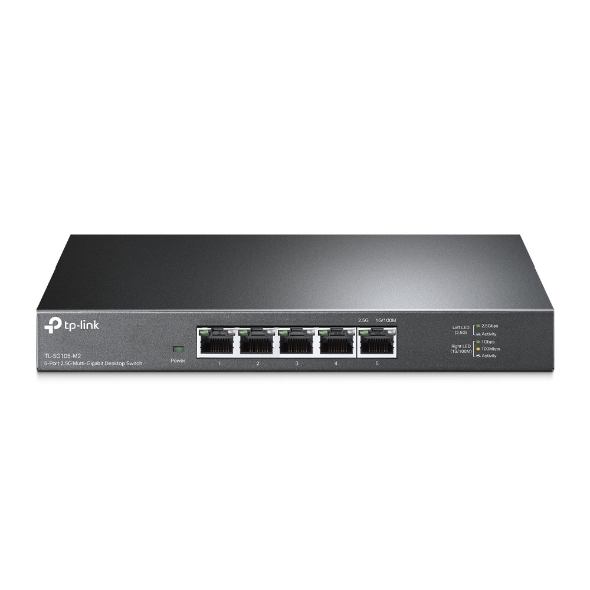
TP-Link TL-SG105-M2 2.5GbE Switch
A small 2.5GbE switch can remove the gigabit bottleneck between a compatible NAS and workstation without replacing the whole network. Confirm your NAS, PC, and cables support the speed first.
As an Amazon Associate I earn from qualifying purchases.
Security Settings Should Not Stay at Their Defaults
Even if you never expose the NAS directly to the internet, it still deserves basic hardening. A NAS often holds tax documents, family photos, work files, backups, media libraries, and device archives in one place. That concentration is useful, but it also raises the cost of sloppy settings.
Start with user accounts. Do not use one shared administrator account for everyone in the house or office. Each person should have their own account with only the access they need. Admin rights should be reserved for administration, not everyday file browsing.
Disable default accounts where the platform recommends it. Use strong passwords. Turn on multi-factor authentication for admin accounts if your NAS supports it. If the NAS offers account lockout after failed login attempts, enable it.
Permissions are another quiet failure point. Shared folders often start permissive because that makes setup easy. Over time, those permissions can become a mess. Review who can read, write, and delete files in each share. A media player does not need write access to your document archive. A backup user may not need access to personal folders unrelated to its job.
A basic NAS security review should include:
- Unique user accounts instead of one shared login.
- Multi-factor authentication for administrator accounts.
- Automatic updates or a regular manual update routine.
- Disabled services you do not use.
- Limited folder permissions.
- Separate accounts for backup jobs and apps.
- Logs or notifications for failed logins, drive problems, and backup failures.
Notifications matter because a NAS can fail quietly. A degraded array, failed backup, overheating drive, or nearly full volume is much easier to fix when you learn about it early. Configure email, push, or app alerts so the NAS can tell you when something needs attention.
This is also a good place to review installed packages. Many NAS platforms make it easy to install apps and then forget them. Every unused app is another thing that may need updates or permissions. If you experimented with packages months ago and never used them again, remove them.
Buying a NAS Without Planning the Next Three Years Gets Expensive
NAS purchases often go wrong because people size them for the files they have today, not the storage pattern they are creating.
A two-bay NAS can be a good choice. It is compact, usually cheaper, and simple to manage. But if you already know your media library, photo archive, surveillance footage, or work projects are growing quickly, two bays can become limiting. A four-bay unit gives you more room for capacity and redundancy options. Larger units cost more, but replacing a too-small NAS later can be more expensive than buying the right size once.
Think about drive bays, not just terabytes. More bays can give you more flexible RAID options and easier expansion, but they also mean more drives to buy, cool, power, and eventually replace.
Power use is part of the cost too. A prebuilt NAS with an efficient CPU may use far less electricity than a repurposed desktop running all day. On the other hand, a repurposed PC can make sense if you already own the parts, need more compute power, or want expansion options a small NAS cannot provide. The comparison depends on actual idle draw, local electricity rates, hardware cost, and what the machine replaces.
The same applies to networking. Paying extra for a NAS with 2.5GbE or 10GbE may be worthwhile if you move large files daily. It may be wasted money if the NAS mostly handles nightly backups and occasional document access.
Before buying, answer these questions:
- How much data do I have now?
- How much did that data grow in the last year?
- How many computers or phones will back up to the NAS?
- Will I stream media from it?
- Will I run containers or virtual machines?
- Do I need remote access?
- How will I back up the NAS itself?
- What network speed do I actually need?
- Can the RAM, network card, or storage be expanded later?
Those answers should drive the purchase more than brand loyalty or a discount on a model that almost fits.
A Better NAS Setup Is Mostly About Removing Weak Links
A NAS does not need to be complicated to be reliable. The strongest setups usually get the basics right and avoid pretending one feature solves every problem.
RAID helps with drive failure, but it is not a backup. Remote access is useful, but direct internet exposure is rarely the best first choice. NAS-grade drives cost more than desktop drives, but they are built for the job. Fast disks can still feel slow behind gigabit networking. Extra apps can make a NAS more valuable, but only if the hardware can handle them and you keep the system maintained.
The practical checklist is short:
- Build a real backup plan before you trust the NAS with important data.
- Remove unnecessary port forwarding and use private remote access where possible.
- Use drives designed for NAS workloads.
- Match the NAS hardware to the services you expect to run.
- Upgrade the network only where the bottleneck actually exists.
- Review accounts, permissions, updates, alerts, and installed apps.
None of this requires treating your NAS like enterprise infrastructure. It just means recognizing that network storage is infrastructure once your files depend on it.
A NAS that is merely working is not the same as a NAS that is ready for drive failures, mistakes, remote access, growth, and everyday use. Fix the weak links now, and the box in the corner becomes much more than a place where files happen to land.