External hard drives are one of the simplest ways to add capacity to a home server. You plug one in, share a folder, and suddenly there is more room for media libraries, backups, archives, and whatever else your server has collected over time.
That convenience is real, but it has limits. If a drive is going to act like permanent storage for an always-on server, it deserves a better home than the end of a USB cable. External hard drives still have a useful role in a home lab or small server setup, but they are much better suited to backups, migrations, and temporary file shuffling than day-to-day primary storage.
The practical goal is simple: keep the storage your server depends on somewhere it can be powered, cooled, monitored, and managed properly.
External Drives Are Useful, But They Are Not Ideal Permanent Storage
There is nothing wrong with external HDDs as a category. They are useful for moving large files between machines, keeping a spare copy of important data, or adding temporary capacity while you reorganize a server. For many people, an external drive is also the easiest way to make a quick backup without buying a new NAS or opening a desktop case.
The problem starts when temporary storage quietly becomes permanent storage. A home server is usually expected to sit in the background and remain available. It might be serving media, hosting backups, syncing files, running containers, or keeping shared folders online for multiple devices. That changes how much trust you should put in the storage path.
With an internal drive, the server is talking to the disk through hardware and software paths designed for that role. With an external USB hard drive, the setup includes more pieces: the drive, the enclosure, the USB bridge, the cable, and often a separate power adapter. Any one of those pieces can create trouble even when the hard drive itself is still healthy.
That does not mean every USB drive will fail or vanish from your system. It means the setup has more weak points than it needs to have for storage you depend on every day. A loose cable, flaky enclosure, sleep behavior, power issue, or USB reset can turn into a storage problem that looks much more dramatic than the underlying disk failure risk alone.
USB is fine for plenty of jobs. It is a convenient transport layer for backups, file transfers, portable SSDs, and occasional expansion. It is much less compelling as the foundation for always-on storage that your server expects to be present every minute of the day.
Put Main Storage Where the Server Can Manage It
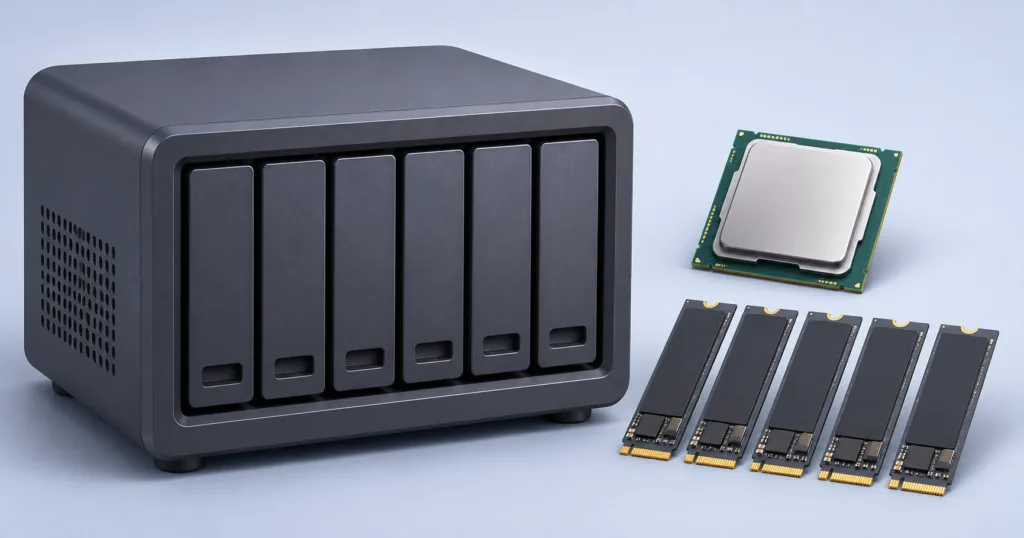
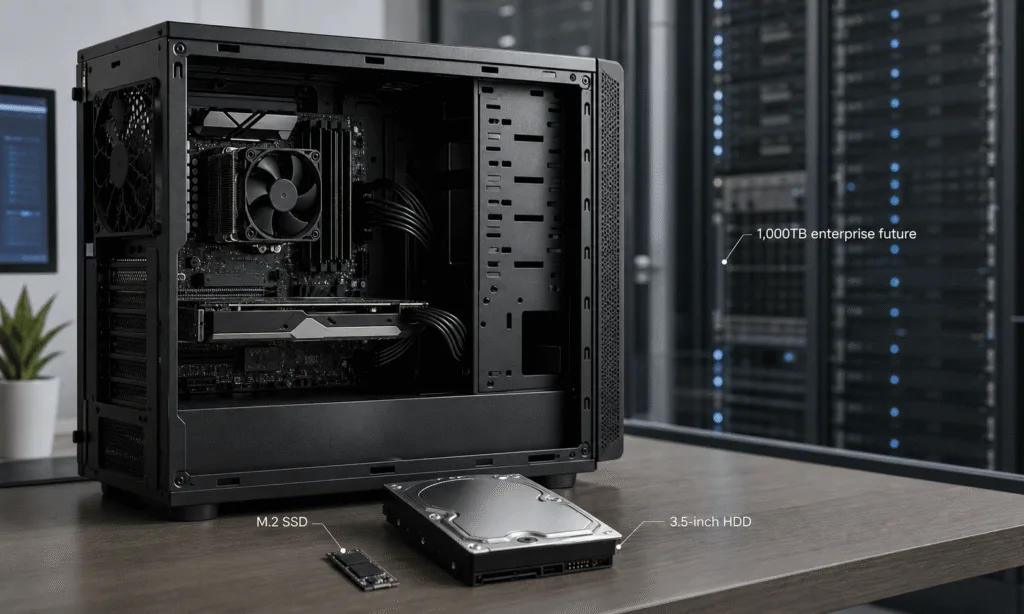
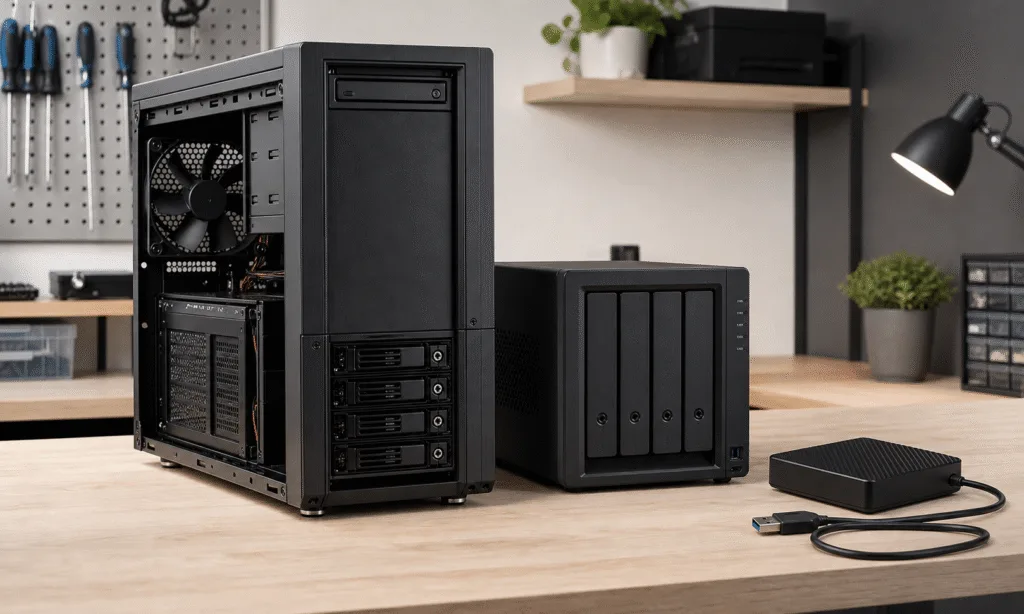
The better setup depends on the machine you are using as a server. If your home server is a desktop tower, the cleaner option is usually internal SATA hard drives mounted in proper drive bays. If you are using a mini PC, it may make more sense to pair it with a NAS instead of surrounding it with several USB-powered drives.
The exact hardware can vary, but the storage should meet the same basic requirements:
- It should have stable power instead of depending on a fragile external adapter or USB power behavior.
- It should have enough cooling for long-running use.
- It should be easy to identify, replace, and monitor.
- It should be visible to the operating system and storage tools in a way that supports health checks.
- It should not depend on a loose cable for normal operation.
That does not mean every home server needs enterprise hardware, a rackmount chassis, or a large multi-bay NAS. Even a basic desktop with two internal drives in a mirrored setup can be a cleaner and more resilient approach than putting everything on one external HDD.
Internal drive bays exist for more than tidiness. They make it easier to secure the disks, cool them with case airflow, connect them directly to the system, and keep cabling out of the danger zone. They also make it easier to build storage around the software you actually want to use, whether that is a simple file share, a mirrored disk pair, a NAS operating system, or a more advanced storage pool.
If the server is a compact system with no room for drives, forcing it to become a storage box through USB is not always the best compromise. A small server can be excellent at compute, automation, media indexing, or running services while a NAS handles the disks. Splitting those jobs is often cleaner than turning a mini PC into a nest of external enclosures.
Use External Drives for Backups Instead
External hard drives are still useful in a good server setup. The better job for them is backup duty.
A sensible backup plan keeps more than one copy of important files. Many people follow some version of the 3-2-1 idea: multiple copies, on more than one type of storage, with at least one copy kept separate from the main system. An external hard drive can fit that role well because it can be connected only when needed.
The workflow is straightforward:
- Plug in the external drive.
- Run the backup job or copy the needed files.
- Verify that the files are present and readable.
- Eject or unmount the drive cleanly.
- Disconnect it and store it somewhere safe.
That last step matters. A backup drive that spends most of its life unplugged is insulated from a lot of problems that can hit an always-connected system. It is less exposed to accidental deletion, bad sync jobs, malware, power events, and ordinary server mistakes. It is also clearly a backup, not a second location your services quietly start depending on.
This is where the convenience of external storage works in your favor. You do not need the drive to be available all the time. You need it to be available when you are creating or restoring a backup. That difference is what makes an external HDD a better supporting player than a main character in a home server setup.
A portable SSD can also be useful for fast transfers or short-term backup tasks, especially when speed and size matter more than cost per terabyte. For large media libraries and bulk backup storage, though, spinning hard drives usually remain the more economical option.
If You Need More NAS Capacity, Avoid Treating USB as a Storage Pool
Running out of drive bays on a NAS creates a different version of the same temptation. A USB enclosure looks like a cheap fix: plug in more drives, point the NAS at them, and keep going.
That can work for limited use, but it has drawbacks. USB-connected enclosures can add bandwidth limits, latency, sleep and wake quirks, and extra failure points. Some NAS systems also limit what you can do with drives attached over USB. Even when a system can see external disks, that does not always mean it can fold them cleanly into RAID or ZFS storage the way it can with internal bays.
If your NAS has a spare 5.25-inch bay, an internal drive cage can be a strong option because the disks can connect through SATA or SAS rather than USB. That kind of bay is not common on many prebuilt NAS units, but when it exists, it can be a practical way to add drives while keeping them inside the system and properly cooled.
A DAS, or direct-attached storage unit, is another route. The details matter here. A SAS-based DAS is generally a more server-minded option than a consumer USB enclosure because it is built around higher-bandwidth, lower-latency storage connections. Some NAS vendors also sell expansion units designed for their own systems, which can be easier to manage than a DIY arrangement.
A second NAS can also be connected over the network and mounted through NFS or a similar file-sharing approach. That can be useful if you already own the hardware, but it is not the same as adding drives to the original storage pool. It usually means more management overhead, another device to maintain, and another place where performance or availability can become a bottleneck.
For many people, the simpler answer is to move to larger internal drives when capacity gets tight. Replacing older small disks with higher-capacity HDDs can add a lot of room without making the storage layout more complicated. The tradeoff is that drive swaps and rebuilds need to be planned carefully, especially on systems that already hold important data.
Move Your Data Before the Drive Forces You To
If your home server already depends on one or more external hard drives, the important thing is to migrate while everything still works. A calm migration is much better than trying to recover a media library, backup target, or shared folder after a disconnect, enclosure issue, or drive problem has already caused damage.
Start by choosing the new storage location. That might be internal drives in the server, a mirrored pair, a NAS, a DAS, or a higher-capacity set of disks. Then move the data in a controlled way instead of simply dragging folders while services are still writing to them.
A safer migration looks like this:
- Decide where the data will live next.
- Stop services that may write to the external drive, such as media servers, download tools, sync jobs, containers, or backup tasks.
- Copy the data to the new storage location.
- Check that important files open correctly and that the folder structure looks right.
- Point shares, apps, libraries, and backup jobs at the new location.
- Keep the old drive untouched for a while as a fallback.
Do not wipe the external drive immediately after the copy finishes. Keep it as a temporary rollback point until the new setup has been running long enough to prove itself. Once you are confident the migration worked, the old external drive can become an offline backup instead of returning to permanent server duty.
This is the part of storage planning that feels boring until it matters. The best time to redesign a home server storage setup is before the old one fails, not after. External hard drives are convenient, affordable, and genuinely useful, but permanent server storage asks more of them than they are best suited to provide.
Use them where they make sense: backups, transfers, and temporary moves. Put the data your server depends on in storage that is meant to stay connected, stay visible, and stay manageable.