

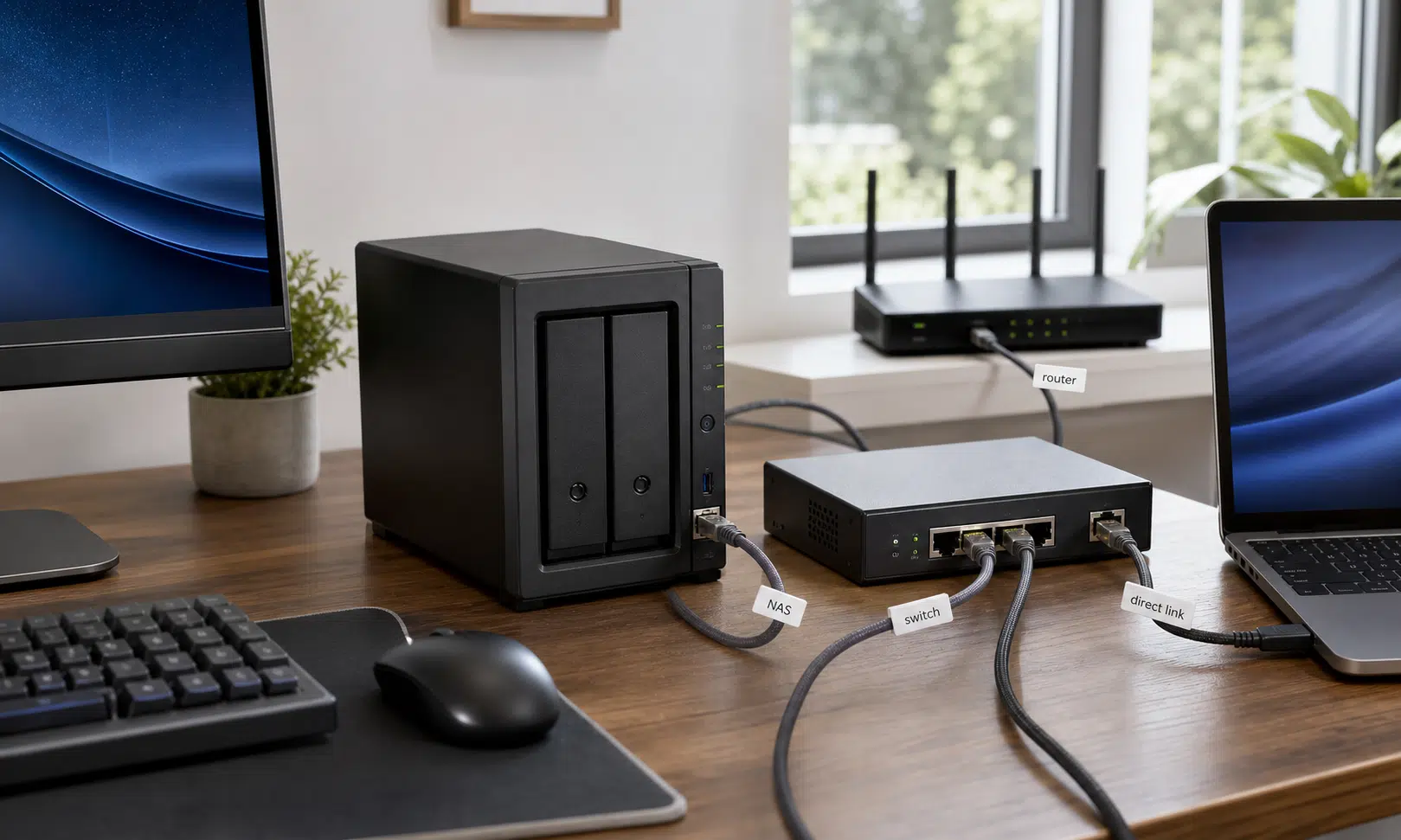

A faster router is not always the right first upgrade for a slow NAS. If your main complaint is that file transfers between your computer and network storage feel sluggish, the bottleneck is often on your local network, not your internet connection.
That distinction matters. Multi-gig internet service and a router with a multi-gig WAN port are useful if you are trying to bring faster-than-gigabit internet into your home. But NAS transfers usually happen inside your house or office. They run across your LAN, not out to the internet and back.
For that job, a new router can be the most expensive way to solve a smaller problem. In many setups, you can get 2.5GbE speeds between your computer and NAS with a network adapter, a short Ethernet run, or a small multi-gig switch.
A 2.5GbE Router Mainly Matters for Multi-Gig Internet
It is easy to assume the router controls every part of your network speed. It is the box most people see, restart, replace, and blame when something slows down. It also usually handles internet access and, in many home networks, assigns local IP addresses through DHCP.
That does not mean every local transfer has to be upgraded through the router first. A switch can move traffic between wired devices on the same local network, and many home networks already depend on switching hardware, whether it is built into the router or added as a separate box.
For NAS use, the question is simple: which devices need to talk to each other at 2.5GbE speeds? If the answer is just your desktop and your NAS, you have a very different upgrade path than someone trying to bring a 2Gbps fiber connection to every device in the house.
A router with 2.5GbE ports can still be useful. It may be the cleanest option if you want one central device to manage your internet connection, wired network, Wi-Fi, and multiple fast Ethernet ports. But if your internet service is still gigabit or slower, and your only urgent need is faster local file movement, replacing the whole router should not be the default move.
You Can Use a Direct 2.5GbE Connection
The cheapest route can be a direct Ethernet connection between your computer and your NAS. If both devices have 2.5GbE ports, you connect them with an Ethernet cable and configure the connection so they can talk to each other locally.
Depending on the operating systems and NAS software involved, the devices may use link-local addressing, or you may prefer to set static IP addresses manually on that dedicated connection. Either way, the practical idea is the same: the computer and NAS get their own private wired path that does not need to pass through your router.
This can work especially well for a single workstation. For example, a desktop used for video editing, photo storage, backups, or large project folders can keep a fast direct link to the NAS while still using Wi-Fi or another Ethernet connection for normal internet access.
There are a few catches to understand before you build around this method:
- The direct cable is only for the devices connected to each other.
- Other devices on your network will not automatically get that same 2.5GbE path.
- Your NAS may still need a separate network connection if it needs internet access, app updates, remote access, or visibility from other devices.
- Your computer may also need Wi-Fi or a second Ethernet adapter for normal internet use.
That makes a direct link simple, but not always elegant. It is a good fit when one computer does most of the heavy lifting with the NAS. It is less convenient if several desktops, laptops, or media systems all need fast access.

Cable Matters USB-C 2.5GbE Adapter
A USB-C 2.5GbE adapter is a simple way to give a laptop, mini PC, or compact desktop a faster wired path to a NAS. Check OS and driver support before relying on it for a permanent workstation setup.
As an Amazon Associate I earn from qualifying purchases.
If one of your devices does not already have a 2.5GbE port, an adapter can still keep the cost low. A desktop can often use a PCIe 2.5GbE network card, while a laptop or compact system may be better served by a USB 2.5GbE Ethernet adapter. The right choice depends on the ports you have available and whether the machine is permanent or portable.
A 2.5GbE Switch Is Usually the Cleaner Upgrade
For most people, a small 2.5GbE switch is the better long-term answer. It lets multiple wired devices communicate at faster local speeds while still keeping everything tied into the rest of the network.
In a typical setup, you connect the switch to your existing router, then plug your NAS and main computer into the switch. The router still handles internet access and normal network duties, while the switch gives the wired devices a faster local path between each other.
That arrangement solves the biggest limitation of a direct cable. Your NAS can remain available to the broader network, your computer can keep normal internet access, and any other device plugged into the same multi-gig switch can benefit from the faster LAN speed.
A small 2.5GbE switch also lets you upgrade gradually. You do not need to replace every network device at once. You can start with the NAS and one main computer, then add another desktop, mini PC, media server, or docking station later.
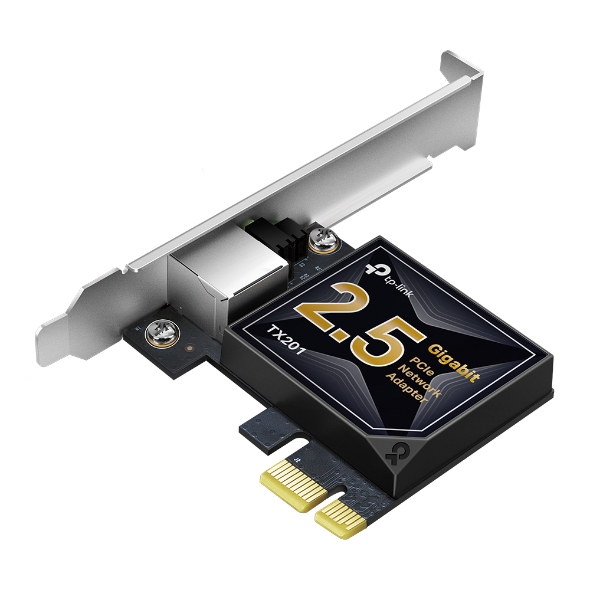
TP-Link TX201 2.5GbE PCIe Adapter
A PCIe 2.5GbE network card is a good fit for a desktop that regularly moves large folders to and from a NAS. Make sure the PC has an open PCIe slot and compatible driver support.
As an Amazon Associate I earn from qualifying purchases.
When shopping, pay attention to the number of 2.5GbE ports, whether the switch is unmanaged or managed, how it is powered, and whether it has an uplink that fits your current router. An unmanaged switch is usually enough for a straightforward home NAS setup. A managed switch can be useful if you already work with VLANs, traffic rules, or more advanced network segmentation.
What You Actually Need for 2.5GbE NAS Transfers
A 2.5GbE setup is only as fast as the slowest important link in the path. If your NAS has a 2.5GbE port but your desktop is still limited to gigabit Ethernet, transfers between them will not magically run at multi-gig speeds. The same is true if a gigabit switch sits between two otherwise faster devices.
Here is the basic checklist:
- A NAS with a 2.5GbE port, or support for a compatible 2.5GbE adapter.
- A computer with 2.5GbE Ethernet, either built in or added through PCIe or USB.
- A direct Ethernet cable between the two devices, or a 2.5GbE switch between them.
- Storage in the NAS that can actually keep up with faster transfers.
- Network settings that point your computer to the intended NAS address.
That storage point is worth noting. Faster networking helps most when the NAS drives, RAID configuration, cache, or SSD storage can feed data quickly enough. A 2.5GbE link has more headroom than gigabit Ethernet, but a slow drive setup or overloaded NAS can still limit real-world results.
Cabling is usually less dramatic than people expect. Many short, decent-quality Ethernet cables already in use for gigabit networks may work at 2.5GbE, though damaged, very old, or poorly made cables can still cause trouble. If the link keeps dropping speeds or behaving inconsistently, replacing the cable is one of the cheapest things to test.
The Speed Difference Is Easy to Feel
Gigabit Ethernet is still usable, but large local transfers expose its limits quickly. Moving backups, media libraries, disk images, raw photos, virtual machines, or video projects over a gigabit link can turn into a waiting game.
In simple terms, 2.5GbE gives you two and a half times the raw network bandwidth of standard gigabit Ethernet. Real-world transfers will not always scale perfectly, because storage speed, protocol overhead, and system load still matter. But when the NAS and computer can keep up, the improvement is large enough to change how you use the storage.
| Upgrade path | Best for | Main tradeoff |
|---|---|---|
| Direct 2.5GbE cable | One computer that needs fast NAS access | Less convenient for shared access and internet routing |
| Small 2.5GbE switch | Multiple wired devices sharing fast NAS access | Costs more than a single cable or adapter |
| New 2.5GbE router | Multi-gig internet plus broader network upgrades | Usually the most expensive option |
This is why a NAS often feels much more useful after a LAN upgrade. It stops feeling like a slow archive box and starts behaving more like storage you can actively work from, especially when you regularly move large folders.
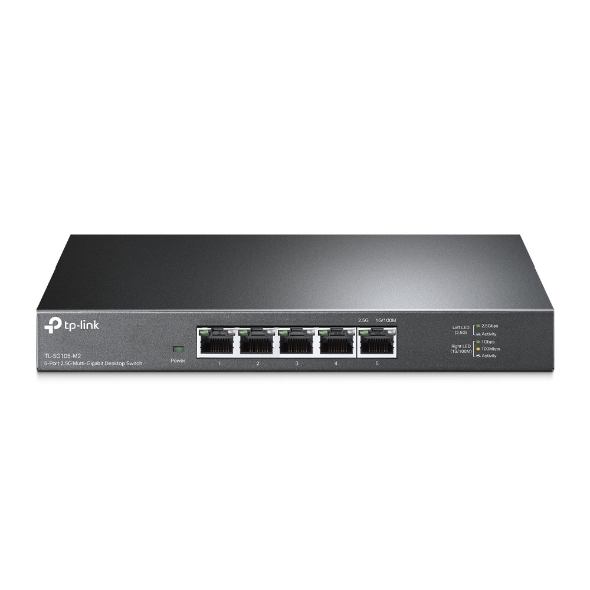
TP-Link TL-SG105-M2 5-Port 2.5GbE Switch
A 5-port 2.5GbE switch can connect a NAS, desktop, and other wired devices while your existing router keeps handling internet access. An unmanaged model is usually enough for a straightforward home NAS setup.
As an Amazon Associate I earn from qualifying purchases.
Start With the Local Bottleneck, Not the Router
A new router is not the wrong answer for every network. If you pay for multi-gig internet, need faster WAN throughput, want better Wi-Fi, or are redesigning the whole network, it may make sense.
But if the goal is specifically faster NAS transfers, start smaller. Check the Ethernet ports on your NAS and main computer. Decide whether one machine or several machines need fast access. Then choose between a direct connection and a compact 2.5GbE switch.
That approach keeps the upgrade tied to the actual problem. You get the local speed where it matters, avoid paying for router features you may not need, and leave yourself room to expand later if your network grows.