When Plex streams start buffering, freezing, or dropping quality, the obvious suspect is the Plex server. That makes sense: Plex is the app on-screen, and the server is the machine doing the work. But the server is only one part of the path between your media library and your TV.
In many homes, the more useful first question is simpler: how good is the network between the server and the device playing the video?
A powerful Plex box can still deliver a frustrating experience if it is sitting on an inconsistent wireless connection, if the TV has weak Wi-Fi in the room where it lives, or if the rest of the house is competing for the same limited bandwidth. Before spending time in Plex settings, transcoding menus, or server upgrade plans, it is worth checking the network pieces that carry the stream in the first place.
Start with the Plex server’s connection
The most important network link in a Plex setup is often the one people stop thinking about once the server is online: the server’s own connection to the router or switch.
Plex can run on a wide range of hardware, from a repurposed desktop to a NAS to a compact mini PC. But whatever machine is hosting the library has to move video across the local network reliably. A Wi-Fi connection may work, especially for lighter streams, but it also has more variables than a wired link. Distance, interference, walls, congestion, and router placement can all affect it.
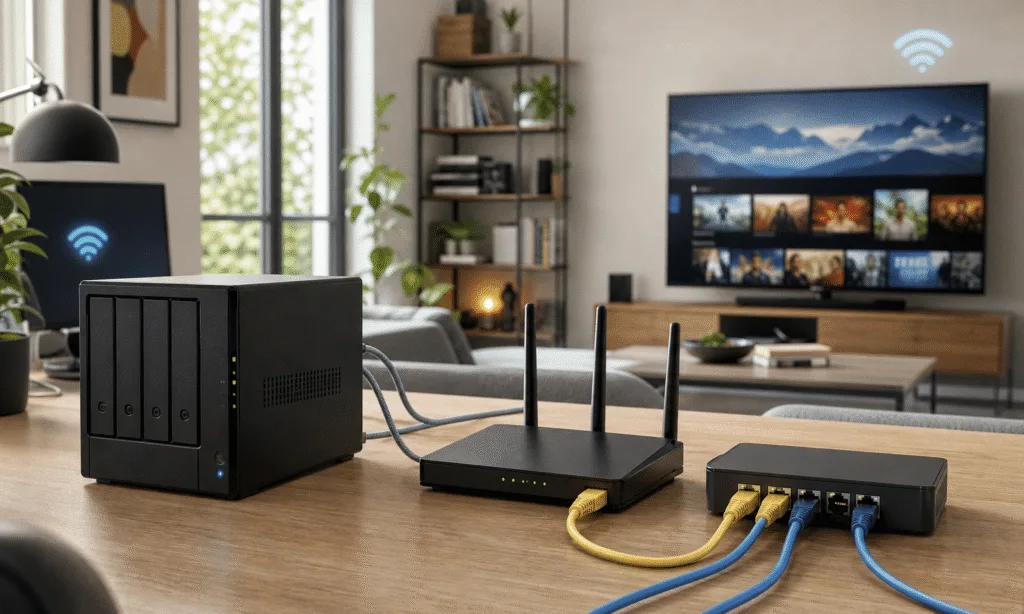
Ethernet is less glamorous, but it is usually the more predictable choice for a device that other devices depend on. A gigabit wired connection can be preferable to a theoretically faster wireless connection if the wired link is steady and the wireless link is not. That does not mean Wi-Fi is unusable for every Plex server, but it does mean Ethernet should be the default goal when the setup allows it.
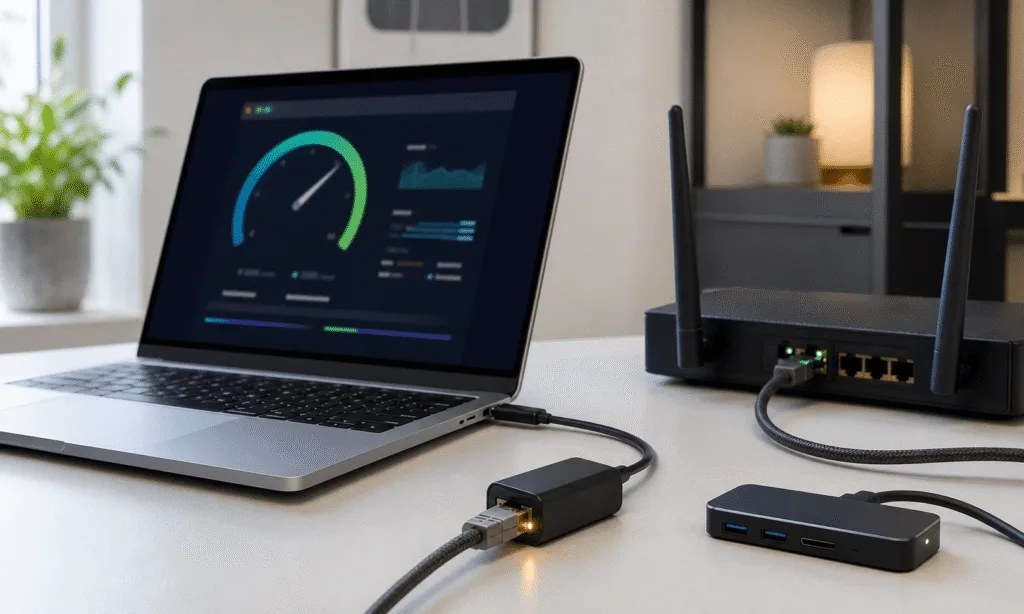
If your Plex server feels slow and the hardware itself is reasonably capable, check the physical path first. Is the server connected by Ethernet? Is it plugged into a router, a switch, or a mesh node with a wired backhaul? Is the cable actually negotiating at the speed you expect? These are boring checks, but they can save you from chasing software problems that are really network problems.
Your TV or streamer can be the weak link
Even if the Plex server is wired and stable, the playback device still has to receive the stream cleanly. That is where a lot of living-room setups get messy.
A TV at the far end of a house may not have the same quality of connection as a laptop sitting closer to the router. A phone or laptop working fine in the same room is not always proof that a smart TV or streaming box will perform the same way. Some devices have smaller antennas, less flexible placement, or weaker wireless performance than the devices people use to test Wi-Fi around the house.
That difference matters more as stream quality rises. Lower-resolution 720p or 1080p video is more forgiving. Higher-bitrate 4K video, especially HDR content, leaves less room for a shaky connection. If Plex works in one room but stutters in another, the playback device’s connection should be near the top of the troubleshooting list.
The cleanest fix is the same as it is for the server: wire the device if you can. Many TVs and streaming boxes include Ethernet, and a small switch can help if there is only one cable run available near the entertainment center.
If Ethernet is not practical, focus on improving the wireless environment around the player. That might mean moving the router, adding a better-positioned access point, checking whether the device is connected to the best available band, or reducing the number of walls and obstructions between the router and the TV. The point is not to make every device wired at any cost. It is to make sure the device actually playing the Plex stream has a connection that can support the file you are asking it to play.
Whole-home bandwidth still matters
A Plex stream does not exist in isolation. It shares the network with every other device in the house, and that can become visible when several people are doing heavy network tasks at the same time.
A household where one person is downloading a large game, another is streaming video from a major service, and another is watching online clips may leave less headroom for a local Plex stream, particularly on older or weaker networking gear. The effect may not show up during ordinary web browsing, because web pages can load in bursts and recover gracefully. Video playback is less forgiving because it needs a steady flow of data.
This is also why a network can feel fine most of the day and then fall apart at night. The issue may not be Plex. It may be the busiest hour in the house.
Older routers and mesh systems can still be perfectly adequate for simple browsing, email, and casual streaming. But if your home has added more 4K TVs, game consoles, phones, tablets, smart home devices, and work laptops over the years, the network may be carrying a much heavier load than it was designed for. Upgrading the router or mesh system is not automatically the right answer, but it becomes more reasonable when the problems appear across multiple rooms, devices, or high-bandwidth tasks.
Do the simple checks before changing Plex settings
Plex has plenty of settings worth understanding, especially around remote access, transcoding, subtitles, and quality limits. But for local streaming problems, network checks should usually come before deeper app surgery.
A practical order looks like this:
- Confirm the Plex server is connected by Ethernet if possible.
- Check that the playback device has a strong wired or wireless connection.
- Compare the same stream on another device or in another room.
- Look for heavy network activity elsewhere in the house while the stutter happens.
- Only then start digging into Plex-specific settings.
That sequence keeps the troubleshooting focused. If the same file plays smoothly on a wired device but stutters on a TV in a weak Wi-Fi area, the problem is probably not the server’s CPU. If Plex struggles only when the rest of the house is pulling large downloads and video streams, the network may be running out of practical headroom. If every device stutters even when the server and player are wired, then it makes more sense to look closely at server performance, file format, or Plex configuration.
A better network can be a better Plex upgrade
It is tempting to treat every Plex problem as a server problem. Faster processors, more RAM, bigger storage, and better transcoding support are all easy to understand as upgrades. Networking is less exciting, but it is often the piece that decides whether the experience feels stable.
For a Plex setup, the best network upgrade may be as simple as running Ethernet to the server, adding a small switch near the entertainment center, improving Wi-Fi coverage near the TV, or replacing aging router hardware that is struggling under a modern household’s load. Those changes are not specific to Plex, either. They can improve game downloads, video calls, cloud backups, and everyday streaming at the same time.
The key is to avoid assuming the app is guilty just because the app is where the problem appears. Plex can only stream as well as the path between the server and the screen allows. If that path is wireless, crowded, weak, or outdated, the best Plex settings in the world may not make the stream feel smooth.