

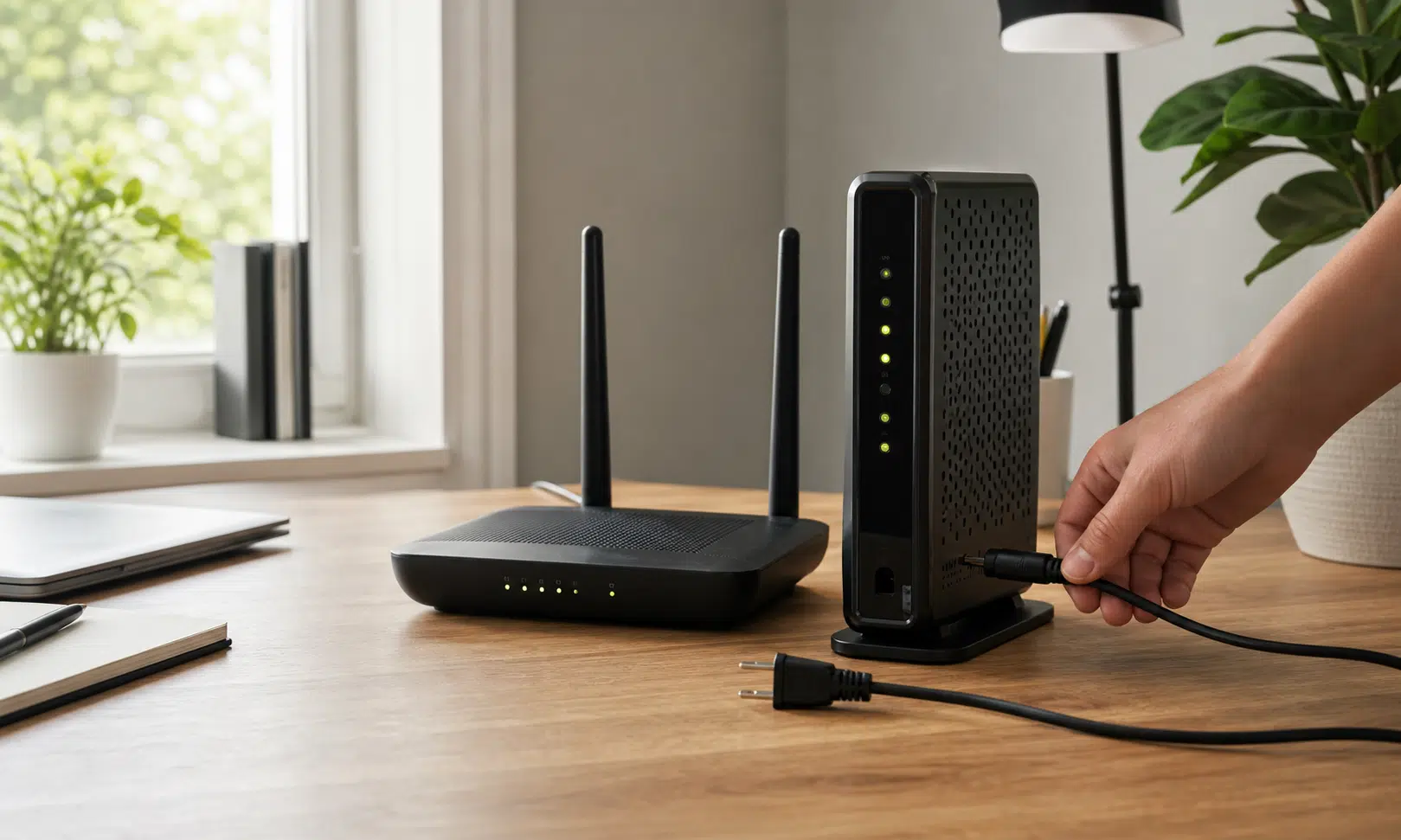

Restarting your router is one of the simplest fixes for slow Wi-Fi, dropped connections, streaming hiccups, and devices that suddenly refuse to get online. In plenty of cases, nothing is permanently broken. The router just needs to stop, clear its temporary state, and start again.
The part many people get wrong is how they restart it. Pressing the power button can be fine on some routers, but it is not always the cleanest way to force a full reboot. If you want the best chance of clearing a temporary network problem, unplugging the router from power and waiting briefly before plugging it back in is usually the better move.
That does not mean every router power button is useless. It means the power button is not always the most reliable troubleshooting method, especially when you are trying to rule out the router before blaming your internet provider or buying new gear.
Why Unplugging Is Often Better Than Pressing the Power Button
Some electronics fully shut down when you press the power button. Others may enter a low-power or standby-like state instead, depending on how the device is designed. If a router does not completely power off, a quick off-and-on press may not give its software the same clean restart you would get from removing power entirely.
That distinction matters because a reboot is useful precisely because it clears temporary operating state. Routers handle a constant flow of device connections, address assignments, wireless traffic, routing tables, and background services. When something gets stuck, a proper restart gives the router a chance to reload its software and rebuild those connections from scratch.
Unplugging also removes the guesswork. Even if your router’s power button normally shuts it down, pulling the power cable makes the process more definite. Waiting a short time before reconnecting power gives the device a cleaner break than rapidly toggling the button.
There is a common explanation that small components in a power supply can keep parts of a device energized briefly after shutdown. That may be true in some electronics, but you do not need to rely on that claim to make the practical decision. From a troubleshooting standpoint, unplugging and waiting is simply the more dependable habit when you want a full restart.
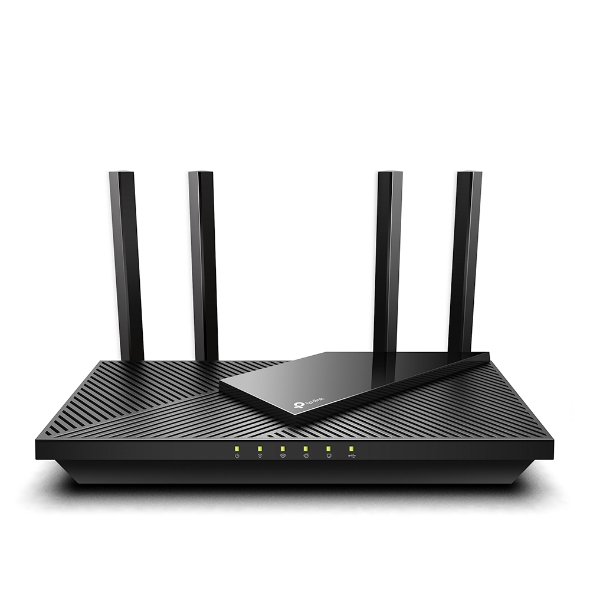
TP-Link Archer AX55 Wi-Fi 6 Router
For a single-router home, a Wi-Fi 6 model like the TP-Link Archer AX55 is a sensible replacement candidate if your old router keeps needing reboots or cannot support your current plan. It includes multiple Gigabit Ethernet ports, which matters if you want to test or run key devices over wired connections.
As an Amazon Associate I earn from qualifying purchases.
A newer router is not the first answer to every connection problem. But if your current router repeatedly needs reboots, lacks enough Ethernet ports, cannot cover your home, or does not support the speeds you are paying for, that is when shopping for a replacement starts to make sense.
How to Reboot a Router Properly
If you have a standalone router, the basic process is straightforward:
- Unplug the router’s power cable from the wall outlet or power strip.
- Wait at least 30 seconds. Waiting a minute or two is fine if you want to be more cautious.
- Plug the router back in.
- Press the power button if your model does not turn on automatically.
- Wait for the router to finish starting up before testing the connection.
Do not judge the result too quickly. Routers can take a few minutes to boot, bring Wi-Fi back online, and reconnect to the internet. Watch the status lights if your router has them. Once the lights settle into their normal pattern, try loading a website, running a speed test, or connecting with an Ethernet cable.
This same general process applies to a modem/router combo unit. Since the modem and router are built into the same box, unplugging that one device restarts both sides of the connection.
If You Have a Separate Modem and Router, Restart Both
A separate modem and router setup needs one extra step. The modem is the device that talks to your internet provider. The router takes that connection and shares it with your phones, laptops, TVs, game consoles, smart home devices, and anything else on your network.
When restarting both, the order matters most when you power them back on:
- Unplug the router.
- Unplug the modem.
- Wait at least 30 seconds, or a minute or two if you prefer.
- Plug the modem back in first.
- Wait for the modem to fully reconnect to your internet provider.
- Plug the router back in.
- Wait for the router to finish starting up, then test your connection.
This order gives the modem time to reestablish the internet connection before the router starts trying to share it. If you power on the router first, it may come online before the modem is ready, which can make troubleshooting more confusing.
If the modem or router lights keep blinking for 5 to 10 minutes and never settle into their normal state, the problem may not be inside your home network. At that point, an outage, account issue, signal problem, damaged cable, or ISP-side equipment problem becomes more likely.
Reboot, Reset, or Replace: Know the Difference
These words get mixed up often, but they mean very different things when you are troubleshooting network gear.
| Action | What it does | When to use it |
|---|---|---|
| Reboot | Turns the device off and back on without deleting settings. | Use first for slow speeds, dropped Wi-Fi, or temporary connection issues. |
| Factory reset | Erases custom settings and returns the router to its default state. | Use only after basic troubleshooting fails and you are ready to reconfigure the router. |
| Replace | Swaps old or failing hardware for newer equipment. | Consider it if problems keep returning, coverage is poor, or the router cannot support your internet plan. |
A reboot is low risk. It should not erase your Wi-Fi name, password, port forwarding rules, parental controls, or other settings. A factory reset is different. It wipes custom configuration and can leave you needing to set up the router again from scratch.
That is why a factory reset should not be your first move.

TP-Link Deco X55 Wi-Fi 6 Mesh System
If rebooting helps only briefly because some rooms still have weak signal, a mesh kit such as the TP-Link Deco X55 may be a better fit than another single router. The multiple nodes are designed to spread one network across more of the home, and each unit includes Ethernet ports for wired backhaul or nearby wired devices.
As an Amazon Associate I earn from qualifying purchases.
For buyers, the key question is not simply whether a new router is faster. Look at whether it matches your internet plan, has enough wired ports, supports the Wi-Fi generation your devices can actually use, and can cover your home without constant dropouts. Mesh support may matter more than peak speed if your problem is weak coverage in distant rooms.
When a Factory Reset Makes Sense
If you have rebooted the modem and router, checked whether your provider is having an outage, and still cannot get any device online over Wi-Fi or Ethernet, a factory reset may be worth considering. Treat it as a last troubleshooting step, not a routine restart.
If you have a separate modem and router, it is usually better to narrow down which device is causing the issue before resetting anything. One practical test is to connect a computer directly to the modem with an Ethernet cable, if your modem and service allow that setup. If the computer still cannot get online, contacting your internet provider is usually a better next step than wiping router settings.
If the modem connection works but the router still fails, the router is the more likely problem.
Many routers offer a reset option inside their web admin page or mobile app. The router’s local address is often something like 192.168.1.1 or 192.168.0.1, but it varies by model and network setup, so check the router label, manual, app, or your computer’s network details if those addresses do not work. On Windows, the “Default Gateway” shown by the ipconfig command often points to the router’s local address.
Most routers also have a small physical reset button, often recessed in a pinhole. Holding that button for a set amount of time usually triggers a factory reset, but the exact timing and light behavior can vary by manufacturer. Check the instructions for your specific model before doing it, because once the reset completes, your old Wi-Fi name, password, and custom settings may be gone.
When Rebooting Is a Warning Sign
A router reboot can fix a surprising number of short-term problems. Like restarting a computer, it clears temporary issues and gives the software a clean run. If you only need to do it occasionally, that is normal enough.
It becomes more concerning when rebooting turns into a routine. If your router works for a day or two and then slows down again, drops devices, or needs another restart, look for a deeper cause.
Start with the easy checks. Make sure the router is in an open, ventilated spot instead of buried in a cabinet, stacked under other electronics, or placed where it gets hot. Check whether a firmware update is available through the router’s app or admin page. If the router is several years old, compare its capabilities with your current internet plan and the number of devices in your home.
You do not need to replace networking gear just because a reboot fixed a problem once. But if the same problem keeps returning, replacement can become the more practical choice than repeatedly nursing along hardware that is undersized, overheating, unsupported, or simply aging out of your needs.
For most connection problems, start small: unplug the router, wait, plug it back in, and give it time to reconnect. If you have a separate modem, bring the modem back first and the router second. Save factory resets and new hardware for the cases where a proper reboot no longer holds.