

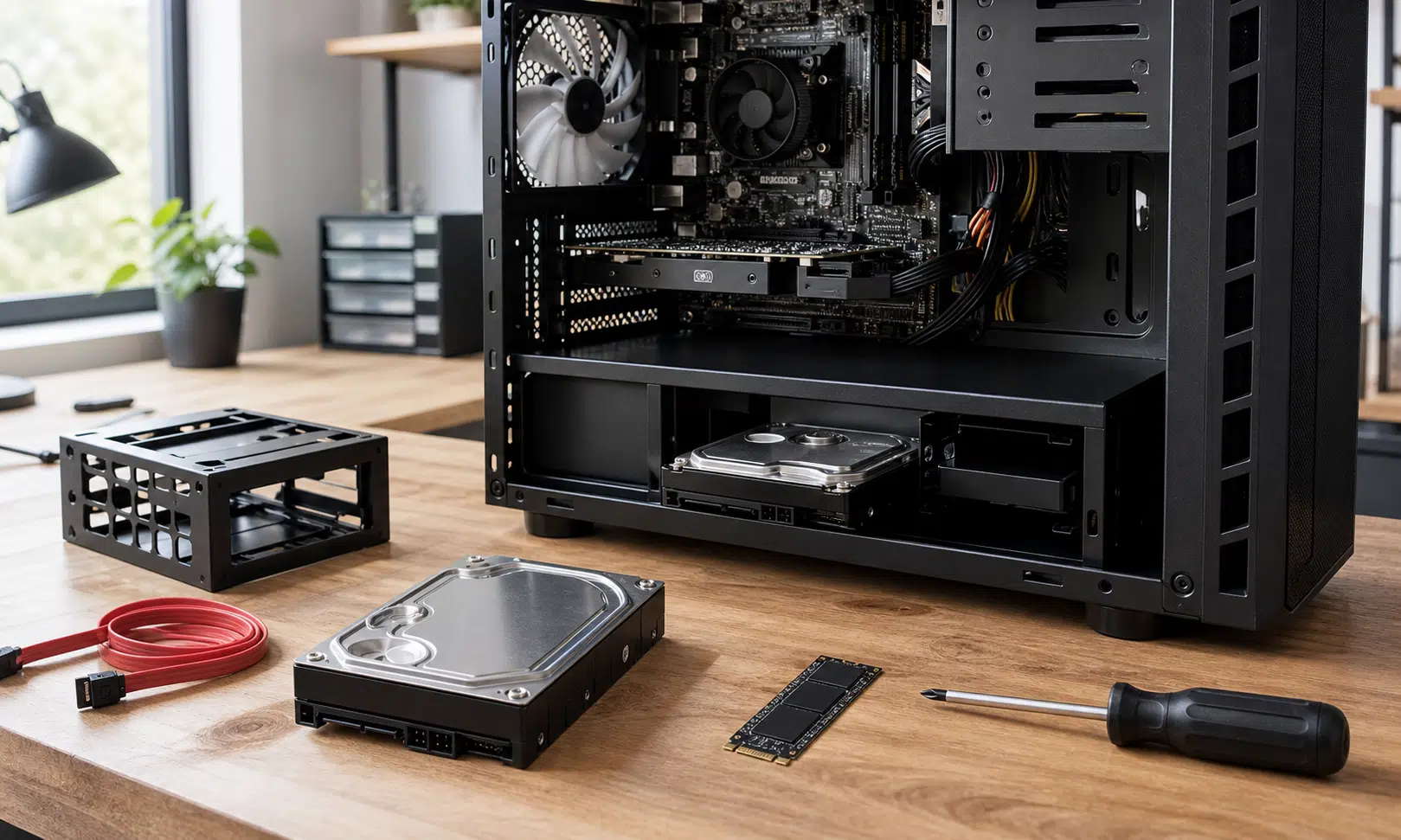

SSDs have earned their place as the default recommendation for a modern Windows PC. If you are installing Windows, loading games, editing active projects, or launching apps all day, a solid-state drive is the obvious choice. It is faster, quieter, and more responsive in ways you can feel every time you sit down at the computer.
That does not mean traditional hard drives are obsolete. For the right kind of storage, a spinning hard drive still makes a lot of sense. I would not want one as my Windows boot drive in 2026, but I still like having one, or several, in a desktop PC.
The reason is simple: not every file needs NVMe speed. Some files just need a roomy, inexpensive place to live.
Hard drives are still useful for cheap bulk storage
The strongest argument for a hard drive is still capacity. When you are shopping for several terabytes of storage, hard drives usually remain much more attractive than SSDs on a cost-per-terabyte basis, especially once you move beyond the capacities most people use for a boot drive.
That matters if your storage needs are not limited to Windows, a few apps, and a game library. Photos, videos, old project files, system images, media libraries, downloaded installers, and backups can consume space quickly. A 1TB or 2TB SSD can start to feel small once it becomes the dumping ground for everything.
This is where a hard drive still fits neatly into a Windows desktop. Use the SSD for the things that benefit from speed, and use the hard drive for the files that mostly sit in the background. That split gives you the responsiveness of flash storage without forcing every archived file onto the most expensive storage in the machine.
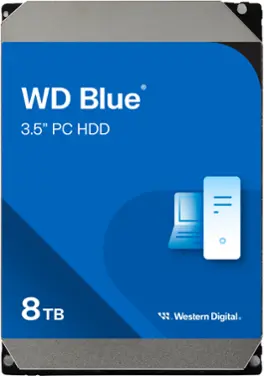
WD Blue 8TB 3.5-Inch Desktop Hard Drive
A 3.5-inch desktop hard drive like the WD Blue 8TB is a sensible match for media libraries, local archives, and files that do not need SSD speed. Check that your case has a 3.5-inch bay and that your motherboard has an available SATA port before buying.
As an Amazon Associate I earn from qualifying purchases.
A practical setup often looks like this:
- An NVMe SSD for Windows, apps, and frequently played games
- A second SSD for active creative projects or high-speed scratch space, if needed
- A large hard drive for backups, media, archives, and infrequently used files
That is not the flashiest storage layout, but it is sensible. It lets each drive do the job it is best suited for.
Speed is not always the deciding factor
NVMe drives can move data incredibly quickly, and that speed is valuable. It makes Windows feel snappier, reduces game load times in many cases, and helps when you are working with large active files. If you are editing high-resolution video directly from a drive, compiling big projects, or moving huge folders every day, SSD performance matters.
But a lot of personal storage is not used that way. A folder of family photos does not need to launch at several gigabytes per second. A collection of old documents does not become more useful because it sits on an expensive SSD. Backup images, archived video exports, ripped discs, and cold project folders mostly need capacity and availability.
That is why treating storage as one single category can lead to overspending. The best drive for your operating system is not always the best drive for eight or twelve terabytes of files you rarely open.
| Storage role | Better fit | Why |
|---|---|---|
| Windows and apps | NVMe or SATA SSD | Fast booting, quick launches, better everyday responsiveness |
| Games you play often | SSD | Faster loading and smoother asset access in supported games |
| Backups and archives | Hard drive | Large capacity is usually more important than peak speed |
| Media libraries | Hard drive | Photos, movies, and music do not usually need NVMe performance |
The point is not that hard drives are better than SSDs. They are not, at least not for general system performance. The point is that performance is only one part of the buying decision.
Long-term storage is more complicated than speed tests
Hard drive reliability is easy to oversimplify. Mechanical drives have moving parts, and moving parts can fail. SSDs avoid that problem, but they have their own limits, including write endurance and data retention characteristics that depend on the drive, NAND type, age, temperature, and storage conditions.
For a powered-off drive sitting on a shelf, it is safer to avoid absolute claims. Some SSDs may retain data for years, and some hard drives may fail the next time they spin up. No storage medium is a substitute for a real backup strategy.
Still, for cold storage and archives, many PC users remain comfortable using traditional hard drives because they offer large capacities at reasonable prices and do not require paying SSD prices for files that may sit untouched for long stretches. If you use hard drives that way, the smart move is to keep more than one copy, check the drives periodically, and avoid treating any single disk as permanent.
A hard drive can be part of a good backup plan, but it should not be the whole plan. Important data deserves at least one additional copy, ideally in a different physical location or a reliable cloud backup service.
Desktop PCs often make hard drives easy to add
Another reason hard drives still work well in Windows desktops is physical expandability. Many desktop cases have 3.5-inch drive mounts, and many motherboards include multiple SATA ports. NVMe slots are usually more limited, and they may share bandwidth or lanes depending on the motherboard and platform.
That does not mean every PC has endless room for hard drives. Small-form-factor builds, prebuilt compact desktops, and some modern cases may have limited 3.5-inch support. But if you have a mid-tower or full-size desktop, adding a SATA hard drive can still be straightforward.

Cable Matters SATA Power and Data Cable Kit
If your case and motherboard are ready but you are short on cabling, a SATA power and data kit can cover the basic connection pieces for an added internal drive. Use your power supply’s native SATA power cable when available, and only add splitters when the PSU and drive count make sense.
As an Amazon Associate I earn from qualifying purchases.
This is especially useful when you want to grow storage gradually. Instead of replacing a smaller SSD with a larger and more expensive one, you can keep your fast boot drive and add a high-capacity hard drive for everything that does not need to live on the SSD.
For buyers, the checklist is simple:
- Confirm your case has a free 3.5-inch or compatible drive mount
- Check that your motherboard has an unused SATA port
- Make sure your power supply has an available SATA power connector
- Decide whether the drive will be for active storage, backups, or archives
If those boxes are checked, a hard drive can be one of the easiest ways to add a lot of space to a Windows desktop.
Who should still buy a hard drive?
A hard drive is not the right answer for every PC buyer. If you use a laptop, want silence, need the fastest possible storage, or only need a few terabytes total, an SSD-only setup may be cleaner. SSD prices have improved enough that many people can avoid hard drives entirely and be perfectly happy.
But a hard drive still makes sense if your storage needs are large and your speed needs are modest. It is a good fit for media collections, local backups, old project folders, system images, and files you want to keep without spending SSD money on every terabyte.
The best Windows storage setup is not about loyalty to one technology. It is about matching the drive to the job. Use an SSD where speed changes the experience. Use a hard drive where capacity matters more than instant access.
That balance is why I still like hard drives in a desktop PC. They are not exciting, and they should not be your main Windows drive, but they remain practical. For mass storage, practical is exactly what you want.