

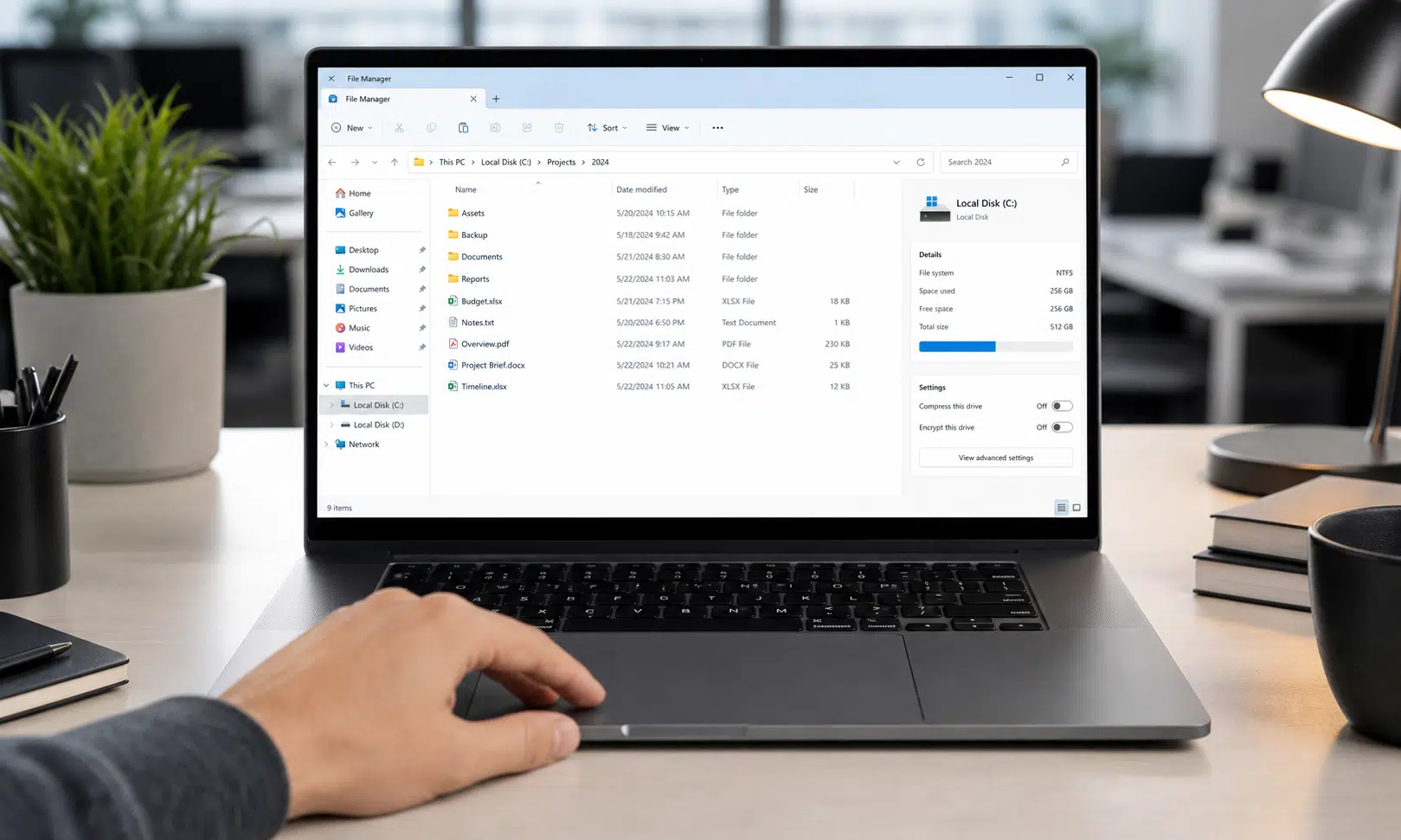

Microsoft has outlined another round of Windows 11 Insider builds, with the main changes aimed at File Explorer, precision touchpads, education deployments, input reliability, and smaller platform fixes.
The builds discussed in the release notes include Windows 11 build 26300.8376 for the Experimental channel and build 26220.8370 for the Beta channel. Microsoft also listed separate Experimental builds for 26H1 and future platform testing: build 28020.2075 and build 29585.1000.
As with any Insider release, these changes are still preview features and fixes. Some may roll out gradually, change before public release, or never ship broadly in the same form. Microsoft describes the updates as part of its ongoing Windows Insider testing, so they are best understood as signals of what the company is working on rather than a guarantee of what every Windows 11 user will receive next.
File Explorer gets cleaner path handling and readability fixes
The most practical changes are in File Explorer, where Microsoft says it has made several adjustments to improve reliability, readability, and everyday usability.
The address bar is being updated to accept a wider range of pasted path formats. Microsoft says it now supports paths that include double backslashes and quotation marks, including entries such as C:\\Users\\user or “C:\\Users\\user”. That should make the address bar less brittle when users copy paths from scripts, documentation, command-line output, or shared instructions.
The company also says it has improved the reliability of the address bar suggestion dropdown so that it closes more consistently after a user selects an item. That is a small fix, but it addresses the kind of lingering interface behavior that can make File Explorer feel rough during repeated navigation.
File size display is another area getting attention. In Details view, File Explorer is being changed to show file sizes with more appropriate units such as KB, MB, and GB rather than relying on KB-only formatting. For users scanning folders full of downloads, installers, archives, videos, or synced cloud files, that should make size comparisons easier at a glance.
Microsoft also lists fixes for the rename experience. One issue caused text to be repeatedly selected while renaming items in folder views. Another prevented case-only name changes from showing immediately in some local and cloud-backed folder views. Keyboard navigation in File Explorer context menu flyouts is also described as improved.
New precision touchpad options are being tested
Microsoft says the Beta and Experimental builds add gesture-related functionality for precision touchpads in Settings. The release notes describe these controls as broadly available across applications, though Microsoft notes that WinUI 3-based interfaces require newer Windows App SDK support for full functionality.
The new touchpad-related options include:
- Scroll and zoom speed controls, allowing users to adjust the baseline speed for those gestures.
- Automatic scrolling, where scrolling can continue without lifting fingers from the touchpad. Microsoft says this can be triggered by moving fingers near the edge of the touchpad while scrolling, or by holding them still and pressing harder on supported hardware.
- Accelerated scrolling, where repeated scrolling increases speed for faster movement through long documents or pages.
- Optional single-finger vertical scrolling from the left or right side of the touchpad.
These are not headline-grabbing changes, but they matter for laptop users who spend a lot of time navigating documents, webpages, spreadsheets, and settings panels. More granular touchpad behavior can also help users who prefer trackpad gestures over keyboard shortcuts or external mice.
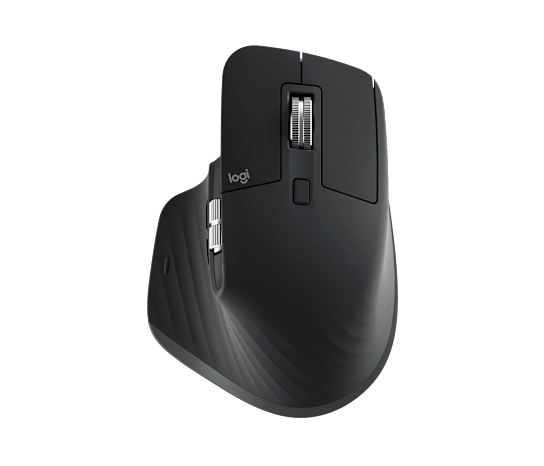
Logitech MX Master 3S Wireless Mouse
A productivity mouse can be useful if you spend long sessions moving through File Explorer, documents, spreadsheets, or web pages. The MX Master 3S is a fit for readers who want precise scrolling and a more ergonomic desktop setup alongside a Windows laptop.
As an Amazon Associate I earn from qualifying purchases.
K-12 devices get a proposed Windows 11 Pro Education path
Microsoft also describes a new upgrade path for K-12 education environments. According to the release notes, eligible Windows Insiders in those environments can move from Windows 11 Home to Windows 11 Pro Education at no additional cost.
The stated goal is to let schools buy Windows 11 Home devices and then bring them under school management by upgrading them to Windows 11 Pro Education. That could be useful for districts or education organizations dealing with mixed hardware procurement, though the workflow is clearly aimed at managed K-12 environments rather than general consumers.
Microsoft lists the process as follows:
- Sign in to the device using a local account.
- Open an elevated Command Prompt and run Clipupgrade.exe.
- Sign in with a K-12 organization account to validate eligibility.
- Restart the device after the upgrade is prepared.
The company also warns that the upgrade is one-way. Reverting from Windows 11 Pro Education back to Windows 11 Home is not supported without a clean operating system reinstall.
Other Insider fixes and platform notes
The same batch of notes includes several smaller fixes. Microsoft says it improved Japanese IME reliability when Administrator Protection is enabled, fixed a Windows Push Notification hang from the previous flight that affected notifications and some app launches, and improved the reliability of loading desktop app shortcut icons.
For the 26H1 Experimental build 28020.2075, Microsoft lists reliability improvements for typing with the ADLaM keyboard, better performance when opening clipboard history, and font improvements involving the Leelawadee UI font family for Thai, Lao, Khmer, and Lontara scripts.
For the future-platform Experimental build 29585.1000, Microsoft says it is preparing changes related to printer driver handling and lists new hardware IDs for the Internet Protocol Print driver. Because this appears to be a platform-preparation note rather than a user-facing feature, most users will not need to act on it directly.
That same build also includes a change to voice typing with the touch keyboard. Microsoft says the updated experience removes the previous full-screen overlay and instead shows voice typing animations on the dictation key, keeping the focus closer to the current typing surface.
Here is the short version of what Microsoft is testing across the listed builds:
| Area | Change being tested |
|---|---|
| File Explorer | Better path handling, file size formatting, rename fixes, and keyboard navigation |
| Touchpad | New gesture speed, automatic scrolling, accelerated scrolling, and single-finger options |
| Education | No-cost K-12 upgrade path from Windows 11 Home to Windows 11 Pro Education |
| Input | Japanese IME, ADLaM keyboard, clipboard history, and voice typing improvements |
| Platform | Printer driver preparation and app sign-in reliability fixes |
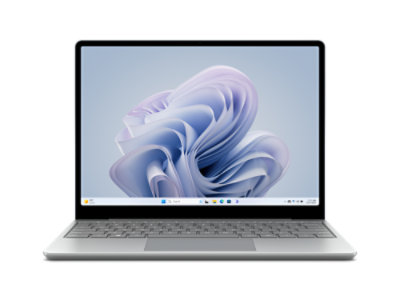
Microsoft Surface Laptop Go 3
Readers following Windows 11 changes may be comparing lightweight laptops for school, home, or Insider testing. A compact Windows 11 device fits the education and laptop-focused parts of the article without pushing an unrelated accessory.
As an Amazon Associate I earn from qualifying purchases.
For most Windows users, the File Explorer and touchpad changes are the easiest to understand: they target daily friction rather than adding another visible app or service. For IT admins in schools, the more important item may be the Pro Education upgrade path, assuming Microsoft keeps the same eligibility and deployment model when the feature moves beyond Insider testing.