


Apple has added new security-content details to several recent and older software releases across macOS, iOS, iPadOS, visionOS, watchOS, and tvOS. For most users, this is not a reason to panic or replace hardware. It is a reason to check whether the devices you already own are still receiving updates, whether they can move to a newer major version, and whether an older Apple device still makes sense to buy.
The added entries include CVE identifiers, researcher acknowledgments, and short impact summaries for issues addressed in Apple software updates. The practical takeaway is simple: supported Apple devices continue to receive important maintenance fixes, but the value of an older iPhone, iPad, Mac, Apple Watch, Apple Vision Pro, or Apple TV depends heavily on whether it remains inside Apple’s current update window.
This guide focuses on what the security additions mean for buyers, owners, and anyone deciding whether to keep an older device, upgrade its operating system, or avoid a used model that may have limited update life left.
What Apple Changed in the Security Notes
Apple’s security-content pages are the documents where the company lists vulnerabilities addressed in software updates. These pages often include the affected component, the device or operating system covered, the possible impact, a short description of the fix, and a CVE identifier when one is available.
In this round of revisions, Apple added or expanded entries across several platforms. The affected pages include software from the current generation as well as maintenance releases for older major versions. That matters because many Apple users do not upgrade to a new major OS on day one, and some devices cannot move to the newest release at all.
The updates cover categories such as private browsing access, sensitive user data exposure, protected file-system access, root-privilege risks, denial-of-service behavior, and acknowledgments tied to Calendar, Kernel, ImageIO, and other system components.
For buyers, the important point is not the number of CVEs by itself. It is whether the device you are buying or keeping can install the update that contains the fix.
Quick Buying Takeaway
If you are buying an Apple device in 2026, software support should be part of the price calculation. A cheap used device is less attractive if it is already stuck on an older operating-system branch or is close to losing security updates. A newer device with a longer update runway can be the better value even when the upfront price is higher.
| Device category | What to check before buying | Why it matters |
|---|---|---|
| iPhone | Confirm it supports the current iOS release or is still receiving security updates on an older branch. | Several added entries affect iOS and iPadOS security behavior, including privacy and data-access issues. |
| iPad | Check both iPadOS compatibility and the exact generation, not just the screen size. | Older iPads can look similar to newer ones but have very different support windows. |
| Mac | Verify whether the Mac supports current macOS or only older maintained versions such as Sonoma or Sequoia. | Apple added security details across multiple macOS generations, including file-system and privilege-related issues. |
| Apple Watch | Confirm watchOS compatibility and whether the paired iPhone can also run a supported iOS version. | Apple Watch support is tied closely to iPhone support. |
| Apple Vision Pro | Keep visionOS current before judging whether an issue affects your workflow. | visionOS received added security-content acknowledgments alongside other platforms. |
| Apple TV | Check tvOS update status, especially on older living-room setups. | Apple also added a tvOS security-content item. |
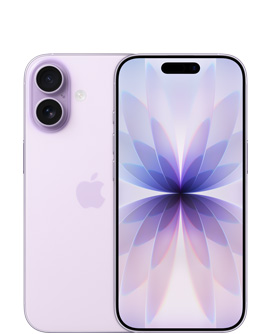
Apple iPhone 17
For buyers replacing an older iPhone, a current iPhone model is easier to justify when software support and app compatibility are part of the decision. Check storage, carrier compatibility, and return policy before buying.
As an Amazon Associate I earn from qualifying purchases.
iPhone and iPad: Why Update Support Matters Most
Apple added details to iOS and iPadOS security content, including an entry tied to Siri where Private Browsing tabs may be accessed without authentication. The listed fix is described as improved state management, and the CVE is associated with CVE-2025-30468.
The affected-device list for iOS 26 and iPadOS 26 starts with iPhone 11 and later, plus several iPad families including iPad Pro, iPad Air, standard iPad, and iPad mini models from specified generations onward. That device list is useful for buyers because it draws a practical line between hardware that can receive the current major software release and hardware that may be living on an older branch.
Apple also added security-content details to iOS 18.7 and iPadOS 18.7. Those notes are relevant for people using devices that have not moved to the newest major OS. The source material says Apple added a Call History entry describing a fingerprinting-related issue, plus an ImageIO acknowledgment. Treat that as a reminder that older branches can still matter, but do not assume every old device will keep receiving fixes indefinitely.
If you are shopping used, avoid judging an iPhone or iPad only by battery health, storage, and cosmetic condition. Ask three software questions first:
- What is the newest iOS or iPadOS version the device can install?
- Is the device currently receiving security updates?
- Will the apps you rely on continue supporting that OS version?
A used iPhone that cannot install current iOS may still work for calls, messages, photos, and basic apps. It may not be a good buy for banking, travel, business, family sharing, or children if it is close to the end of security support.
Mac Buyers: Sonoma, Sequoia, and Tahoe Need Different Decisions
The macOS additions are the most buyer-relevant part of the update because Macs often stay in service for many years. A used MacBook Air or Mac mini can still feel fast enough for web, office, and school work, but software support can be the limiting factor.
Apple added details to macOS Sonoma 14.8, macOS Sonoma 14.8.2, macOS Sequoia 15.7, and macOS Tahoe 26 security content. The additions span several system areas, including Call History, CoreServices, FaceTime, Phone, StorageKit, SQLite, Crash Reporter, dyld, AWD, Compression, GPU Drivers, PackageKit, Sandbox, Calendar, and Kernel acknowledgments.
Some source-extracted claims combine adjacent entries in a way that is not clean enough to present as a confirmed one-line fact. For example, the source text places some CVE names next to following component headings, which can make it appear that one CVE belongs to the next item. Where the pairing is unclear, the safer reading is that Apple added multiple entries on the same security-content pages rather than treating every adjacent component and CVE as a single verified claim.
macOS Sonoma
For macOS Sonoma 14.8, the added security details include entries covering Call History, CoreServices, FaceTime, Phone, and StorageKit. The source says these include issues involving user fingerprinting, access to sensitive user data, modification of protected file-system areas, FaceTime behavior on a locked Mac, and root-privilege risk.
Several of those specific pairings were marked as not independently verified or low-confidence in the supplied claim checks. In practical terms, that means readers should treat the page-level update as meaningful while checking Apple’s own security-content page before relying on any single CVE-to-component pairing for audit work.
For macOS Sonoma 14.8.2, Apple added an SQLite item involving CVE-2025-6965. The supplied claim check says the source’s statement that processing a file may lead to memory corruption and that Apple software is among affected projects was not independently verified at high confidence, so it should be treated as Apple security-page language rather than expanded into a broader claim.
macOS Sequoia
Apple also updated macOS Sequoia 15.7 security details. The source lists additions for Call History, CoreServices, Crash Reporter, dyld, FaceTime, Phone, and StorageKit.
The practical difference from Sonoma is not simply the names of the CVEs. Sequoia is a newer major macOS generation, so a Mac that can run Sequoia may offer a better support runway than a Mac limited to Sonoma. That does not mean every Sonoma Mac should be replaced immediately. It does mean a used Mac limited to an older OS should be priced accordingly.
macOS Tahoe
The source also says Apple updated macOS Tahoe 26 security content with added details for AWD, Compression, CoreServices, Crash Reporter, GPU Drivers, PackageKit, Sandbox, StorageKit, Calendar, and Kernel acknowledgments.
The listed impacts include sensitive user-data access, protected file-system modification, root-privilege risk, unexpected system termination, and deletion of protected system files by an attacker with root privileges. Those are serious categories, but they are also exactly the kind of issues modern operating-system updates are designed to address.
If you are choosing between a discounted older Mac and a newer Apple silicon model, the software path matters. A Mac that supports the current macOS release is usually the safer long-term purchase for work, school, and business use.

Apple MacBook Air 13-inch
If a used Mac is close to the end of macOS support, a newer Apple silicon MacBook Air can be the cleaner long-term choice. Compare memory, storage, and return terms before choosing a configuration.
As an Amazon Associate I earn from qualifying purchases.
Apple Watch, Vision Pro, and Apple TV: Smaller Devices Still Need Updates
Apple’s added details were not limited to the iPhone, iPad, and Mac. The source says Apple added security-content details for visionOS 26 and watchOS 26, including Calendar and Kernel acknowledgments. Apple also added one item to tvOS 26 security details, tied to a Kernel acknowledgment.
For Apple Watch buyers, the main issue is compatibility. A watch may look like a good used deal, but it depends on the iPhone it will pair with and the watchOS version it can run. Buying an older Apple Watch for health, fitness, notifications, or family use is only sensible if it still fits your iPhone and software-support needs.
For Apple Vision Pro, the buyer question is different. Vision Pro is a newer platform, so the focus is less about old hardware and more about keeping visionOS current. If you use Vision Pro for work files, shared environments, browsing, or enterprise testing, security updates should be installed promptly after normal compatibility checks.
For Apple TV, the risk profile may feel lower because it is usually a living-room device. Still, tvOS runs apps, connects to accounts, and sits on the same home network as other devices. It should not be ignored just because it is not a phone or laptop.
How to Decide Whether to Update Now
For most individual users, the answer is straightforward: install available Apple security updates after confirming that your essential apps and accessories are compatible. If you manage devices for a business, school, studio, or family, you may want a short testing window, but the update should still move through quickly.
A practical update decision looks like this:
- Check the exact device model and current OS version.
- Confirm that a newer update is available in Settings or System Settings.
- Back up the device before major updates or before updating a device with important local files.
- Install the update when you have enough battery, storage, and time to recover if something goes wrong.
- After updating, confirm that core apps, accounts, peripherals, and security settings still behave normally.
This is especially important for Macs that are used for work. Some of the added macOS entries involve protected file-system areas, sensitive user data, or privilege-related behavior. Even when a vulnerability is not known to be broadly exploited, leaving a fix unapplied can create unnecessary exposure.
How to Use This When Shopping for Apple Hardware
Security updates should not be the only buying criterion, but they should influence what you are willing to pay. A device with a short remaining update runway should be treated more like a temporary purchase than a long-term investment.
For iPhone and iPad shoppers, prioritize models that can run the current major OS unless the price is low enough to justify a shorter lifespan. For Mac shoppers, Apple silicon models usually make more sense than Intel models when the goal is long-term software support, battery efficiency, and resale value. For Apple Watch buyers, check both watchOS support and paired-iPhone requirements before buying.
A device can be a bad security buy even if the hardware is still attractive. Storage, screen quality, battery health, and performance all matter, but update support is what determines whether the device remains a sensible daily driver.
| Buyer situation | Best move | Reason |
|---|---|---|
| You already own a supported device | Install the latest available update after a backup. | The fix is usually worth more than delaying for routine use. |
| You are buying a used iPhone or iPad | Check current OS compatibility before price. | Older models can lose app and security value faster than expected. |
| You are buying a used Mac | Favor models that support the newest macOS generation. | Macs last a long time physically, but software support sets the useful ceiling. |
| You manage family or work devices | Create a short update checklist and apply it consistently. | Mixed device fleets often leave older hardware behind. |
| You rely on specialized software | Test compatibility, then update promptly. | Compatibility matters, but security fixes should not be deferred indefinitely. |

Samsung T7 Shield Portable SSD
A portable USB-C SSD is useful before major macOS or iPadOS updates, especially when important files are stored locally. Keep one backup separate from the device you are updating.
As an Amazon Associate I earn from qualifying purchases.
Bottom Line
Apple’s added CVE details are a reminder that software support is part of the real cost of owning Apple hardware. The updates affect several platforms, including macOS, iOS, iPadOS, visionOS, watchOS, and tvOS, and the listed categories include privacy, sensitive-data access, protected system areas, and privilege-related behavior.
For current owners, the best response is to update supported devices after a backup and basic compatibility check. For buyers, especially used-device buyers, the best response is to treat update eligibility as a core spec. A slightly newer device with a longer support window can be the better deal, even when the older one looks cheaper on the listing page.