

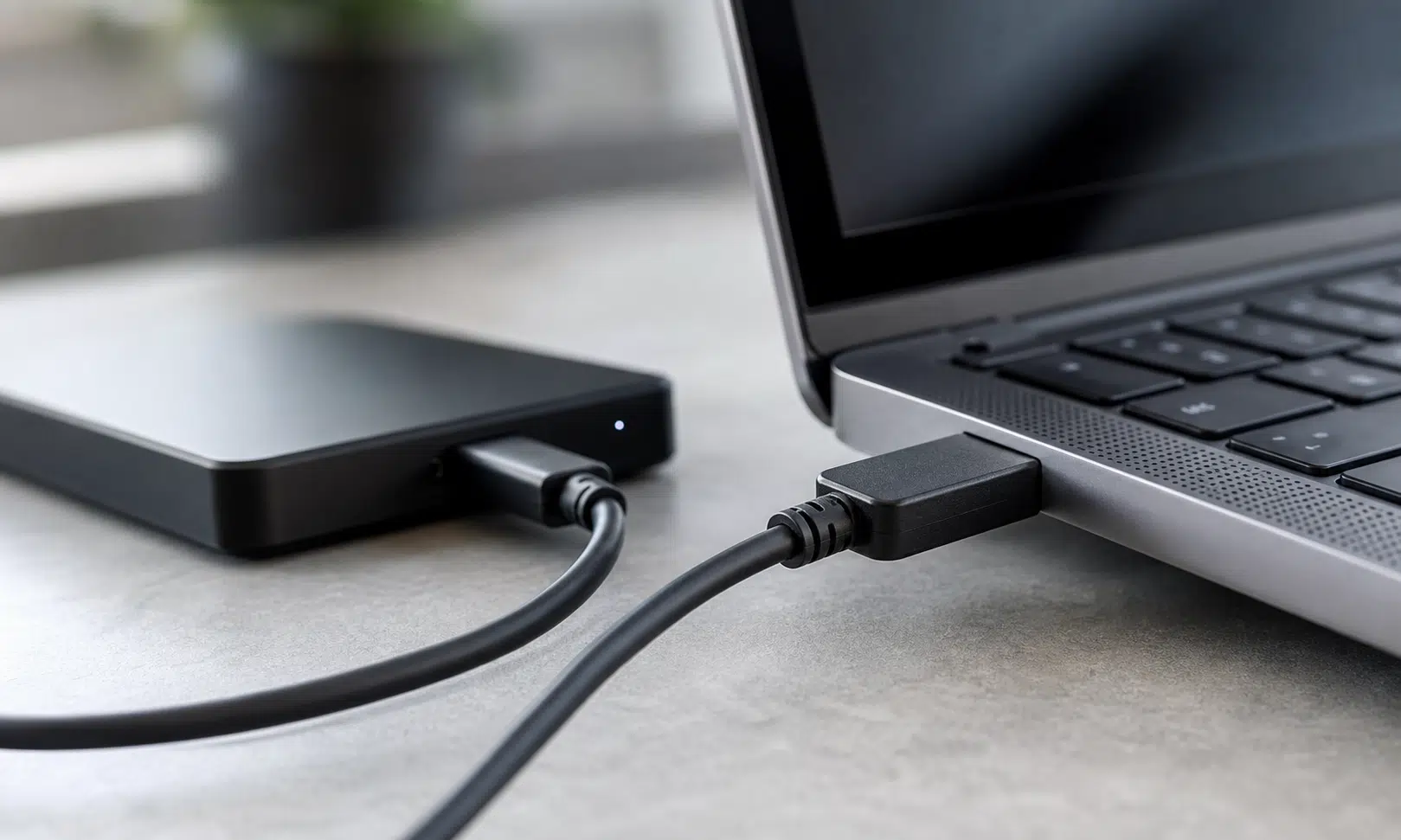

External hard drives are not speed demons. A mechanical HDD is built around spinning platters and moving parts, so it is not going to behave like a portable SSD when you move large files, folders full of photos, or backup archives. That does not mean every painfully slow transfer is normal.
If an external hard drive feels unusably slow, the drive itself may not be the first thing to blame. The bottleneck can be the cable, the USB port, the hub, the dock, or the adapter sitting between the drive and your computer. A drive that supports faster USB data can still run in a slower mode if one part of the connection path is holding it back.
That is the useful part: before replacing the drive, you can test the setup. In some cases, the fix is as simple as using a better USB 3.0 cable or plugging the drive into a different port.
External HDDs are slow, but they should still be usable
A hard drive can still make sense for bulk storage. Backups, photos, video archives, media libraries, and files you do not need to open constantly are all reasonable jobs for an external HDD. You should expect transfers to take longer than they would on an SSD, especially when moving lots of small files.
Small-file transfers are particularly rough because the drive has to handle many separate reads and writes. A folder full of tiny documents, thumbnails, project assets, or app files can make even a healthy drive look bad. A single large video file or backup archive is usually a cleaner test of the connection because it removes some of that small-file overhead.
The warning sign is not simply that the drive is slower than an SSD. The warning sign is that the drive is much slower than it should be in a simple large-file copy, especially when it behaves differently depending on which cable, port, or hub you use.
The cable can quietly set the speed limit
USB is confusing because the connector shape does not tell the whole story. A cable can fit perfectly, power the drive, and still be the wrong cable for fast data. The same is true for a hub, dock, monitor USB passthrough, front-panel port, or small adapter.
USB-C makes this especially easy to miss. A USB-C cable may be fine for charging while offering limited data performance. The fact that it plugs into the drive and the computer does not guarantee that the drive is using the fastest mode it supports.
For a typical external hard drive, you do not need an expensive high-end cable meant for fast external SSDs. You generally want a cable that supports USB 3.0 data, which may also be labeled as USB 3.2 Gen 1 or USB 5Gbps. That is enough headroom for most single mechanical external HDDs, assuming the drive enclosure and computer port also support it.
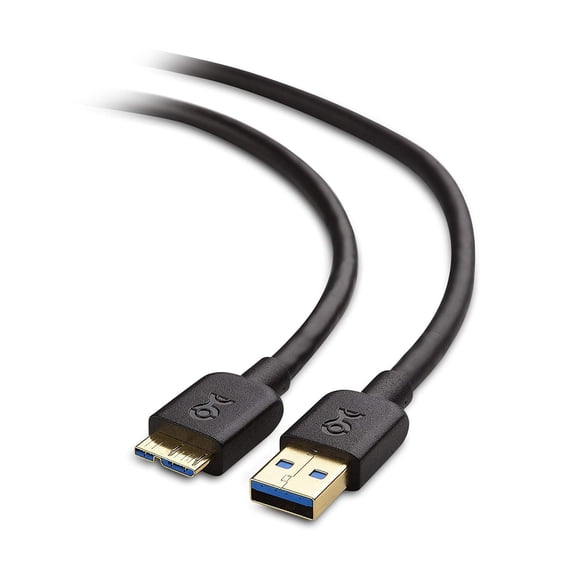
Cable Matters USB 3.0 A-to-Micro-B Cable
A USB 3.0 A-to-Micro-B cable is a practical replacement for many portable external hard drives from brands like WD, Seagate, and Toshiba. Check your drive’s connector before buying, especially if it uses USB-C instead.
As an Amazon Associate I earn from qualifying purchases.
The key detail is that the whole route matters. If the drive is connected through an older USB 2.0 hub, a slow adapter, or a cable that only handles slower data, the drive can be forced into a slower connection mode. The hard drive may still appear normally in Windows, macOS, a NAS interface, or a file manager, but that does not mean it is connected at the best speed available.
Test the connection before buying anything
Do not start by ordering a replacement drive. First, remove as many variables as possible and see whether the drive performs better in a cleaner setup.
- Plug the external hard drive directly into the computer instead of using a hub, dock, monitor USB passthrough, extension cable, or adapter.
- Use a rear motherboard port on a desktop PC if possible, especially if you normally use a front-panel USB port.
- Copy one large file, such as a video file or backup archive, and watch the transfer behavior.
- Repeat the same copy using the original setup with the old cable, hub, dock, or adapter.
- If the direct connection is clearly faster, add the old parts back one at a time until the slowdown returns.
This is not a lab-grade benchmark, but it is a practical way to find the weak point. If the drive performs much better with one cable or one port, the pattern matters more than the exact number shown in the copy window.
If nothing changes, try another cable next. Then try another USB port. If you can, test the drive on another computer as well. The goal is to separate a bad drive from a bad connection path.
Buy the right cable, not the most expensive one
If the cable looks like the problem, keep the purchase boring. For a normal external HDD, look for a USB 3.0, USB 3.2 Gen 1, or USB 5Gbps cable that matches the connector on the drive and the port you plan to use. Many external hard drives use USB-A, USB-C, Micro-B USB 3.0, or a manufacturer-specific enclosure connector, so check the drive before buying.
Cable length also matters in a practical sense. A short, simple cable is usually easier to trust than a long chain of extensions and adapters. You do not need a premium 20Gbps cable unless you also plan to use it with faster external SSDs or other devices that can benefit from that bandwidth.
The same logic applies to hubs and docks. If the drive is part of a desk setup, make sure the hub or dock supports faster USB data and is not just convenient for keyboards, mice, and low-bandwidth accessories. A drive connected through a slow hub may behave exactly like a slow drive, even when the enclosure and hard disk are working normally.
When the cable is not the problem
A better cable cannot turn a mechanical hard drive into an SSD. It can only remove a bottleneck that should not be there. If the drive remains extremely slow after direct testing with a suitable cable and port, it is time to look at other causes.
The enclosure could be limiting performance. The drive could be aging. The file system could need attention. The workload could simply be a worst-case scenario, especially if you are moving a huge number of small files. If large-file transfers are consistently poor across multiple cables, ports, and computers, replacing the drive may be the more sensible move.
For backups and bulk storage, though, the cheapest fix is worth testing first. A compatible USB 3.0 cable, a better port, or removing a weak hub from the path can be enough to make an external hard drive feel like a normal hard drive again: still not fast, but no longer needlessly painful.