

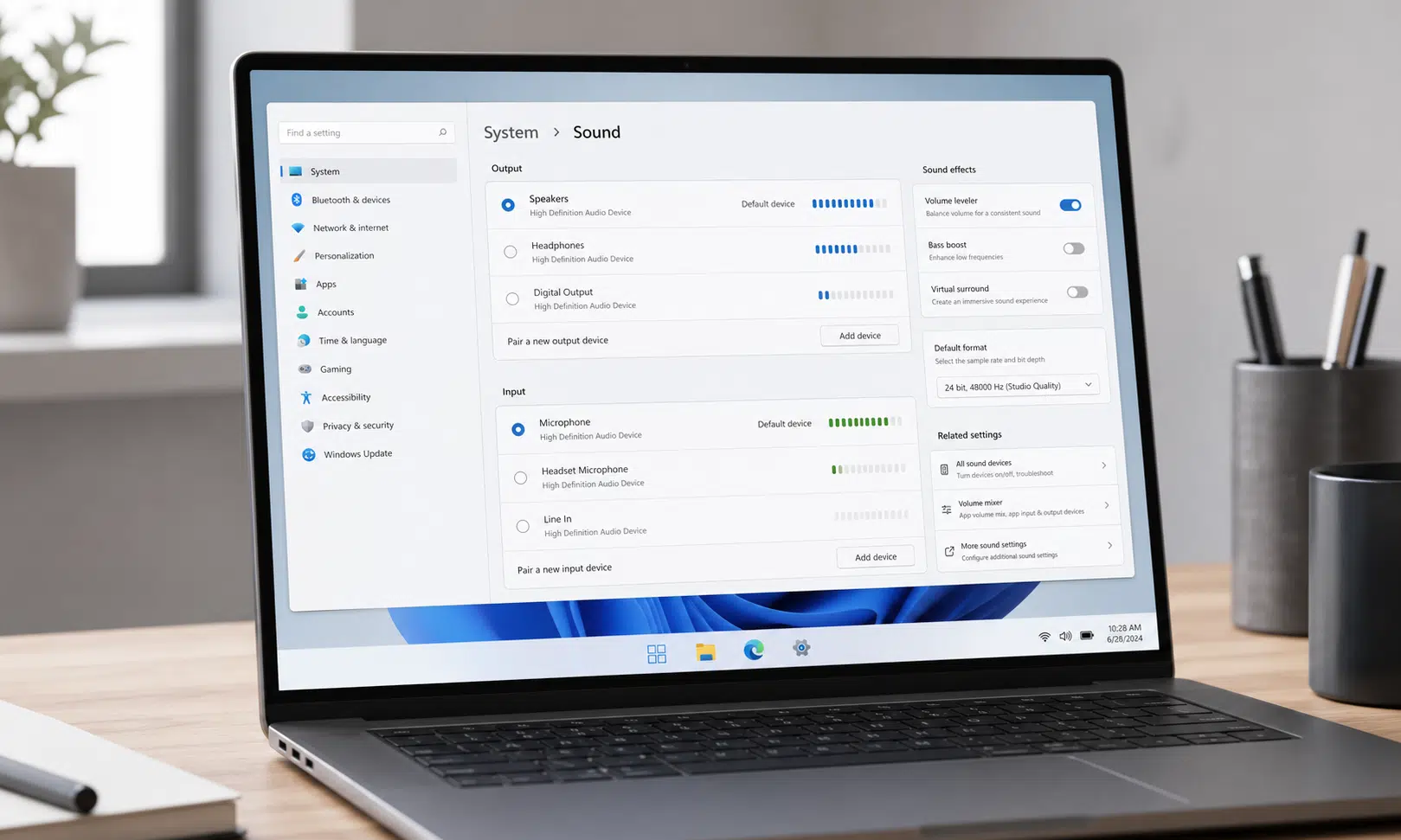

Windows 11 audio settings may be getting a little less buried and a little more useful, at least for people running early test builds.
The latest Experimental and Future Platforms builds described for Windows 11 focus on practical audio cleanup rather than splashy new features. The changes center on the Settings app, where Microsoft has been refining how Windows shows input and output devices, and on reliability work for audio and captions. These early builds have not been independently verified across the full Windows 11 install base, so they should be treated as test-channel changes rather than features every PC owner can use today.
Still, the direction is easy to understand. Windows has long made audio management feel more complicated than it needs to be, especially for anyone switching between laptop speakers, USB headsets, HDMI monitors, Bluetooth earbuds, docks, microphones, and capture hardware. The changes being tested would make the Sound settings page more informative at a glance and reduce the number of places users need to visit just to make a device the default.
What Is Changing in Windows 11 Sound Settings
The more interesting changes are tied to the “All sound devices” area inside Settings > System > Sound. That page is being adjusted so it can do more than simply list hardware attached to the PC.
The test build notes point to several specific improvements:
- Default audio devices can be changed directly from the “All sound devices” page.
- Devices on the page show a small volume meter, making it easier to see whether audio is actively playing through a particular device.
- The page design has been adjusted with filtering for input and output devices.
- Additional toggles let users hide or show disabled, disconnected, and unplugged devices.
- Input and output audio properties pages include jack information where that detail is relevant.
That may sound minor, but it targets a real Windows annoyance. On many PCs, the audio device list becomes crowded quickly. A single setup can include internal speakers, monitor audio over HDMI or DisplayPort, a USB headset, a webcam microphone, Bluetooth devices, virtual audio drivers, and disabled devices left behind by old accessories. A volume meter beside each device gives users a faster way to identify which output is actually active, while filters should make the list easier to scan.
Changing the default device from the same page is also a useful consolidation. Windows 11 has improved its Settings app over time, but audio controls still often feel split between modern Settings pages, quick settings, app-level controls, and older system dialogs. Moving more practical controls into one modern page makes the experience less scattered.
Why This Matters for Everyday PC Users
These changes are not the kind of Windows feature that sells a new PC, but they are the kind that can make a daily PC feel less irritating.
Audio troubleshooting is usually a visibility problem. Users often do not need more controls; they need Windows to show them what is happening. If sound is coming through a monitor instead of headphones, or a microphone is not picking up input during a call, the first question is simple: which device is active? A visible meter next to each listed device can answer that faster than forcing users to open multiple settings panels.
The same applies to disabled and disconnected devices. Some people want to see every device Windows knows about, especially when diagnosing a driver or dock issue. Others only want the active options and would rather keep the page clean. Toggles for disabled, disconnected, and unplugged hardware make both approaches possible.
For anyone who regularly moves between desk setups, these changes could be particularly helpful. Laptop users who dock at work, plug into a monitor at home, use Bluetooth earbuds on calls, and occasionally connect a USB microphone are exactly the kind of users who run into Windows audio confusion. The proposed settings changes would not remove that complexity, but they should make it easier to manage.
Caption and Driver Reliability Work
The second set of changes is smaller, but still relevant. One test build includes work on caption style responsiveness, with captions redrawn immediately when caption styles change. When no current caption is visible, the build can show a sample caption string so users can see the styling change.
That is an accessibility quality-of-life fix. Caption customization only works well if users can immediately see what their choices do. Delayed or unclear preview behavior makes it harder to tune captions for readability, especially for people adjusting font size, color, contrast, or background styling.
The same build also includes reliability work for the inbox HD Audio driver. Driver reliability is not especially glamorous, but it matters because Windows audio problems are often hard to diagnose. If the built-in driver becomes more dependable, fewer users should need to hunt for vendor-specific fixes just to keep basic audio working.
Experimental Builds Are Not for Most PCs
The important caveat is that these changes are tied to early Windows 11 test builds. They are not a reason for most people to enroll a primary laptop or desktop in an experimental release channel.
Windows Insider builds can include useful changes before they reach everyone, but they can also ship with unfinished behavior, compatibility issues, and regressions. For a spare PC, a test machine, or an IT validation setup, that tradeoff may be acceptable. For a work laptop, gaming PC, school machine, or family computer, stable Windows releases remain the better choice.
A practical way to think about it:
| User type | Should you install these builds? | Why |
|---|---|---|
| Everyday Windows 11 user | No | The audio changes are useful, but not worth test-build risk on a main PC. |
| IT admin or device tester | Maybe | Testing can help validate audio devices, docks, headsets, and accessibility behavior before wider rollout. |
| Windows enthusiast with a spare PC | Maybe | The builds may be worth trying if the machine is not mission-critical. |
| Buyer choosing a new PC | No direct impact | These are software changes in testing, not a hardware reason to buy one Windows device over another. |
The Buyer-Aware Takeaway
If you are shopping for a Windows laptop, desktop, headset, dock, or monitor, these test-build audio changes should not drive the purchase decision. They do not change the fundamentals: you still want a PC with reliable drivers, enough ports for your setup, and audio hardware that matches how you work.
But the direction is encouraging. Better device filtering, clearer activity meters, easier default-device switching, and more visible jack information all help Windows behave more like a modern operating system for people with messy real-world setups. The improvements are especially relevant for remote workers, students, creators, and office users who bounce between built-in speakers, headsets, monitor audio, and external microphones.
The best case is that these changes eventually make their way into broader Windows 11 releases after testing. If that happens, users will not need to learn a new audio system; they will simply get a Sound settings page that exposes the right details sooner.
For now, the sensible advice is straightforward: watch the feature, do not chase the build unless you already test Windows releases. The updates look useful, but they are still part of the experimental Windows pipeline, and audio reliability on a main PC is too important to trade for early access to a cleaner settings page.