



DNS problems often look like ordinary internet problems. A website refuses to load, works on your phone but not your PC, or suddenly starts timing out after everything seemed fine a few minutes earlier. It is tempting to restart the router, change DNS servers, reboot Windows, and hope one of those fixes lands.
That approach can work, but it does not tell you much. A better way to troubleshoot DNS on Windows is to use a few built-in commands that show what your PC is doing with name lookups, cached records, routes, and network components.
These commands are most useful when you are trying to decide what kind of problem you actually have: a stale DNS cache, a resolver that is not answering, a route that fails after DNS succeeds, or a deeper Windows networking issue.
Start With the Right DNS Command for the Symptom
You do not need to run every networking command every time a page fails to open. The useful part is knowing which command answers which question.
| Command | Best Used For | What It Helps You Decide |
|---|---|---|
ipconfig /displaydns |
Inspecting cached DNS records | Whether Windows may be reusing an old address |
nslookup |
Querying a DNS server directly | Whether a hostname resolves outside the local cache |
tracert |
Checking the path to a host or IP address | Whether the problem is DNS resolution or routing |
ipconfig /flushdns |
Clearing cached DNS entries | Whether a fresh lookup fixes the issue |
netsh winsock reset |
Resetting Windows networking components | Whether a deeper network stack problem is involved |
For most everyday issues, the first three commands are diagnostic and the last two are fixes. That distinction matters. If you clear caches and reset components before checking anything, you may solve the problem but lose the chance to understand what caused it.
ipconfig /displaydns Shows What Windows Has Cached
The first place to look is the local DNS cache. Windows keeps recently resolved domain names so your PC does not have to ask a DNS server for the same address every time an app or browser visits a site. That cache is useful, but it can also keep an old answer around until it expires.
Run this in Command Prompt, Windows Terminal, or PowerShell:
ipconfig /displaydnsThe output lists cached DNS entries Windows currently knows about. Depending on the record, you may see the record name, record type, time-to-live value, and address data. If a specific site is failing, this command can help you check whether your PC has a cached entry for that domain and what address information it is using.
This does not automatically prove the cache is wrong. It gives you something to compare. If a site recently moved servers, changed DNS records, or behaves differently on another device using another network, the cached answer becomes a useful clue.
PowerShell also has a more filterable option:
Get-DnsClientCacheThat can be easier when the cache is crowded and you want to narrow results by name or record type. For quick troubleshooting, though, ipconfig /displaydns is often enough to see whether Windows is holding onto an answer for the domain you care about.
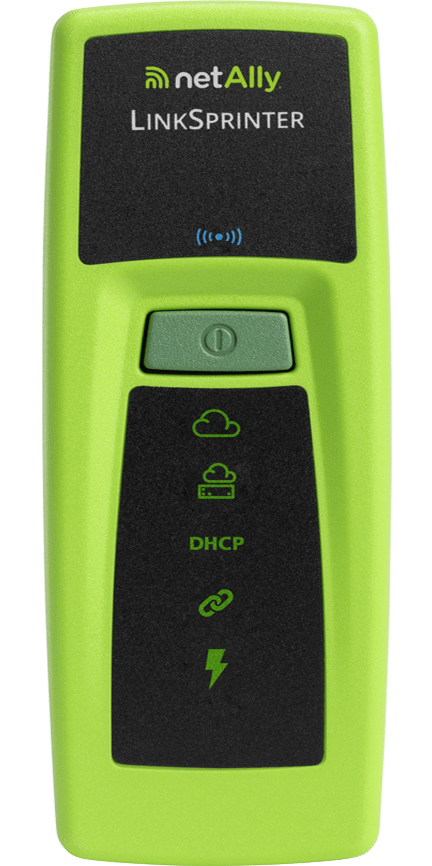
NetAlly LinkSprinter 300 Pocket Network Tester
A pocket network tester can help when Windows commands suggest the problem is beyond the local DNS cache. This type of tool is most useful for checking the wired link, DHCP, gateway, and DNS server details at the network jack or router connection.
As an Amazon Associate I earn from qualifying purchases.
nslookup Asks a DNS Server Directly
The DNS cache tells you what your PC already has stored. nslookup lets you query DNS more directly, which makes it useful when you want to compare a fresh lookup against what Windows has cached.
The basic command is simple:
nslookup example.comReplace example.com with the domain that is failing. If the lookup returns address information, the DNS server was able to provide an answer for that name. If it times out, reports that the domain does not exist, or cannot reach the configured DNS server, you have a clearer reason to focus on DNS rather than the browser.
The output also shows which DNS server answered the query. That matters when you are comparing your router’s resolver, your ISP’s resolver, or a public DNS service. If the result changes when you query a different DNS server, the issue may be tied to the resolver you are using.
For example, you can query a specific DNS server like this:
nslookup example.com 8.8.8.8You can also ask for specific record types when the problem is not just a website failing to load:
nslookup -type=mx example.comchecks mail exchange records.nslookup -type=ns example.comchecks name server records.nslookup -type=txt example.comcan help when verifying text records used by services.
For normal browsing problems, a plain lookup is usually the right starting point. If the hostname resolves through one DNS server but not another, you have a useful comparison. If it does not resolve anywhere, the problem may be with the domain’s records or the name you entered rather than your PC.
tracert Separates DNS Problems From Routing Problems
Once a hostname resolves to an IP address, the next question is whether your traffic can actually reach it. That is where tracert helps.
Run:
tracert example.comIf Windows immediately says it cannot resolve the target system name, the trace did not even get far enough to test the route. That points back toward DNS resolution, the hosts file, or the name itself.
If the trace starts and shows hops beyond your local network, DNS has already done at least enough to turn the hostname into an address. At that point, slow responses, timeouts, or failures further along the path are routing or connectivity clues rather than simple DNS-cache clues.
A useful comparison is to run nslookup first, copy the IP address it returns, and then trace both the name and the address:
tracert example.com

tracert 93.184.216.34
If tracing the IP address behaves differently from tracing the hostname, you have narrowed the problem. If the IP route works but the hostname cannot even resolve, DNS deserves the attention. If both fail in similar ways, DNS may not be the main issue.
You can also trace a DNS server itself, such as your router, ISP DNS server, or a public resolver. That will not test DNS records, but it can show whether reaching the resolver is slow or unreliable. If your DNS server is hard to reach, browsing can feel broken even when the rest of your connection is technically online.

TP-Link Deco XE75 AXE5400 Mesh Wi-Fi 6E System
If DNS lookups work but routes to your router or resolver are unreliable, the problem may be your home network hardware or coverage. A mesh system is worth considering only after testing shows the issue is not just a stale Windows cache or a single bad DNS setting.
As an Amazon Associate I earn from qualifying purchases.
ipconfig /flushdns Clears Stale Local DNS Entries
After you have a reason to suspect the local cache, ipconfig /flushdns is the cleanest fix to try.
Run:
ipconfig /flushdnsThis clears the local DNS resolver cache and forces Windows to fetch fresh answers when domains are requested again. It is especially useful after a website changes servers, you change DNS providers, or a single PC keeps visiting an old address while other devices load the site normally.
Flushing DNS does not change your DNS server settings, reset your router, or erase your network configuration. It only clears cached DNS resolver entries on the Windows machine. That makes it a low-risk fix when the evidence points to stale local records.
There are two details worth knowing before you treat the result as absolute:
- Entries tied to the local hosts file are not solved by flushing the DNS cache.
- Background apps can create new DNS lookups immediately after the flush, so the cache may not stay empty for long.
So if you run ipconfig /displaydns right after flushing and still see entries, that does not automatically mean the flush failed. The better test is whether the broken site now resolves and loads correctly.
If flushing fixes the issue, the local cache was probably involved. If it does not, you have still ruled out one common cause and can move on with better information.
netsh winsock reset Is a Later-Stage Fix
If the cache is clean, lookups work, routes look reasonable, and Windows networking still behaves strangely, the issue may be deeper than DNS. That is when netsh winsock reset becomes relevant.
Winsock is part of the Windows networking system that applications use to communicate over the network. Its catalog can be affected by malware, broken network software, VPN clients, security tools, or old entries left behind after removing networking components. When that layer is misconfigured, symptoms can look confusing: browsers fail, DNS appears inconsistent, or apps report limited connectivity even when the connection seems otherwise normal.
Run this from an elevated Command Prompt or Windows Terminal session:
netsh winsock resetThen restart Windows. The reboot matters because the reset is not fully applied until networking components reload.
Before resetting Winsock, it is sensible to save a snapshot of the current catalog:
netsh winsock show catalog > winsock-before.txtMost home users will never need that file, but it gives you a record of what was present before the reset. That can be useful if support staff, IT, or a VPN vendor needs to know what changed.
There is a related command for TCP/IP settings:
netsh int ip resetThat is also a later-stage repair, not a first move. Use these resets after simpler DNS checks fail or when you have a strong reason to suspect Windows networking components are damaged.
A Practical Order for Troubleshooting DNS on Windows
The commands work best when used in a sensible order. You want to observe first, compare second, and fix third.
- Run
nslookupfor the failing domain to see whether a DNS server returns an answer. - Run
ipconfig /displaydnsto check whether Windows has a cached entry for that same name. - Use
tracertagainst the hostname and, if useful, the raw IP address returned bynslookup. - If the cache looks suspicious, run
ipconfig /flushdnsand test the site again. - If DNS and routing checks look normal but Windows networking still fails, consider
netsh winsock resetfollowed by a reboot.
This order keeps you from turning every failed page load into a full network reset. It also helps you explain the problem more clearly if you need help later. Instead of saying the internet is broken, you can say whether DNS resolution fails, the cache appears stale, the route times out, or Windows networking still misbehaves after a clean lookup.
Verdict: These Commands Are Worth Learning Before You Change Settings
For Windows users who regularly troubleshoot their own connection, these commands are more useful than randomly switching DNS providers or rebooting hardware. They give you a way to separate a local cache problem from a resolver problem, and a DNS problem from a broader routing issue.
They are not magic fixes, and they will not solve outages caused by a website, ISP, or router failure. Their value is that they reduce guesswork. Once you know whether Windows is holding a stale record, a DNS server is failing to answer, or traffic cannot reach the destination after resolution succeeds, the next step becomes much easier to choose.
That is the real buyer-aware takeaway if you are considering a new router, paid DNS service, VPN, or support call: test first. If the built-in Windows tools show the issue is local cache behavior, no new hardware is needed. If the resolver is unreliable, changing DNS providers may make sense. If routes fail beyond your network, the problem may not be something your PC can fix at all.