


Connecting a 3D printer to a smart home sounds like the sort of thing that could become a novelty after the first week. With a Bambu Lab printer and Home Assistant, though, the idea is more practical than it first appears. The useful part is not that your printer becomes another gadget on a dashboard. It is that print status, camera access, filament data, and alerts can sit alongside the rest of your home automation setup.
That matters most if your printer lives away from your desk: in a workshop, garage, utility room, spare bedroom, enclosure, or office corner. Long prints already require occasional checks. Home Assistant can make those checks easier and can help you react when a print starts, finishes, pauses, or fails.
There are limits. This is not a replacement for Bambu Studio, Bambu Handy, or the printer’s own controls. It is also not an official Home Assistant integration. The setup currently depends on the third-party ha-bambulab integration, and some control features can be affected by firmware, LAN mode, cloud connectivity, and Bambu Lab’s authorization changes. In other words, it is worth doing for monitoring and automations, but buyers should treat direct printer control as a bonus rather than the main reason to try it.
Which Bambu Lab printers does this make sense for?
The Home Assistant angle is most useful if you already own, or are considering, a network-connected Bambu Lab printer and want better visibility across your smart home. The value is less about raw print quality and more about where the printer fits into your routine.
A compact printer such as the Bambu Lab A1 mini can benefit from status alerts and dashboard visibility, especially if it is used as a first printer or a small multi-color setup with AMS Lite. Bambu lists the A1 mini with a 180 x 180 x 180 mm build volume and a maximum toolhead speed of 500 mm/s, so it is clearly aimed at smaller projects rather than large-format printing.
The Bambu Lab P2S sits in a different buyer category. Its listed 256 x 256 x 256 mm build volume and enclosed CoreXY design make it a better fit for people who expect larger prints, enclosed printing, or a more workshop-like setup. The source article framed it as a practical candidate for smart home monitoring, and that makes sense: the farther a printer gets from your desk, the more useful remote visibility becomes.
The AMS 2 Pro is also relevant here. A multi-material system adds more things you may want to monitor, such as loaded material slots, humidity-related information, and dry-cycle status where supported. That does not mean every buyer needs one, but it does make the Home Assistant dashboard more useful if you already run multi-color or multi-material jobs.
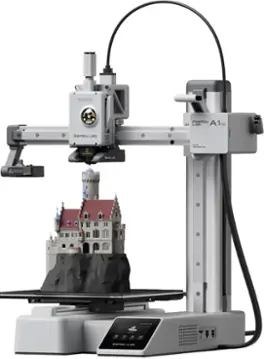
Bambu Lab A1 mini
The A1 mini makes the most sense when the printer lives near a desk or in a small workspace but you still want progress, pause, and completion alerts in Home Assistant.
As an Amazon Associate I earn from qualifying purchases.
| Product type | Why it matters for Home Assistant | Buyer fit |
|---|---|---|
| Bambu Lab A1 mini | Small printer status, camera monitoring, print progress, and alerts can be surfaced in one dashboard. | Best for smaller prints, beginners, desks, and compact multi-color setups. |
| Bambu Lab P2S | An enclosed, higher-capacity printer is more likely to run longer jobs away from your main workspace. | Best for users who want more build volume and a more dedicated printing station. |
| AMS or AMS 2 Pro | Filament and material data can make the dashboard more informative, depending on the integration and printer setup. | Best for multi-color, multi-material, or filament-management-heavy workflows. |
How the Home Assistant integration works
The setup depends on ha-bambulab, an open-source third-party integration for Home Assistant. Many users install it through the Home Assistant Community Store, usually called HACS. Once installed, the integration can expose printer information inside Home Assistant in the same general place you would manage other smart home devices.
Setup can vary by model, firmware, and how you connect the printer. In broad terms, you may be able to connect through your Bambu Lab account or configure the printer with local details such as its serial number, IP address, and access code. Because this is a third-party integration, it is worth reading the current setup notes before assuming every feature will work the same way on every printer.
The safest expectation is this: Home Assistant is very useful for reading printer state and building automations around that information. Direct control is more complicated. Recent Bambu Lab firmware and authorization changes can limit write actions when a printer remains connected to Bambu Cloud. In some cases, retaining write actions may require LAN Mode and Developer LAN Mode, which can change what Bambu Cloud features remain available.
That is an important buyer detail. If you mainly want to see progress, get alerts, and view status from a dashboard, the tradeoff is usually mild. If you expect Home Assistant to become your full printer control panel, you should be more cautious.
What you can monitor from one dashboard
The practical appeal is simple: Home Assistant can turn printer monitoring into something you see alongside the rest of your home. Instead of opening a slicer, a printer app, and a separate smart home app, you can build a dedicated 3D printer dashboard with only the information you care about.
That might include print state, progress, chamber or nozzle-related readings where supported, camera access, the most recent print thumbnail, Wi-Fi signal, maintenance-related values, or AMS information. Not every printer and firmware combination exposes the same set of entities, so the right approach is to build the dashboard around what your setup actually reports.
For many people, the best dashboard is not the one with every sensor visible. It is the one with a few high-signal items:
- Current print status
- Print progress
- Estimated remaining time, if available
- Camera view
- Failure or pause status
- AMS slot and material information, if applicable
- Chamber light or camera toggles where supported
This is especially useful if you have a wall-mounted tablet, a workshop display, or a Home Assistant dashboard that you already check throughout the day. It can also help if more than one person in the home needs to know whether the printer is currently busy.
The automation ideas that are actually useful
The strongest reason to connect a Bambu Lab printer to Home Assistant is automation. A printer can become a trigger for the room around it.
For example, a print-start event can turn on a ventilation fan, switch on a task light, or activate a smart plug connected to a small status sign. A print-finished event can turn off that fan after a delay, send a message to your phone, or play a short notification on a speaker. A print-failed or print-paused event can send a higher-priority alert so you check the camera before a failed job wastes more filament.
The source article described triggers such as print started, print error, enclosure door opened, nozzle temperature changes, print progress changes, and similar printer events. Availability can vary, so treat those as examples of the kind of data the integration may expose rather than a guaranteed checklist for every printer.
A sensible automation set might look like this:
- Start ventilation when a print begins, then stop it after the printer has cooled or after a short delay.
- Send a normal phone notification when a print completes.
- Send a critical alert when the printer reports a failure or pause.
- Turn on the chamber light only while checking the camera.
- Send progress notifications at specific milestones if your setup exposes progress changes cleanly.
These are not flashy automations, but they solve real problems. They reduce the number of times you open a printer app just to see whether a job is still running. They also make it easier to respond quickly when something needs attention.

Bambu Lab P2S
The P2S is the better fit when the printer sits in a workshop, spare room, or dedicated print area where Home Assistant monitoring can reduce manual check-ins.
As an Amazon Associate I earn from qualifying purchases.
Where it falls short
The main limitation is control. Depending on your firmware and connection mode, Home Assistant may be much better at observing the printer than commanding it. Simple toggles such as a chamber light or camera control may be available, but deeper actions can be limited or require a setup that changes your relationship with Bambu Cloud.
That means you should still expect to use Bambu Studio for slicing and print preparation. You may also still prefer Bambu Handy for normal remote printer management, especially if your workflow already depends on Bambu’s cloud features. Home Assistant is best viewed as a monitoring and automation layer, not the only interface you will use.
There is also some maintenance overhead. Third-party integrations can change. Firmware can change. Home Assistant itself can change. If your printer is a work tool rather than a hobby machine, it is worth keeping the automation side conservative so a dashboard issue does not interfere with printing.
Buying advice: who should care about this?
This feature should not be the only reason to buy a Bambu Lab printer. Print quality, reliability, material support, build volume, enclosure needs, noise, ecosystem preference, and price matter more. But Home Assistant compatibility can be a meaningful tie-breaker if you already run a smart home server and want your printer to behave more like part of the room.
It is most compelling for buyers who run longer prints, keep the printer outside their main workspace, use AMS hardware, or already have useful smart home devices nearby. A fan, light, smart speaker, wall tablet, or notification system makes the integration feel less like a dashboard experiment and more like a practical extension of the printer.
It is less compelling if your printer sits next to your monitor, you rarely run long jobs, or you do not already use Home Assistant. In that case, the official Bambu apps may cover most of what you need with less setup work.
Verdict: useful, with realistic expectations
A Bambu Lab printer in Home Assistant is not magic, and it is not a full replacement for Bambu’s own software. It is, however, genuinely useful when treated as a monitoring and automation layer.
The best reason to set it up is simple: you get printer status, alerts, and room-level automations in the same place as the rest of your smart home. For buyers choosing between printers, that is a secondary feature, not the headline spec. For people who already own a compatible Bambu Lab machine and run Home Assistant, it is one of those integrations that can quietly earn its place after the novelty wears off.

Kasa Smart Wi-Fi Plug Slim with Energy Monitoring
A Home Assistant-compatible smart plug can help automate a printer-area fan, light, or status indicator based on print start and finish events.
As an Amazon Associate I earn from qualifying purchases.